
- What is the Early Learning Gateway?
- How to Access the Early Learning Gateway Service Portal
- Welcome to the Early Learning Gateway Service Portal
- View and Manage Your Waitlist
- View and Edit Your Service Information
- Manage Staff
- ECE Substitute
- Your Profile
- Annual Agreements / OGP Annual Applications
- Monthly Submissions
- How to Change Your Password
- Resources
- Contact Us
- Forgot Your Password
- How to Sign Out of the Early Learning Gateway?
Please note: The visuals in this guide display the Early Learning Gateway when accessing it on a computer. The appearance of the screen may vary when accessed on a mobile device, or tablet.
What is the Early Learning Gateway?
The Early Learning Gateway is an online platform to improve access to early learning and child care in Newfoundland and Labrador.
The Early Learning Gateway parent portal provides parents/guardians seeking child care the ability to:
- search for regulated child care services, and
- add their child(ren) to waitlists
The Early Learning Gateway service portal provides regulated child care services the ability to:
- view and manage the list of parents who added child(ren) to their waitlist in the Early Learning Gateway, and
- create and manage Early Learning Gateway accounts for admin staff
- view the list of ECEs who are registered as an ECE substitute in the Early Learning Gateway
New features will be added in the near future to further support access to high-quality, affordable, and inclusive early learning and child care in the province.
How to Access the Early Learning Gateway Service Portal
Initial Login
Child Care Licensees or Family Child Care Providers:
Please check your email for a message titled ‘Early Learning Gateway Service Portal Account’ from the Department of Education. Follow the instructions below to create an account. If you did not receive an email, please send a request to elgateway@gov.nl.ca, including your name and the name of your child care service.
Administrators:
Please contact the child care licensee at your child care service to request an account.
Once you receive an email from the child care licensee, follow the steps below to create an account.
How to Redeem your Code
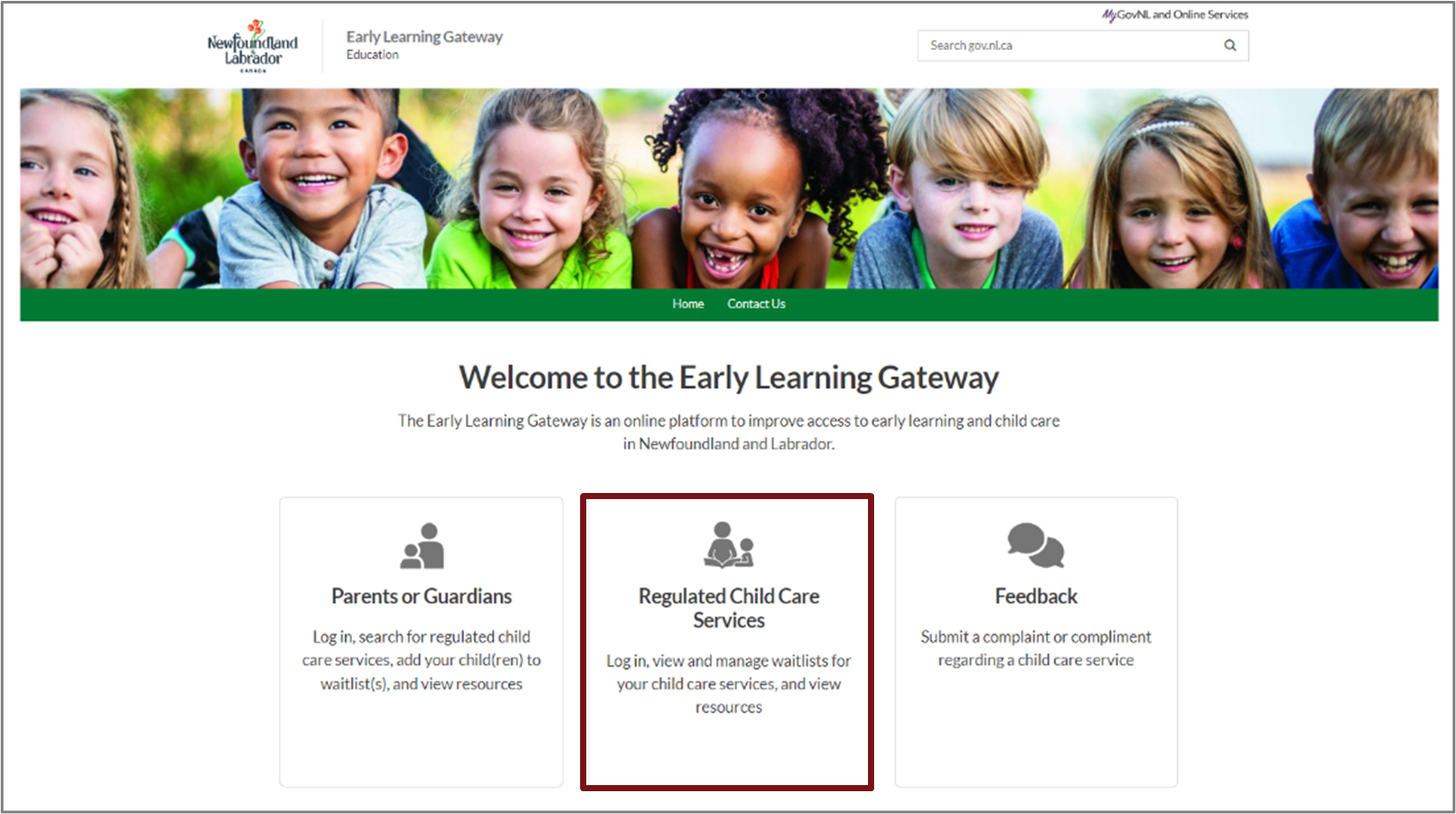
To access the Early Learning Gateway service portal, visit the Early Learning Gateway and click Regulated Child Care Services.
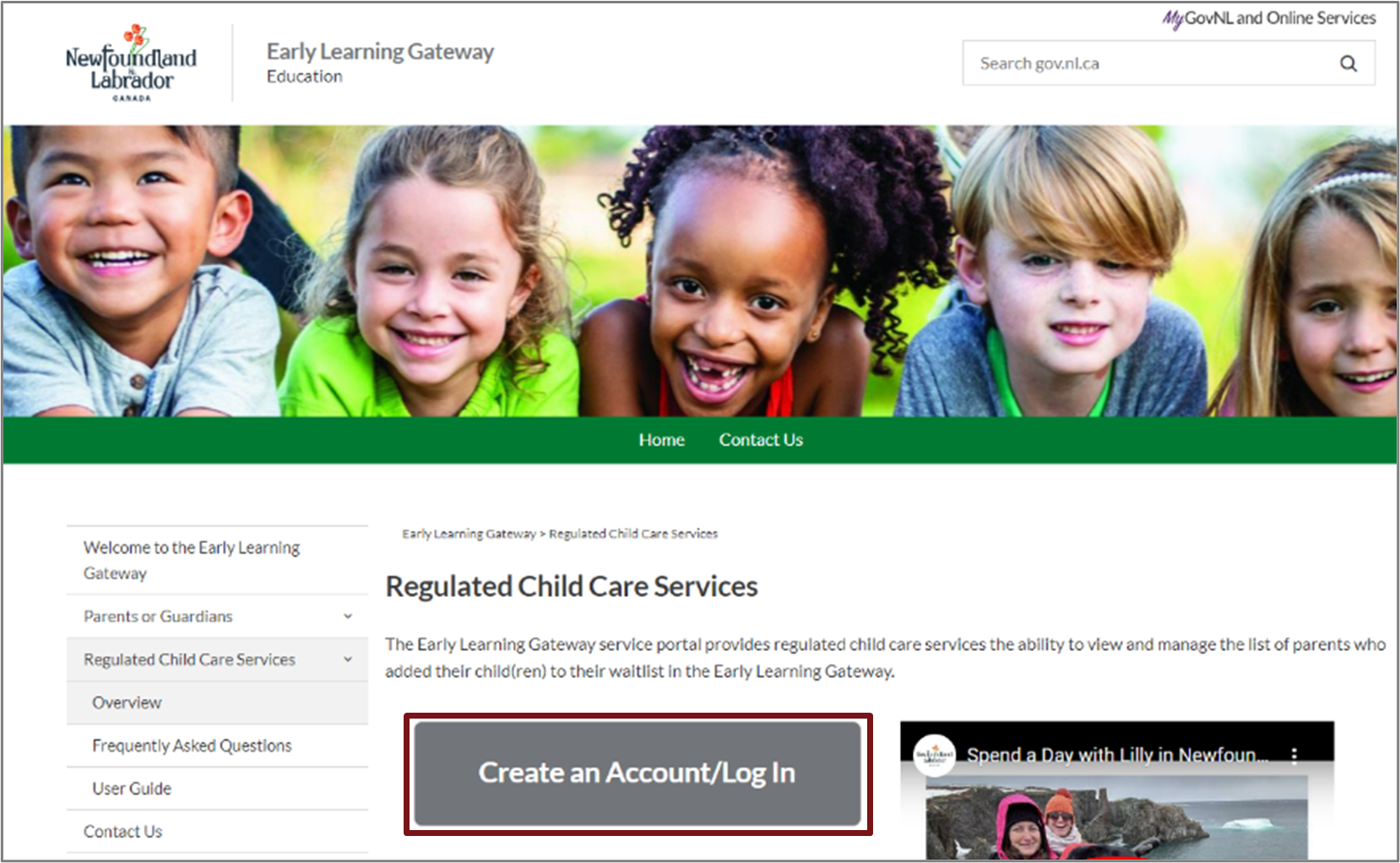
Then, select Create an Account/Log In.
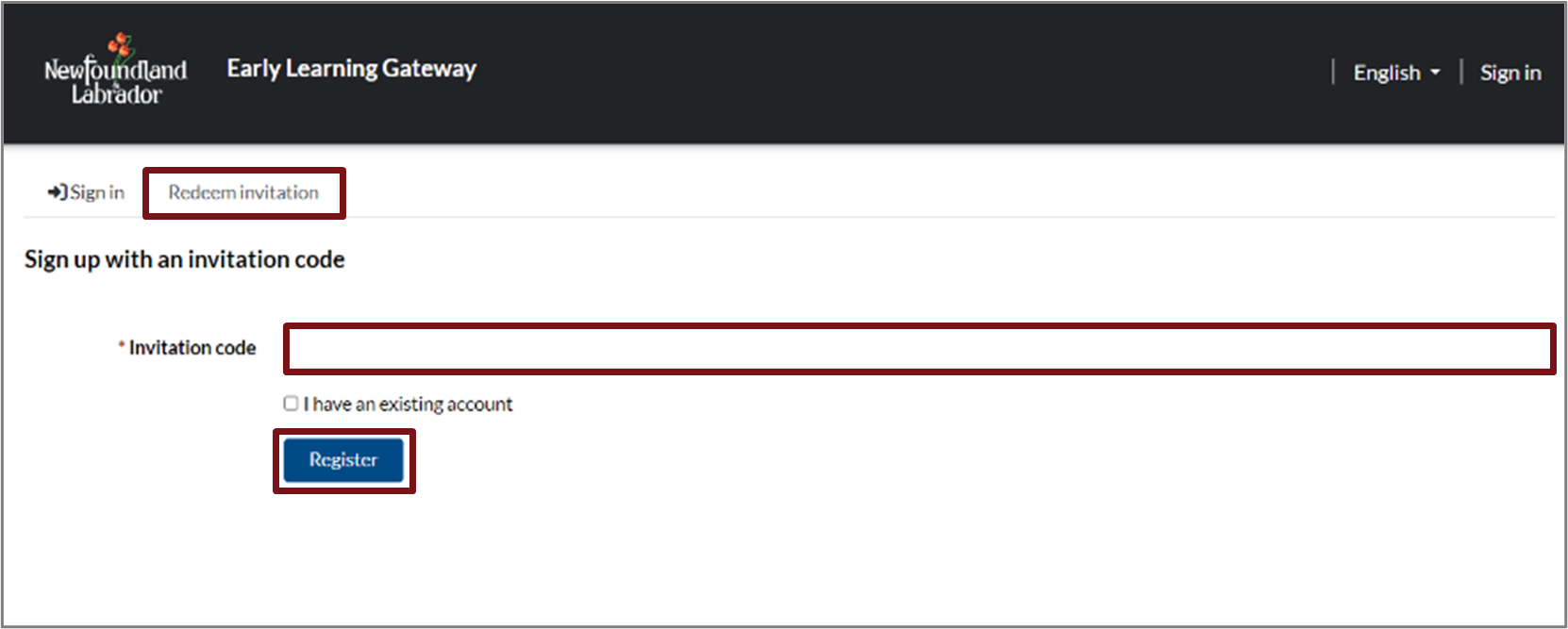
On the login screen, click the Redeem invitation tab. Enter the Invitation code that you received via email, then click Register.
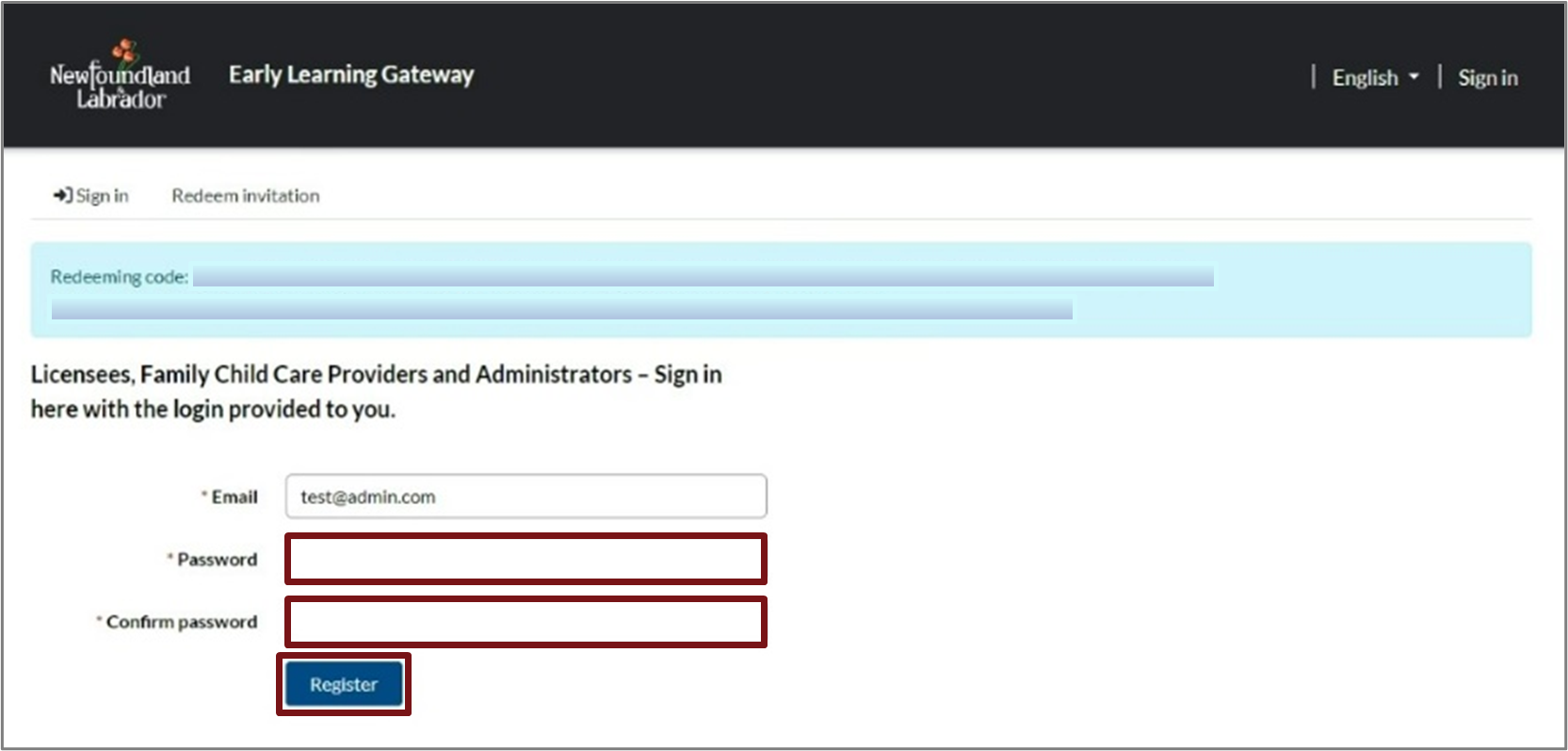
You will need to create a password. Then, click Register.
Updating Your Profile
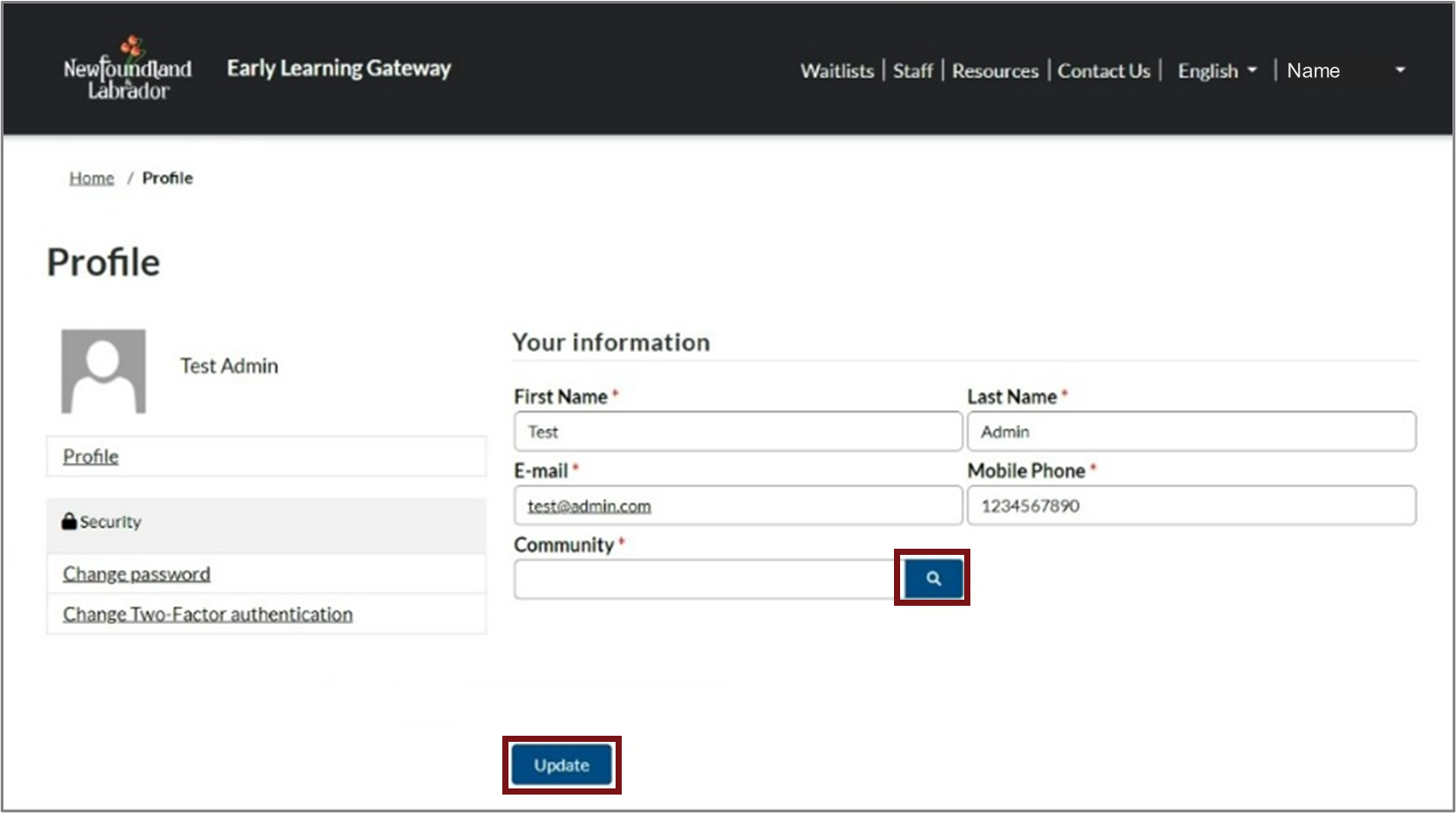
After redeeming your code, you will be directed to update your profile. Complete the applicable fields then click update.
Please note: To add your community you will have to click the magnifying glass and select your community.
Updating Your Services
Upon initial login, you will be required to update the details of your service. Please see View and Edit Your Service Information.
Please note: This step must be completed for the service to become visible to parents, allowing them to add their child to your waitlist.
Subsequent Logins
After your account creation and initial login has been completed, you can sign into the Early Learning Gateway service portal by visiting the Early Learning Gateway. Click Regulated Child Care Services.
Then, select Create an Account/Log In.
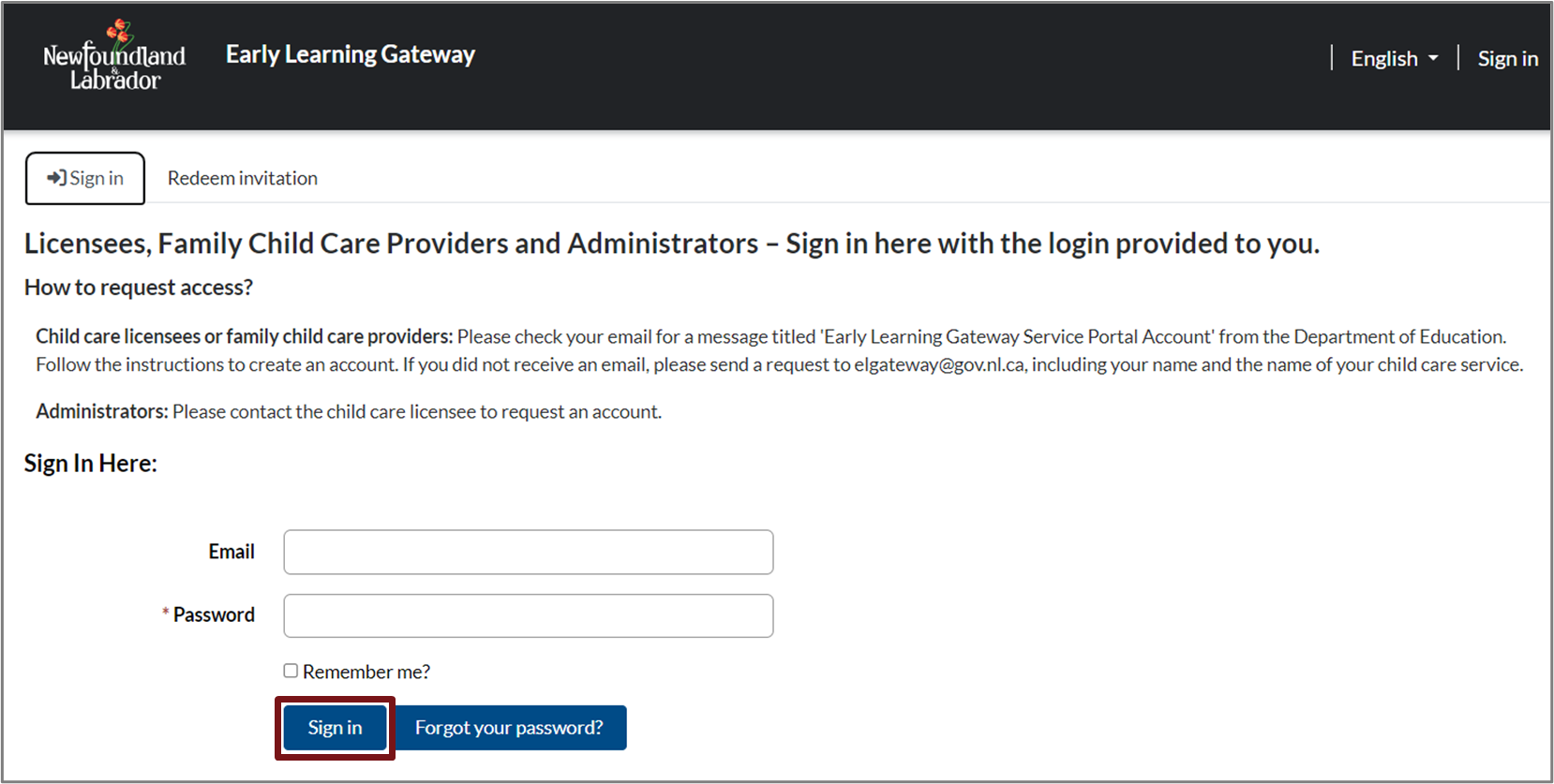
Next, you will see an Early Learning Gateway Service Portal Sign in screen. Enter your email and password, then click Sign in.
Two Factor Authentication
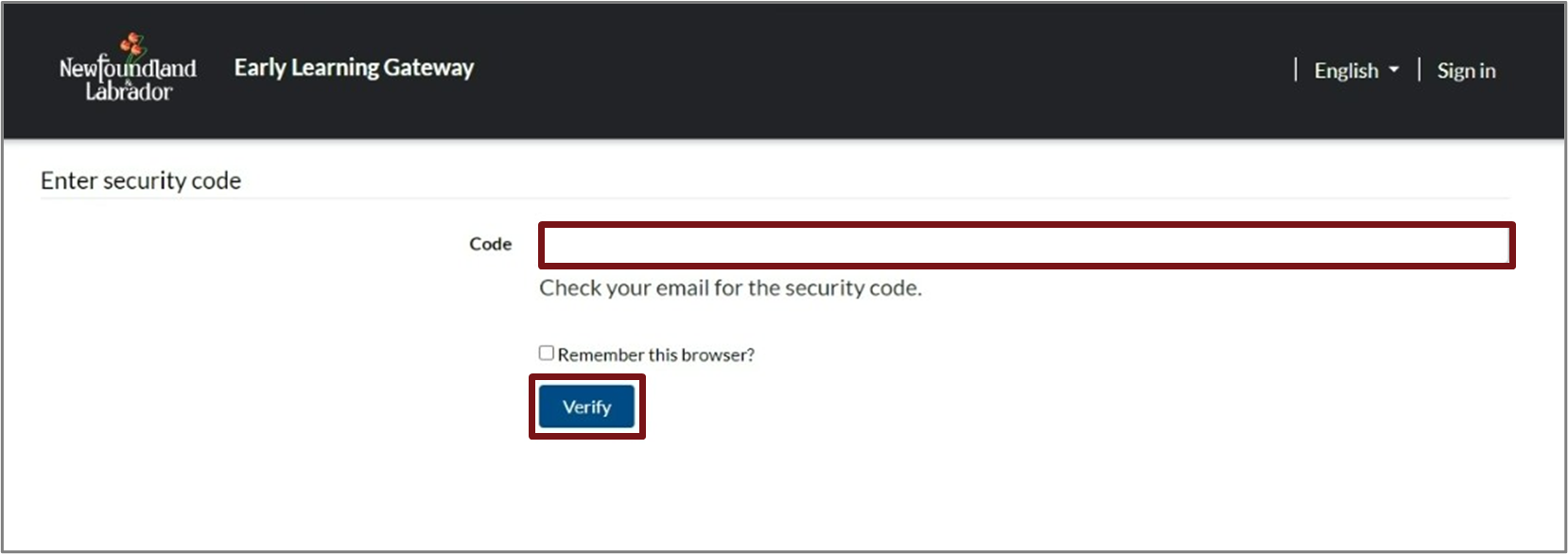
Once you enter your email and password, you will be prompted to enter a security code that will be sent to your email. Check your email, then enter the code. Click Verify.
Welcome to the Early Learning Gateway Service Portal
Once you sign into the Early Learning Gateway Service Portal, you will have ability to:
- view and manage the list of parents/guardians who added their child(ren) your waitlist in Early Learning Gateway
- view parent/guardian contact information to follow up when a space becomes available
- create and manage Early Learning Gateway account access for your admin staff
View and Manage Your Waitlist
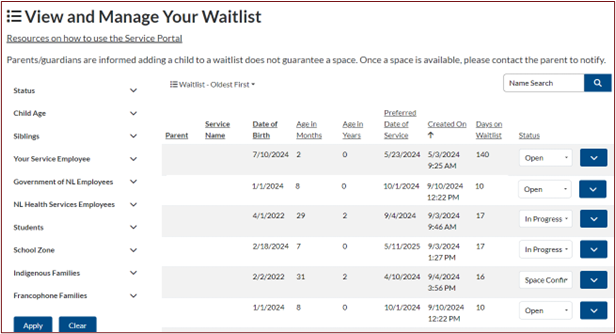
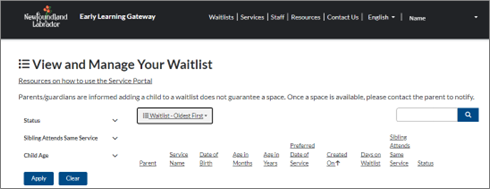
Click Waitlists at the top of the Early Learning Gateway Service Portal. The View and Manage Your Waitlist section will display. The list of parents/guardians who added their child(ren) to your waitlist through the Early Learning Gateway will appear here.
If using a mobile device, click the menu icon  at the top right of the screen, then select Waitlists.
View Waitlist
You can organize the waitlist by selecting options from the drop-down box, Waitlist – Oldest First, or Waitlist – Newest First. Additionally, you can sort it by clicking on any of the waitlist headings.
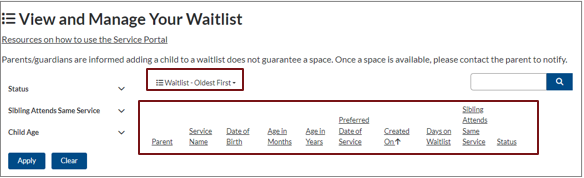
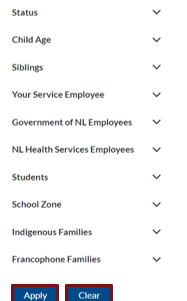
You also have filter options to customize the current view of your waitlist and make it easier to manage. You can filter by Status, whether Sibling attends same service and Child Age. Once you select your preferred filter options, click Apply.
Manage Waitlist
To manage the status of a waitlist entry, you can choose one of the following options:
Option 1 – Update a Single Waitlist Entry Click the down arrow for a waitlist entry and select Manage.
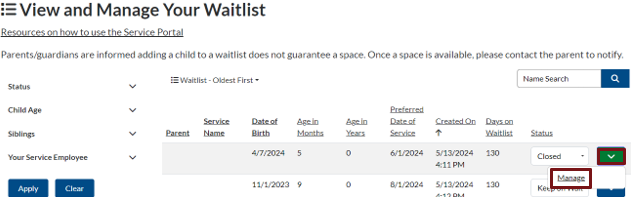
An Edit Waitlist Details window will open.
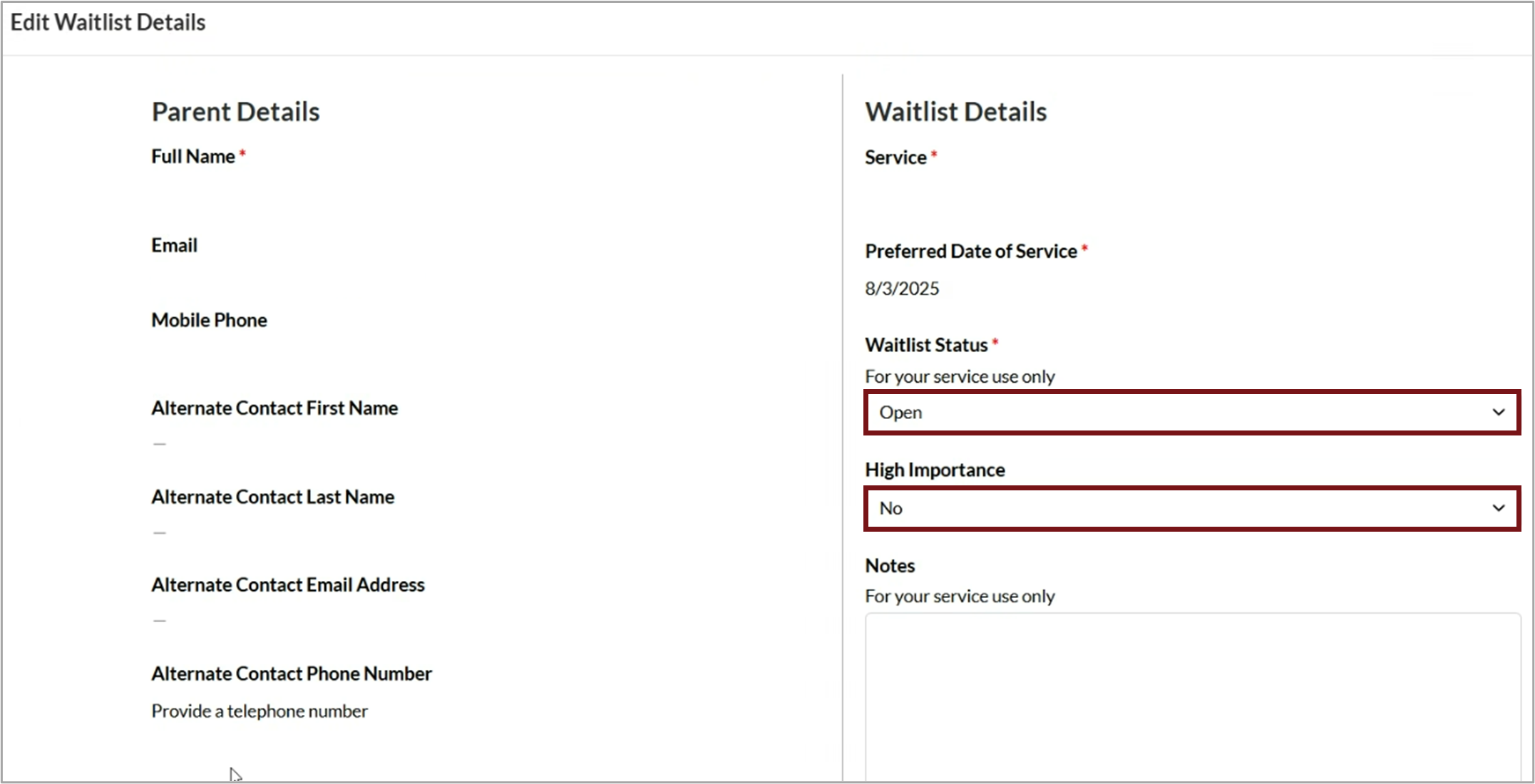
- Update the Waitlist Status by selecting the applicable option from the drop-down menu:
- Open: Newly added waitlists seeking child care
- In Progress: Contacting the parent/guardian when a space is available
- Keep on Waitlist: Parent did not accept child care space and requested to stay on your waitlist
- Space Confirmed: Parent accepted child care space
- Closed Space Not Accepted: Parent did not accept child care space and did not request to stay on your waitlist
- Closed Does Not Meet Priorities: Does not meet the child care service priorities
- Closed No Response: Unable to contact parent
- Select a response from the High Importance drop-down menu. If you choose Yes, you can filter and view the waitlist by High Importance when managing the waitlist.
- View the Parent Details section to find the parent’s contact information. Reach out to them directly by telephone or email to discuss available space at your service.
- Use the Notes section to type any necessary details.
- Click Save and close.
Please note:
- Waitlist status and notes are for your service use only. If you email a parent/guardian, please exclude personal or health information.
- Use the Space Confirmed status after you have contacted the parent, and they have confirmed acceptance of the space.
Option 2 – Update Multiple Waitlist Entries
Under the Status heading, update the Waitlist Status by selecting the applicable option from the drop-down menu for each waitlist entry you wish to update:
-
- Open: Newly added waitlists seeking child care
- In Progress: Contacting the parent/guardian when a space is available
- Keep on Waitlist: Parent did not accept child care space and requested to stay on your waitlist
- Space Confirmed: Parent accepted child care space
- Closed Space Not Accepted: Parent did not accept child care space and did not request to stay on your waitlist
- Closed Does Not Meet Priorities: Does not meet the child care service priorities
- Closed No Response: Unable to contact parent
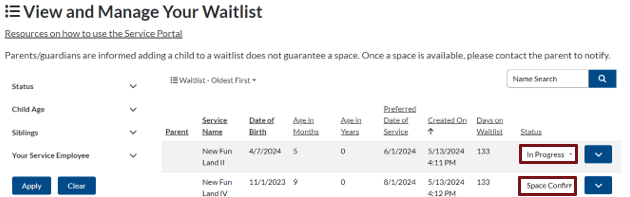
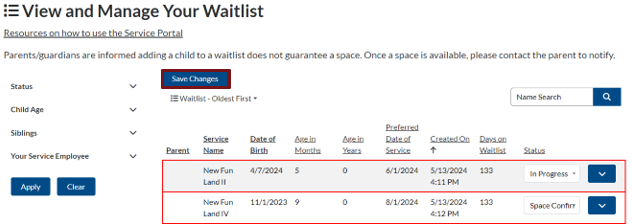
After changing the waitlist status, the entries will display with a red border. Once completed, click Save Changes. Then, your waitlist will appear with the updated status.
View and Edit Your Service Information
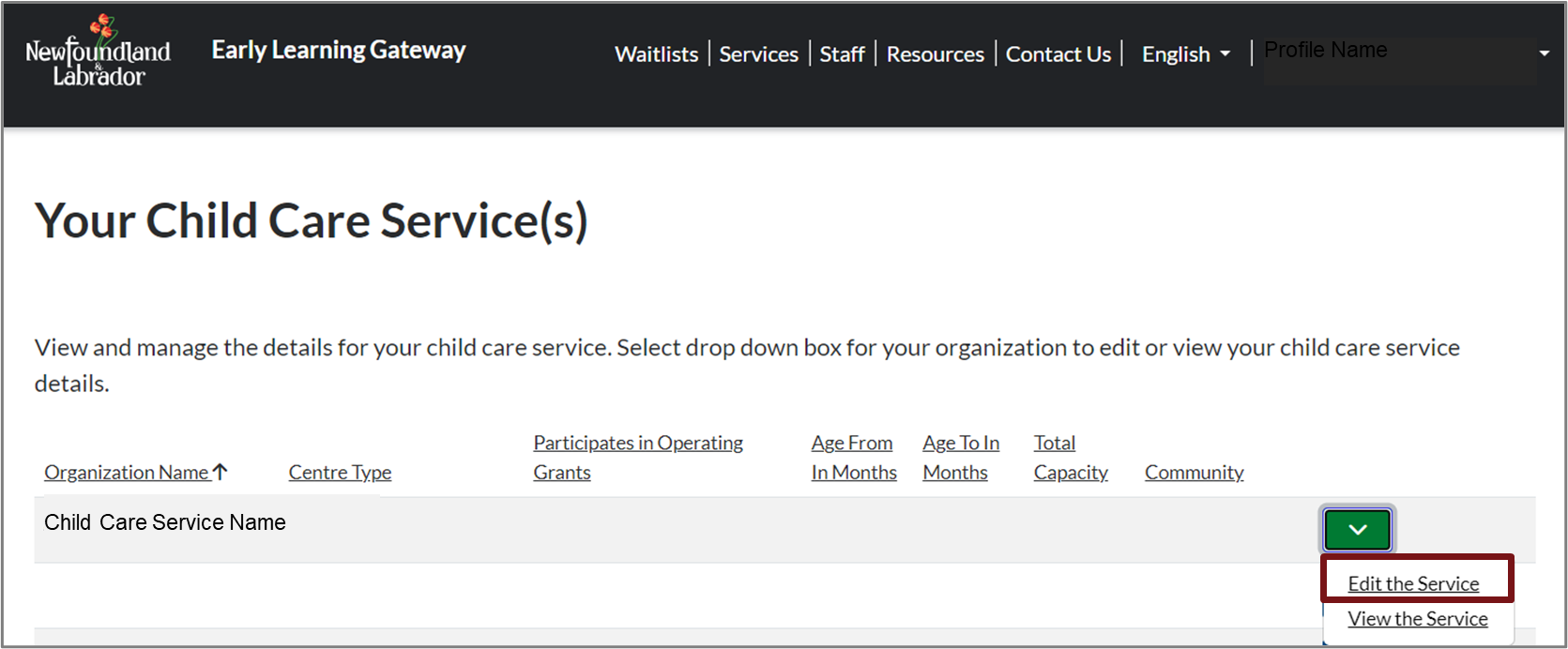
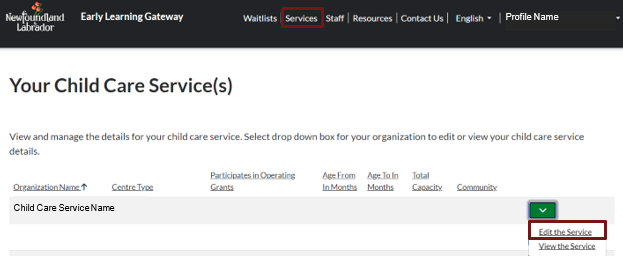
Licensees and administrators can view and manage details for the service by clicking Services at the top of the Service Portal window. You will see any child care services that you manage under the Your Child Care Service(s) section.
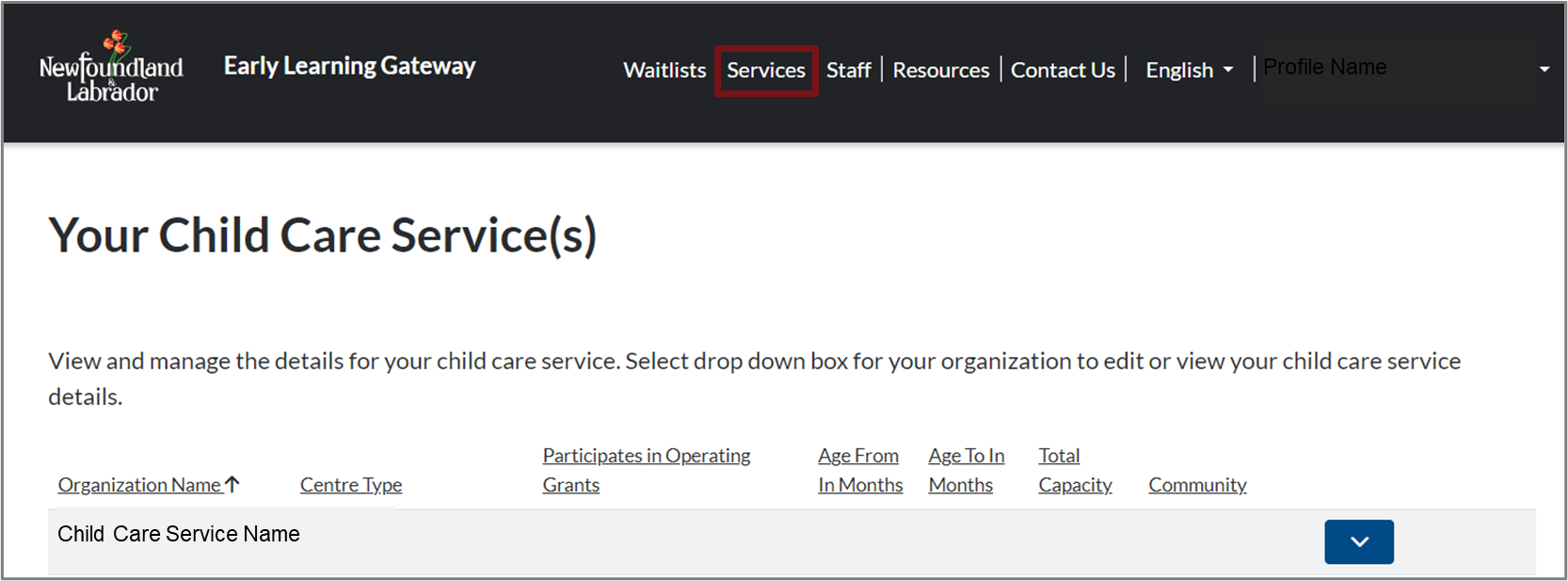
To edit your service details, click the down arrow for the service and select Edit the Service.
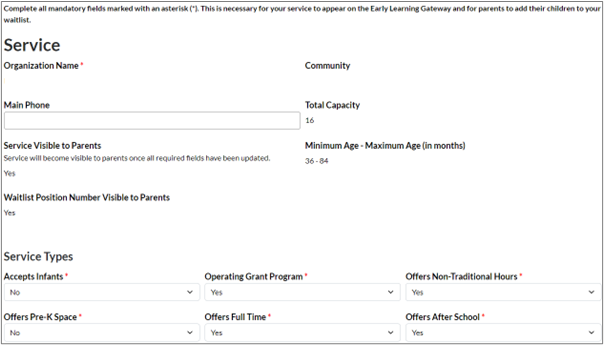
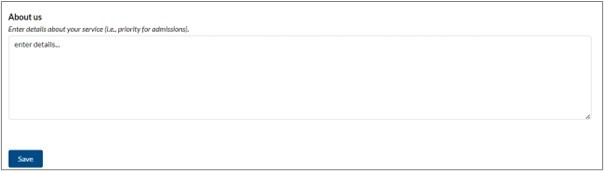
Please update the required sections by choosing from the dropdown menu for each field. Further information, such as waitlist priority or hours of operations for your service, can be added in the About us field.
New services joining the Early Learning Gateway must complete the mandatory questions to become visible to parents, allowing them to add their child to your waitlist. The parent or guardian will then be able to view this information when they search for services through the parent portal.
Once completed, scroll down, and click the Save button.
Please note: Child care services managing their existing waitlist can choose to set the Waitlist Position Visible to Parents field to either Yes or No. If you select Yes, the waitlist position will be visible to parents/guardians in the Early Learning Gateway Parent Portal. For new services joining the Early Learning Gateway, this field cannot be changed and will be set to Yes.
Please note: If you are missing details for your service, you will see the following notification at the top of your screen if you are missing details for your service.

Priority Questions
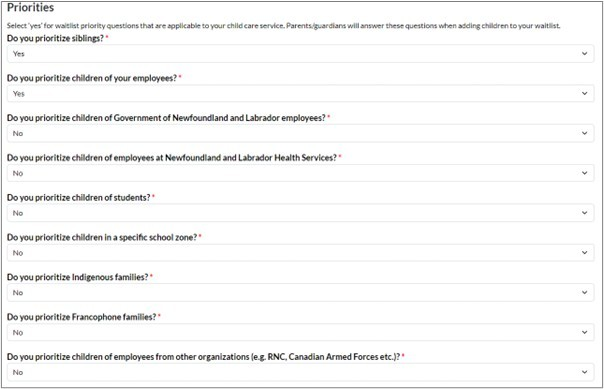
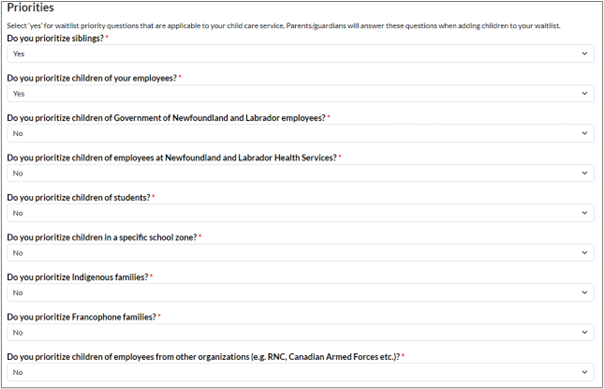
Child care services can choose from a selection of priority questions for parents/guardians to answer when adding their children to the waitlist, if applicable to the service. These questions are optional but can assist in managing the waitlist more effectively.
In the Edit the Service section, navigate to Priorities where you will find a list of questions. For each question, use the drop-down menu to select one of the two available options:
- Select Yes if the question is applicable to your child care service. Parents/guardians will answer these questions when adding children to your waitlist.
- Select No if the question is not applicable to your child care service.
Once completed, scroll down, and click the Save button.
Please note: If you choose to use or update the priority questions for your service, some parents/guardians may have already added their child to your waitlists before you selected Yes to a question. As a result, they will receive a notification in the Early Learning Gateway Parent Portal to answer the questions for your service. While the parent/guardian will appear on your waitlist, they may not show up in your search results when using the filter option until they respond to the questions.
Manage Staff
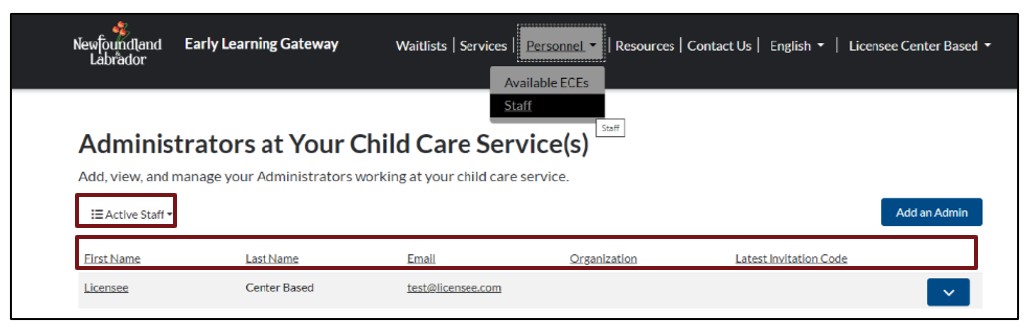
Click the Personnel button at the top of the Early Learning Gateway Service Portal, then select Staff. The Administrators at Your Child Care Service(s) section will display. Child care licensees will be responsible for adding and managing administrator accounts within the Early Learning Gateway Service Portal.
Please note: Family child care providers will not see the staff option within the Early Learning Gateway service portal.
If using a mobile device, click the menu icon at the top right of the screen, select Personnel, then select Staff.
You can organize your staff by selecting from the drop-down box, Active Staff, or Inactive Staff. Additionally, you can sort it by clicking on any of the headings.
Add an Admin Account
If you have an administrator responsible for managing your child care service waitlist, you can add an admin account and send them an invitation to create a username and password for the Early Learning Gateway Service Portal. To add an administrator to your staff, select Add an Admin.
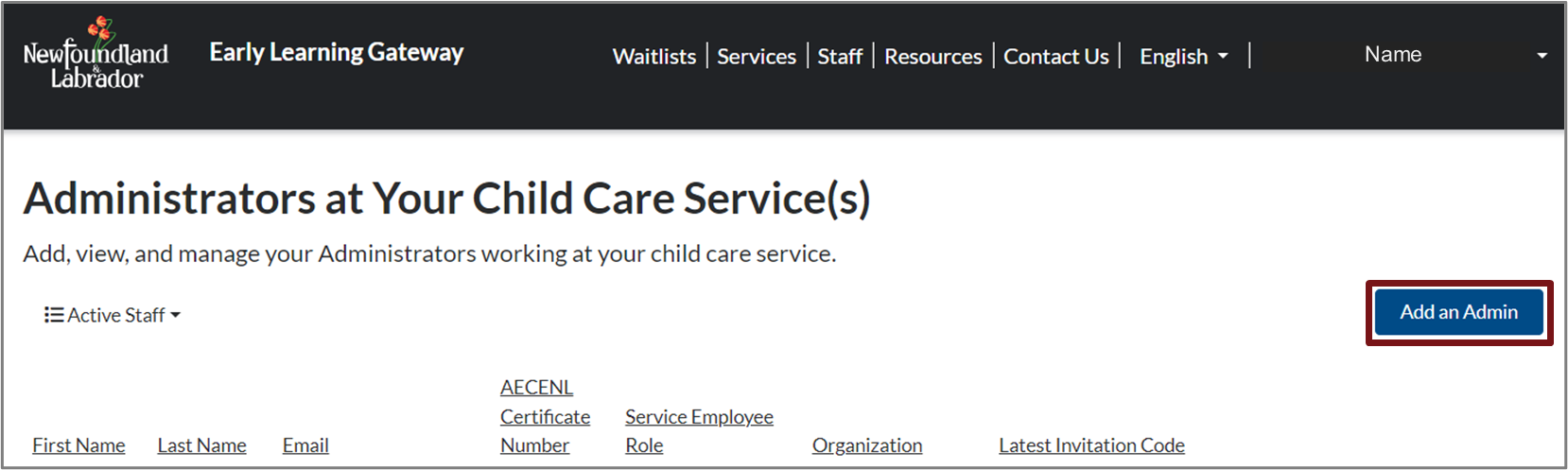
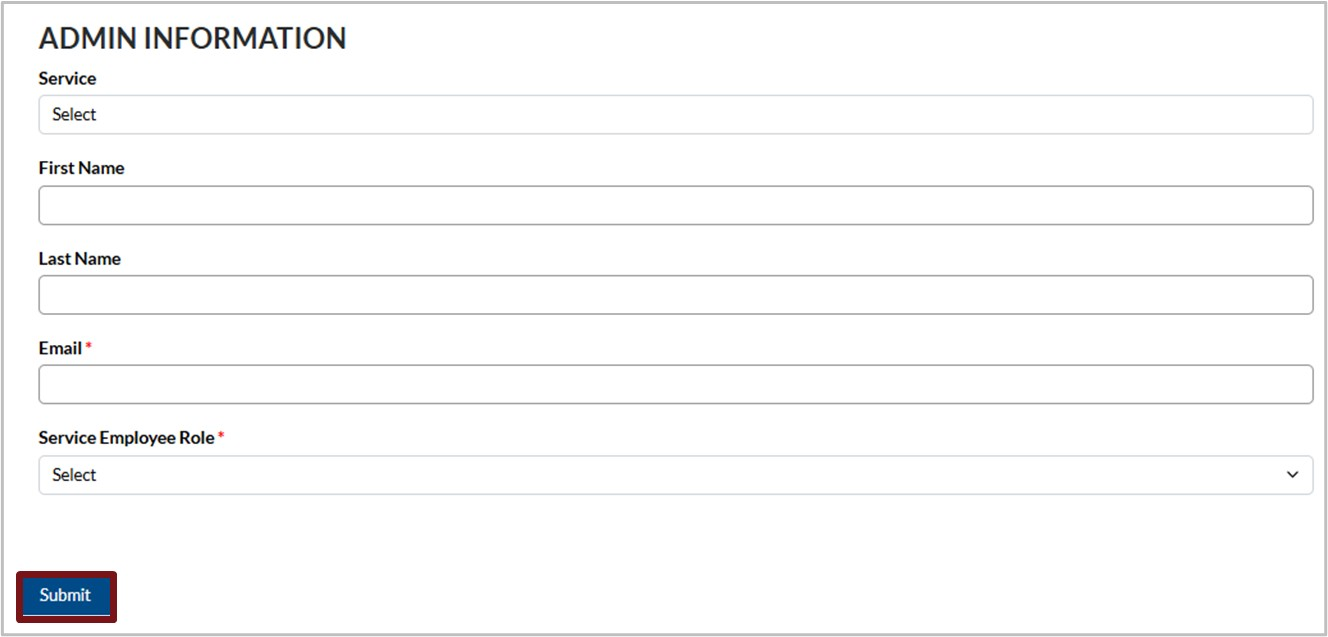
A new Admin Information window will open.
1. Complete the fields on the Admin Information screen and select Submit. Please note: Fields marked with an asterisk (*) are mandatory.
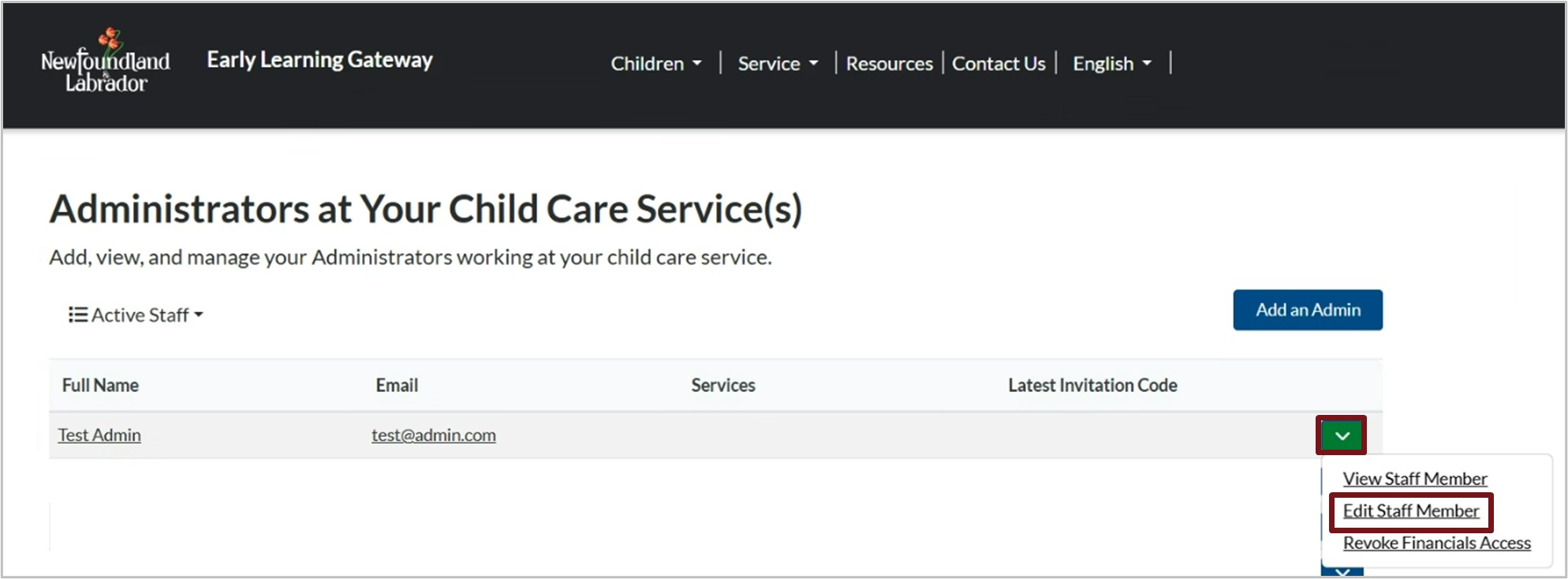
2. The new admin account will display in the list under your Staff. If the admin you have added manages waitlists for multiple services, you can assign them to additional services by clicking the down arrow next to their name and select Edit Staff Member.
3. In the next window under the Related Services section click Add Service.
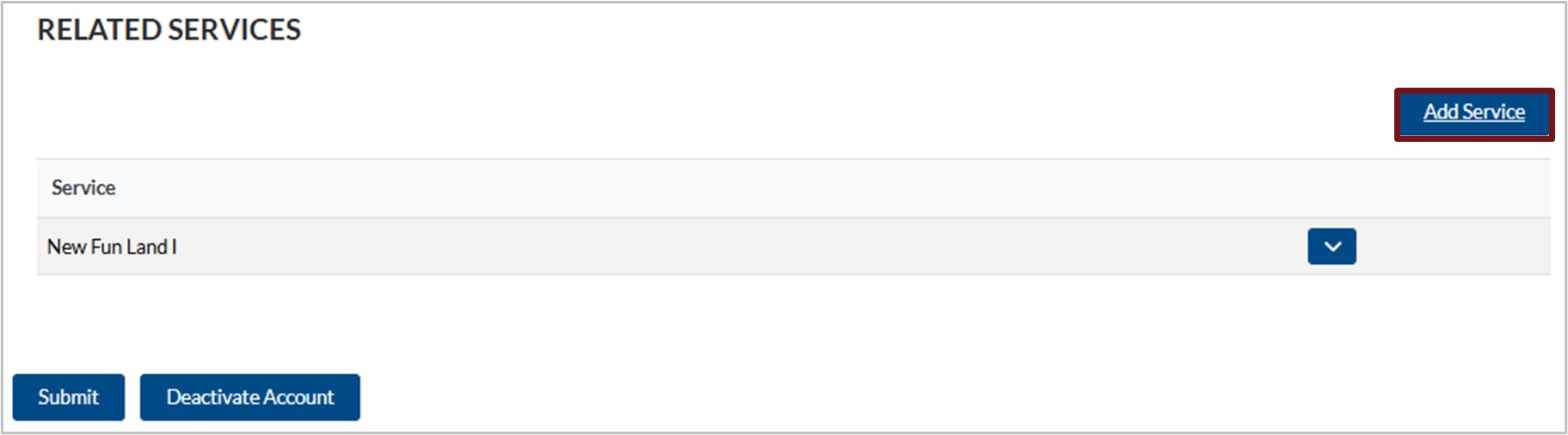
4. Click in the Service field and select the applicable service from the list provided.

5. Continue to click Add Service until all required services have been assigned to the admin.
6. Click Submit and proceed to Generate Invite Code.
Generate Invite Code
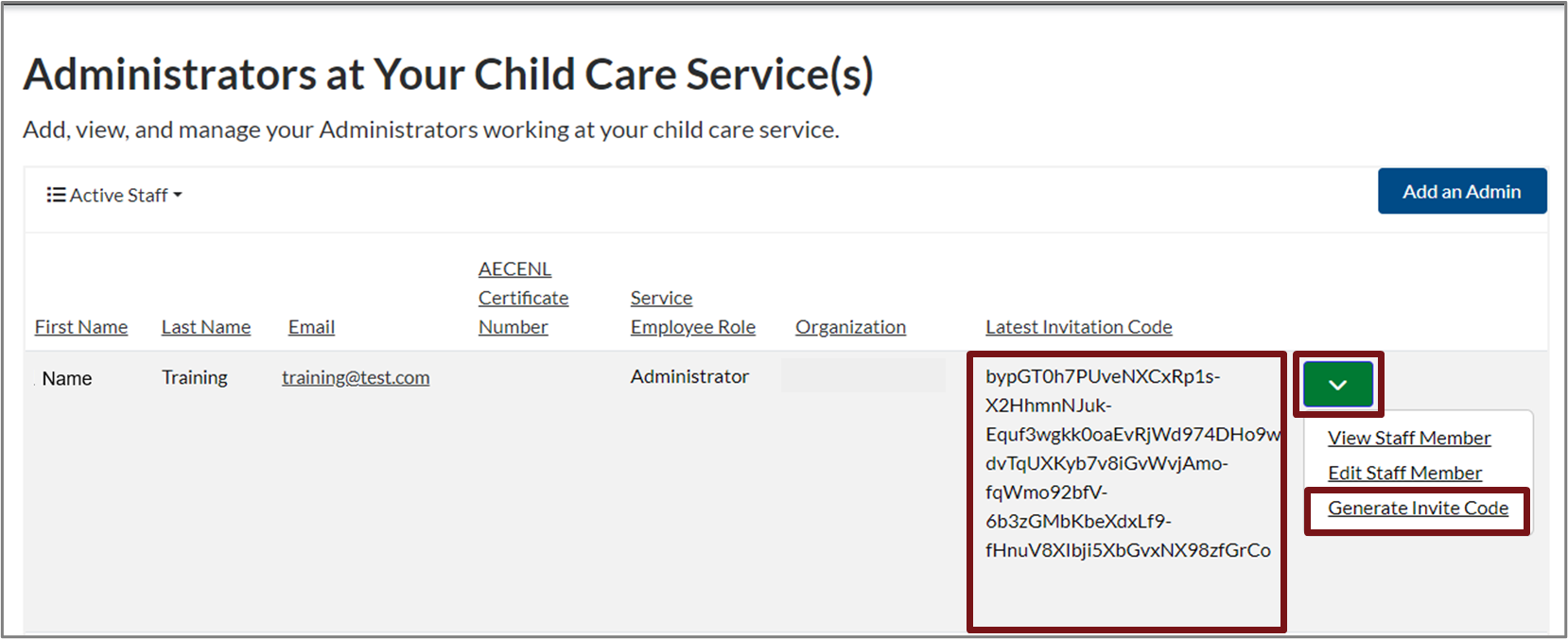
You can generate an invite code for your admin to create a username and password for the Early Learning Gateway Service Portal.
Select the down arrow  next to the admin, then click Generate Code. The Invitation code will appear under the Latest Invitation Code heading. Copy this code and paste it into an email or text to send to your admin. Inform your admin to follow instructions to redeem an invite code to create a username and password.
View an Admin Account
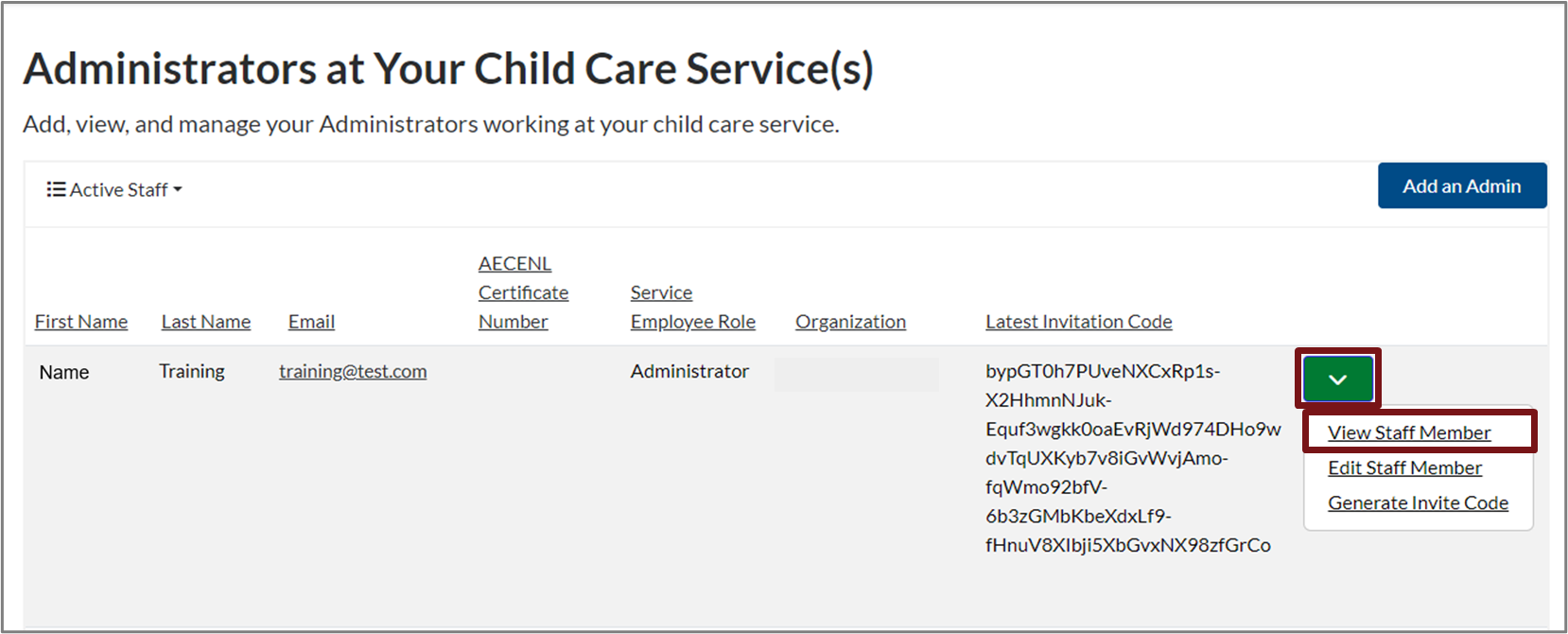
To view an existing admin, select the down arrow next to the admin. Click View Staff Member.
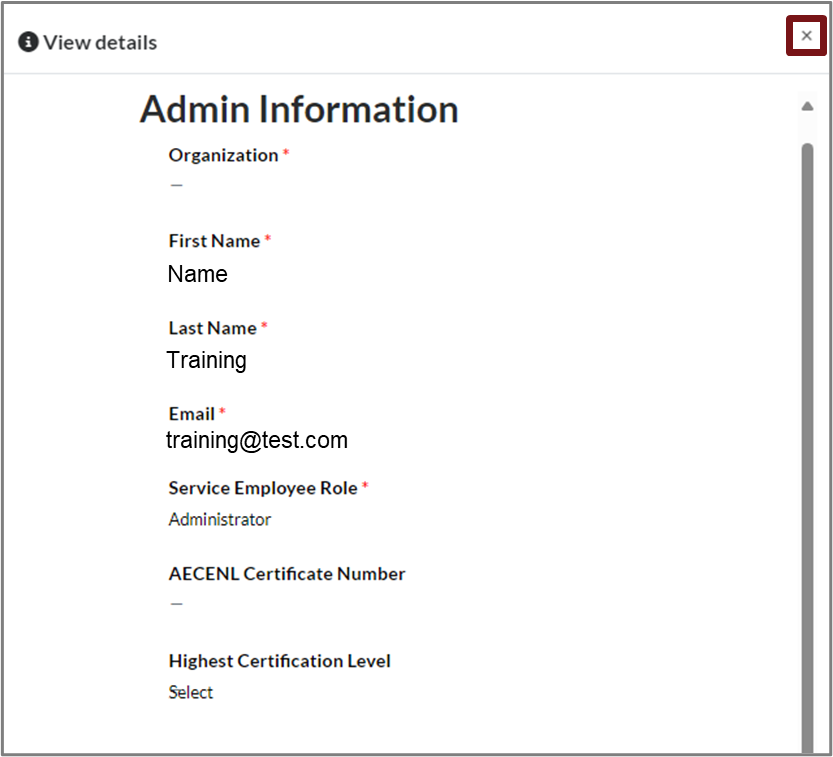
An admin information window will open. To close the details window, click the X at the top right of the window.
Edit an Admin Account
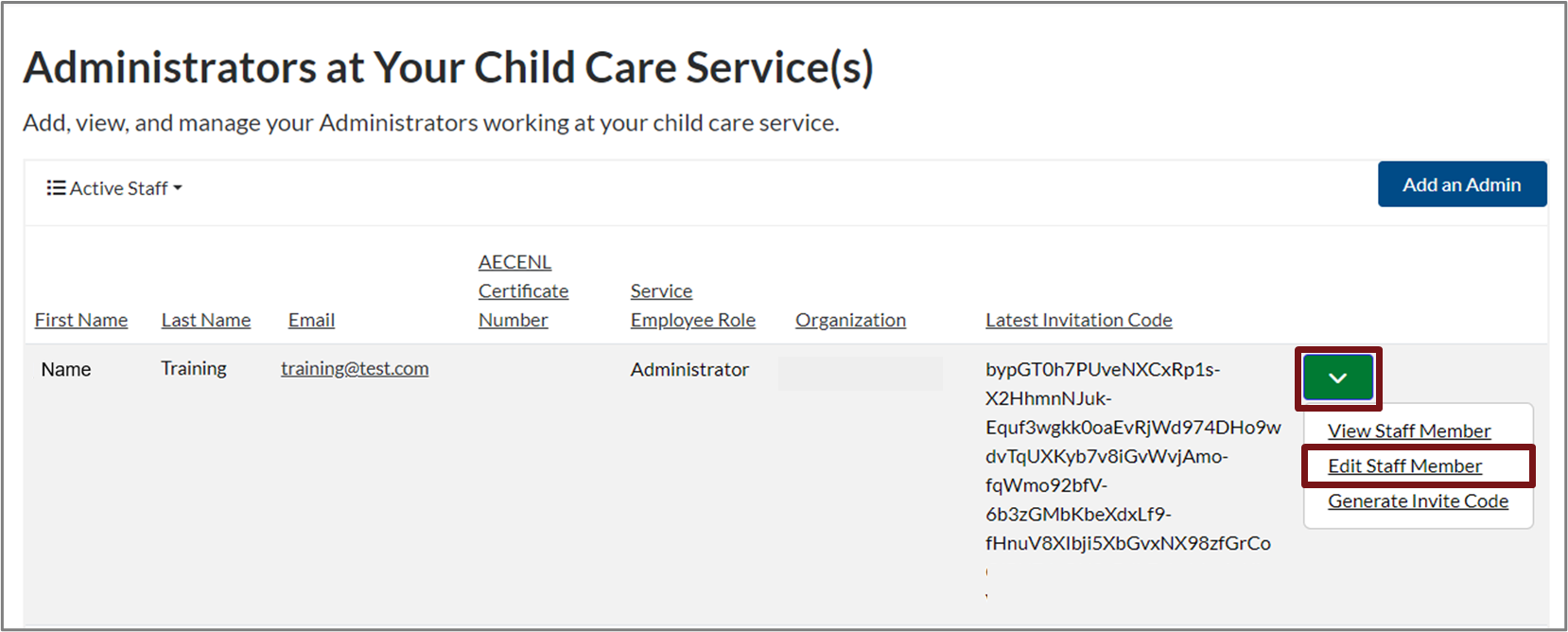
To edit an existing admin account, select the down arrow next to the admin. Click Edit Staff Member.
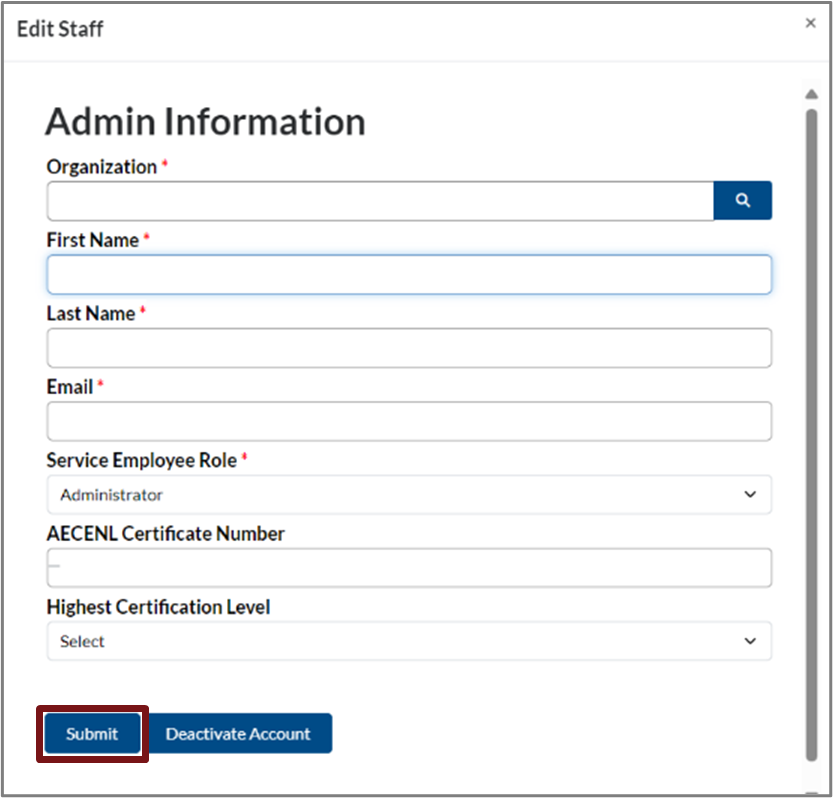
An admin information window will open. Edit the fields, then click Submit.
Deactivate an Admin Account
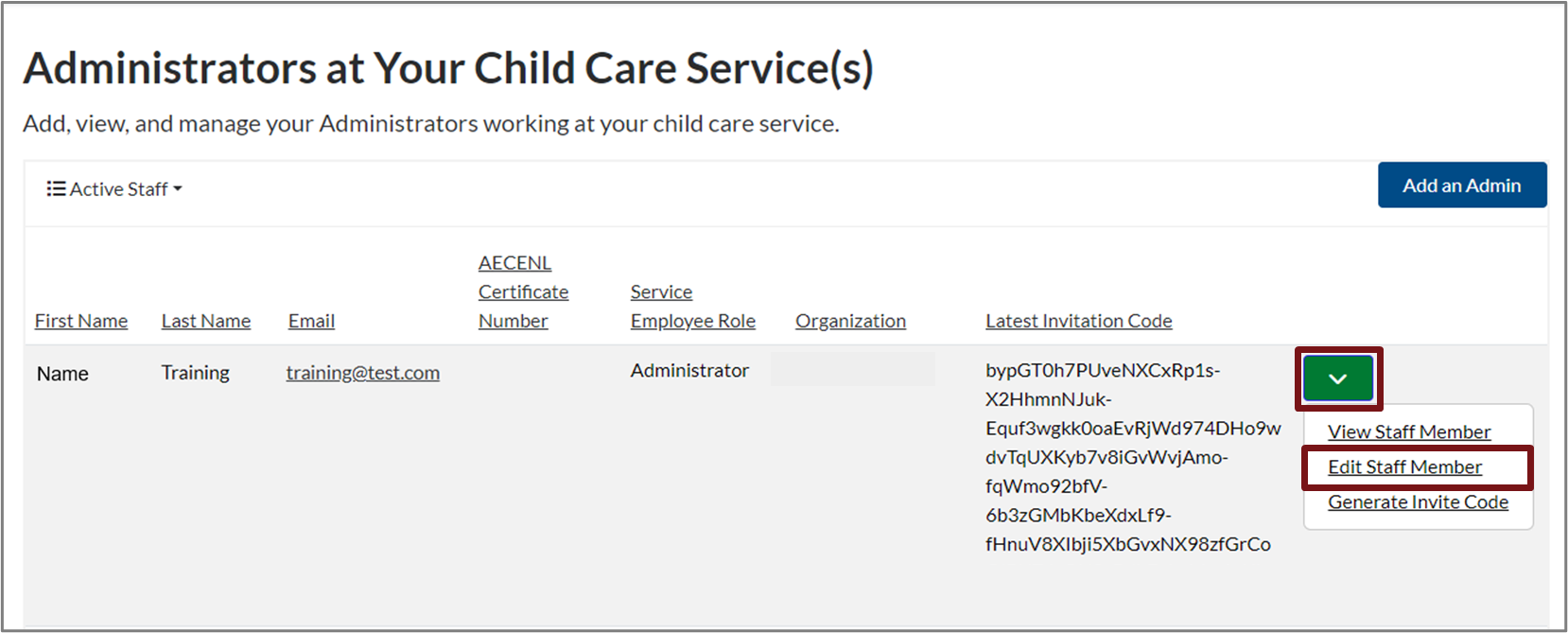
To deactivate an existing admin account, select the down arrow next to the admin. Click Edit Staff Member.
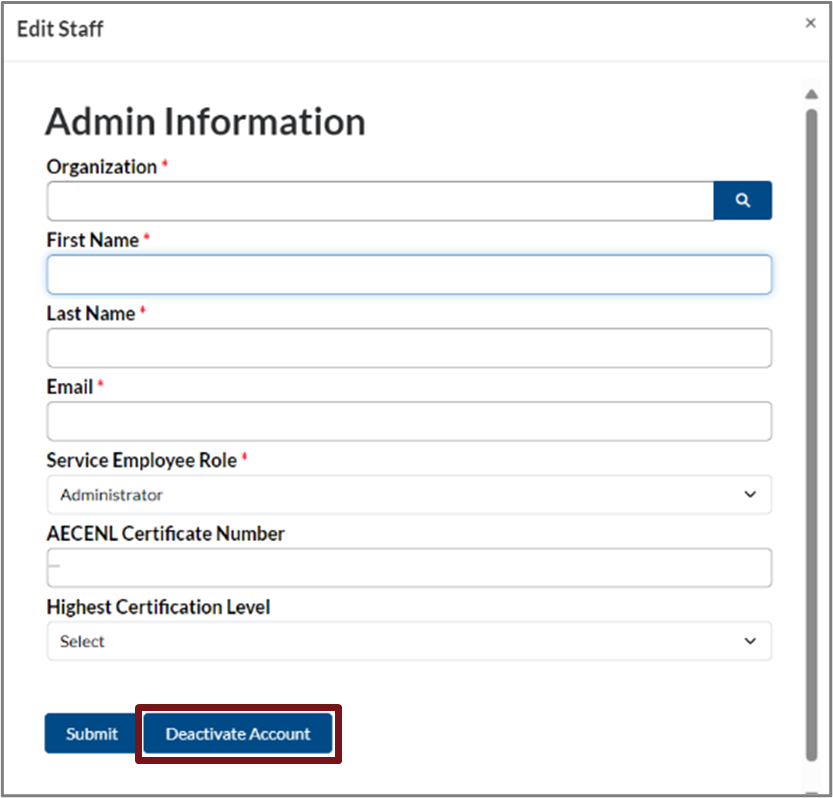
An admin information window will open. Click Deactivate Account.
Activate an Admin Account
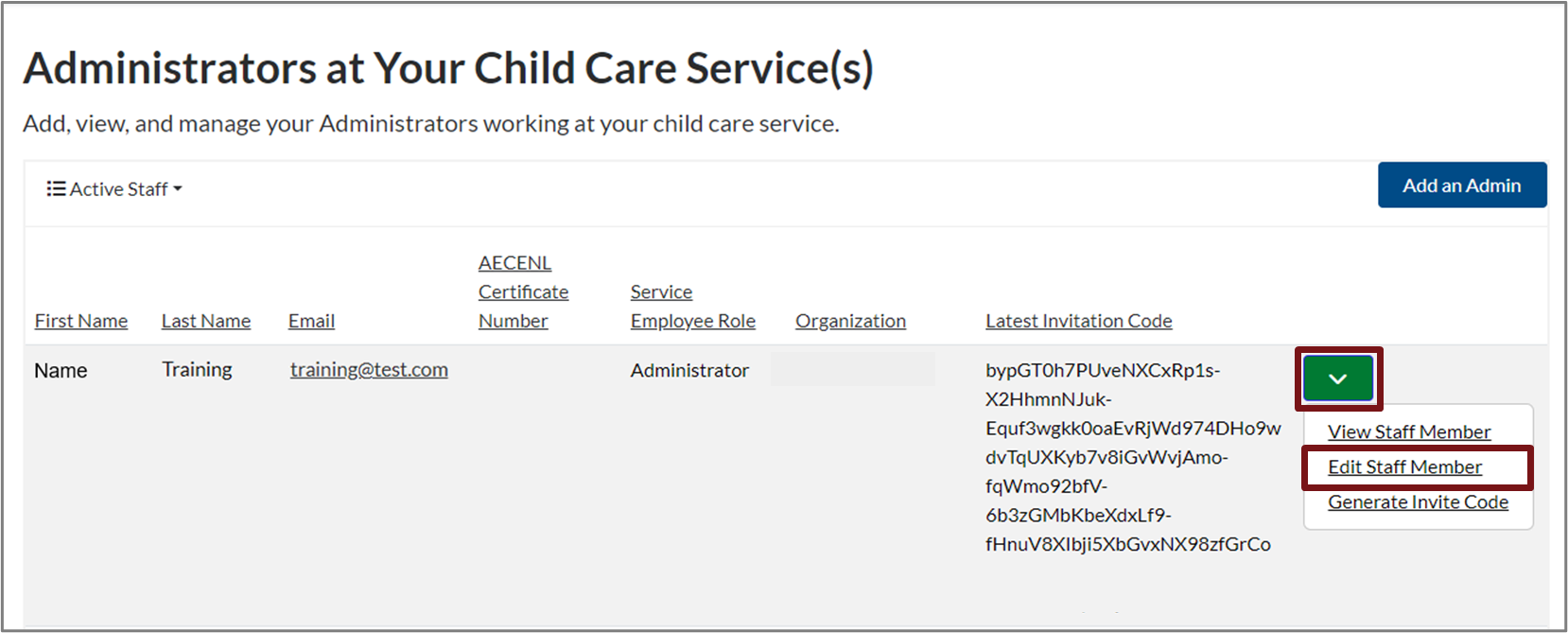
To activate an existing admin account, select the down arrow next to the admin. Click Edit Staff Member.
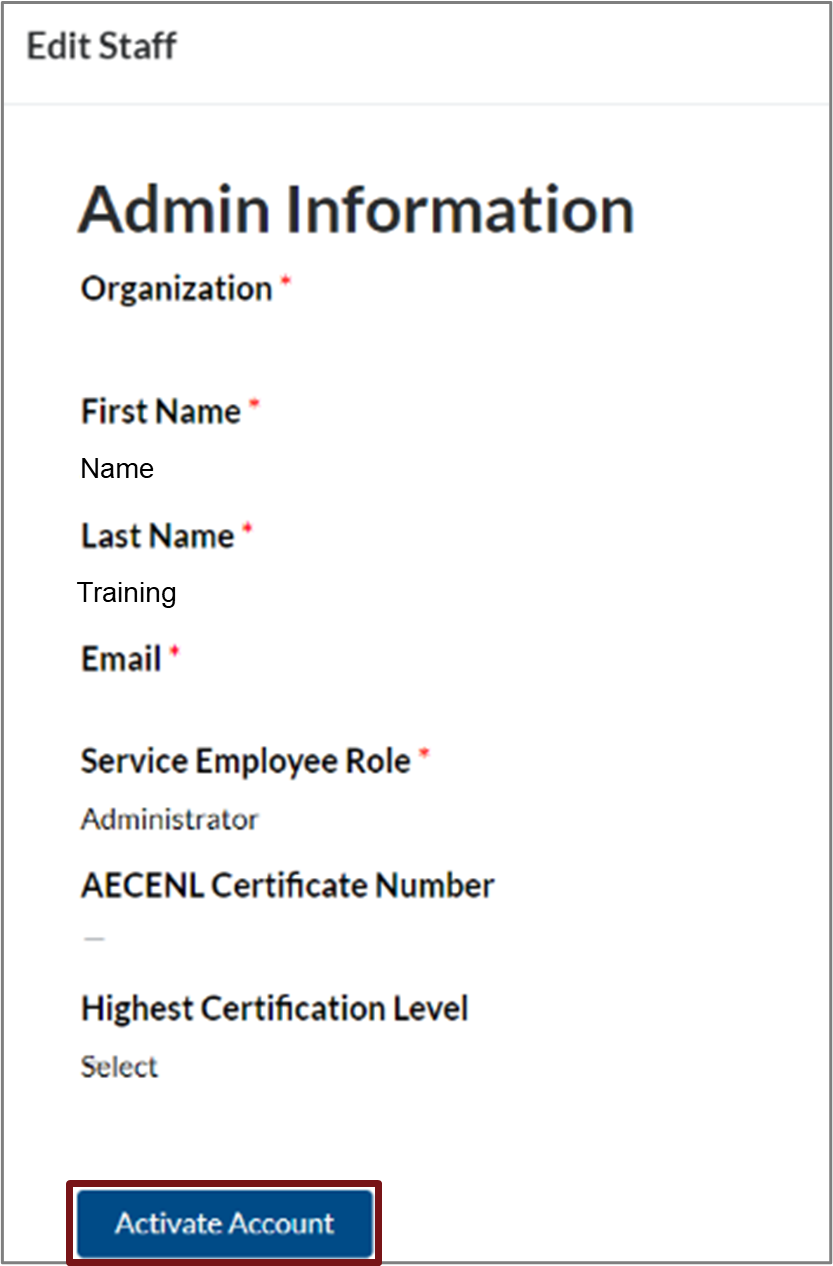
An admin information window will open. Click Activate Account.
ECE Substitute
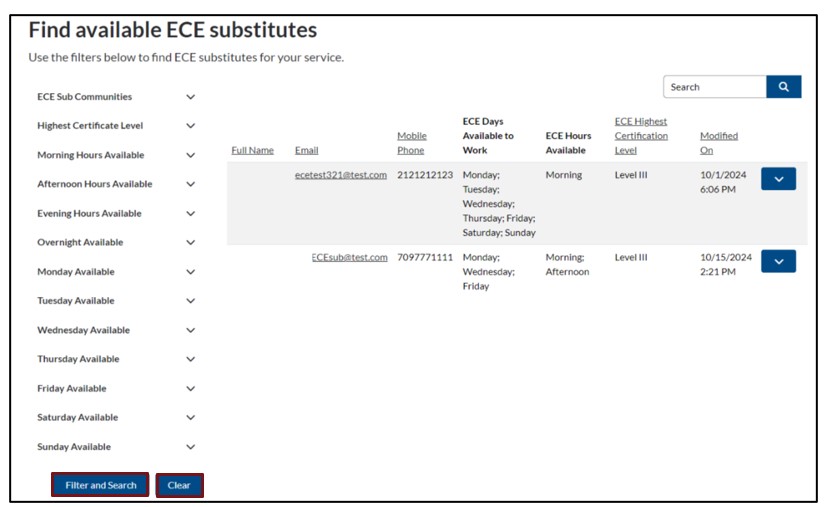
Click the Personnel button at the top of the Early Learning Gateway Service Portal, then select Available ECEs. The list of ECEs registered as substitutes in the Early Learning Gateway will appear here.
If using a mobile device, click the menu icon  at the top right of the screen, then select Personnel and Available ECEs

Filter and Search for Available ECE Substitutes
You can filter and find the available ECE substitutes using the search criteria. Simply click the drop-down menu, select the criteria you want to see, and then click Filter and Search. To reset your filters, click Clear.
Please note: When an ECE completes their registration in the Early Learning Gateway, it is submitted to AECENL for review and approval. Once approved, the ECE will be added to the list of ECE substitutes for regulated child care services in the Early Learning Gateway. The child care service will verify requirements and any supporting documents with a ECE and will use their existing hiring practices prior to confirming work in the child care service.
View ECEs Details
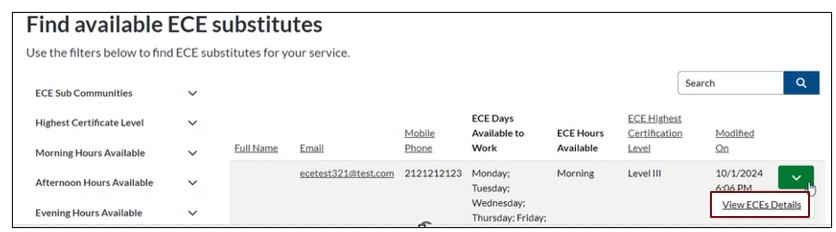
Click the down arrow for an ECE entry and select View ECEs Details.
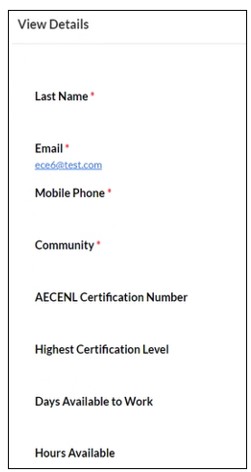
A View Details window will open displaying the ECEs information. To close the window, click the X button in the top right corner.
Your Profile
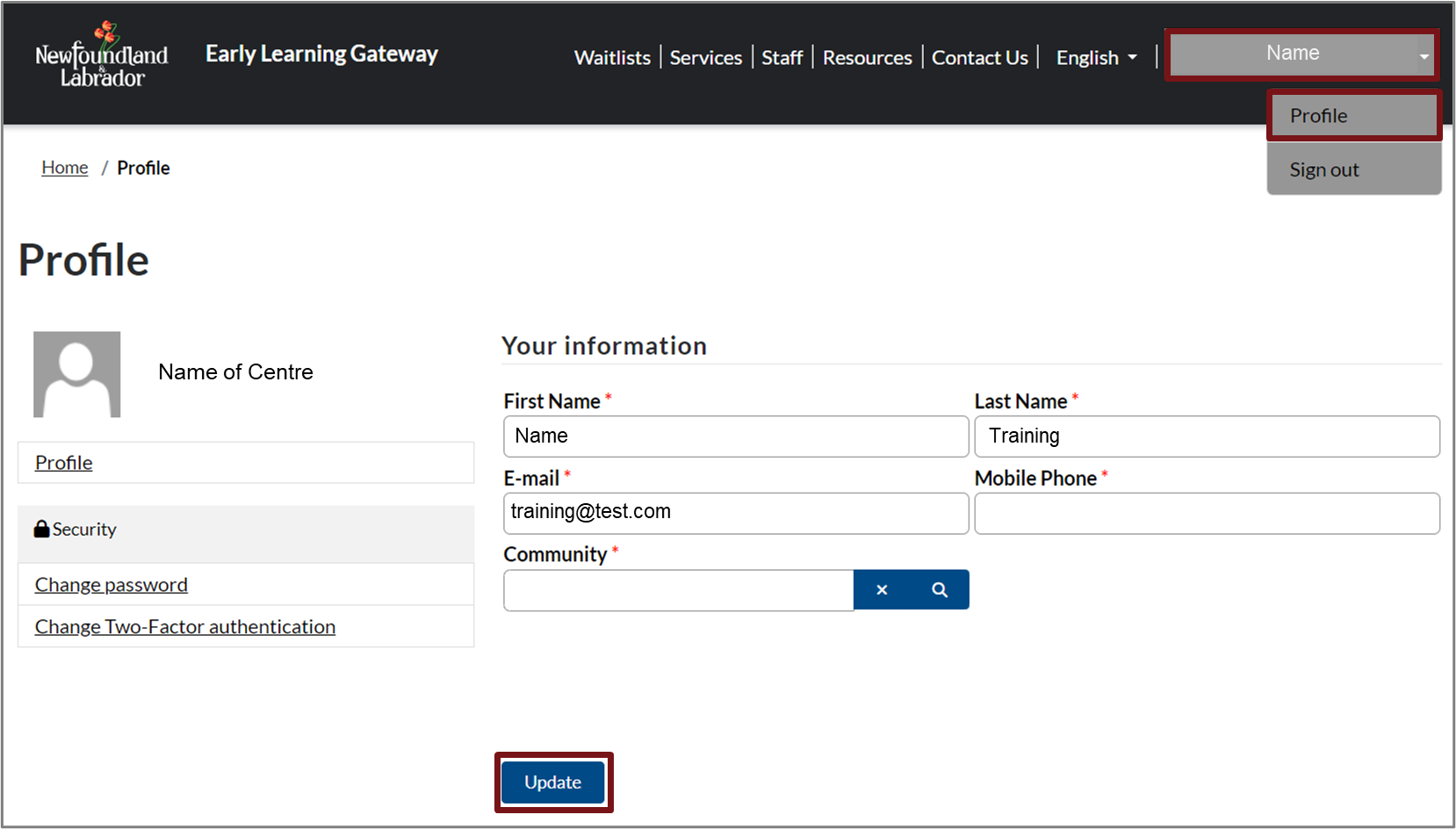
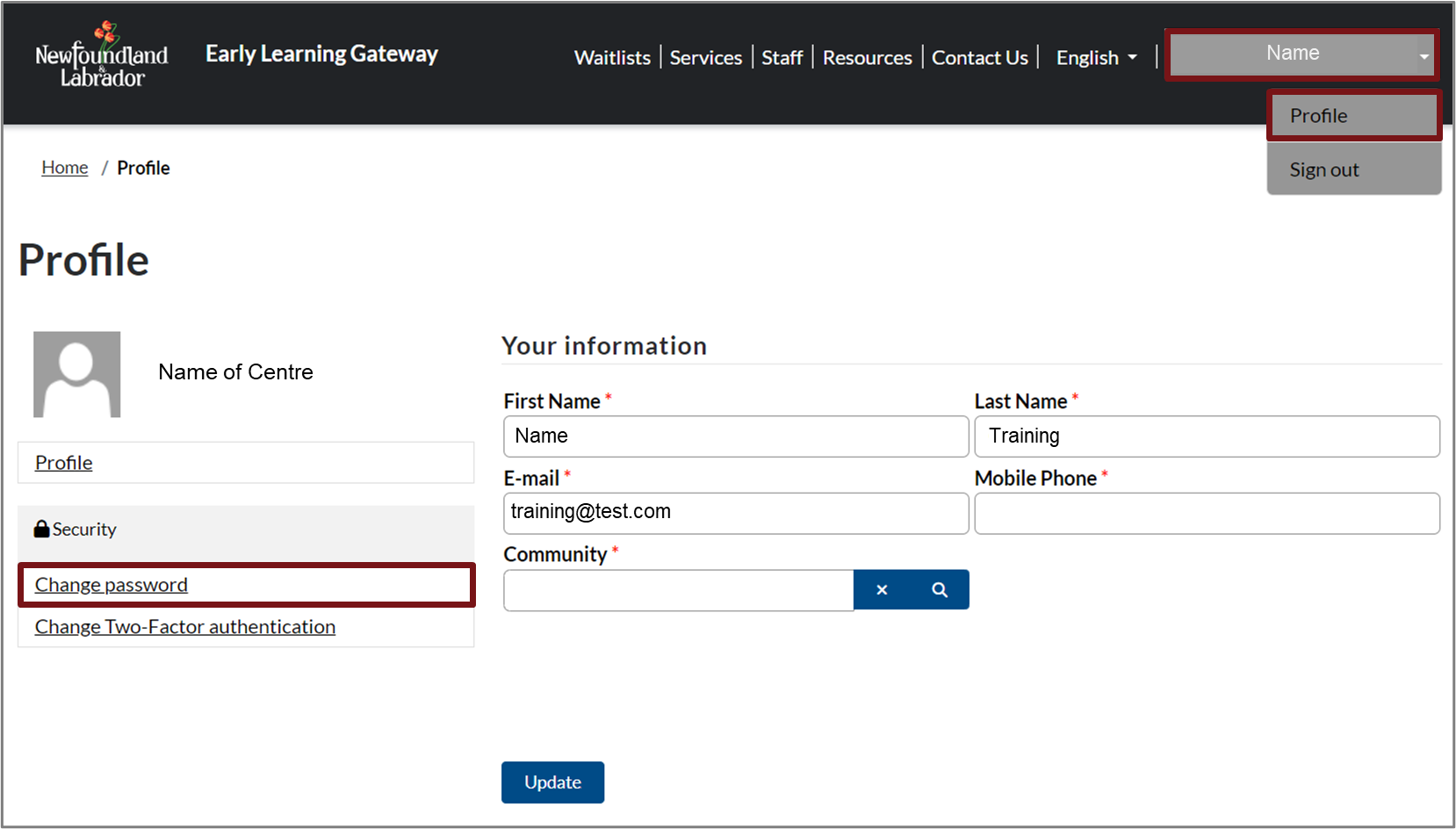
To update your profile, select your name in the top right corner, then click Profile.
If using a mobile device, click the menu icon at the top right of the screen.
Proceed to enter your information, then click Update.
Annual Agreement Application / OGP Annual Applications
Annual Agreements : Centres
To complete a new, or renew your annual agreement, follow these steps:
- Click Services at the top of your screen, then select Annual Agreement Application.
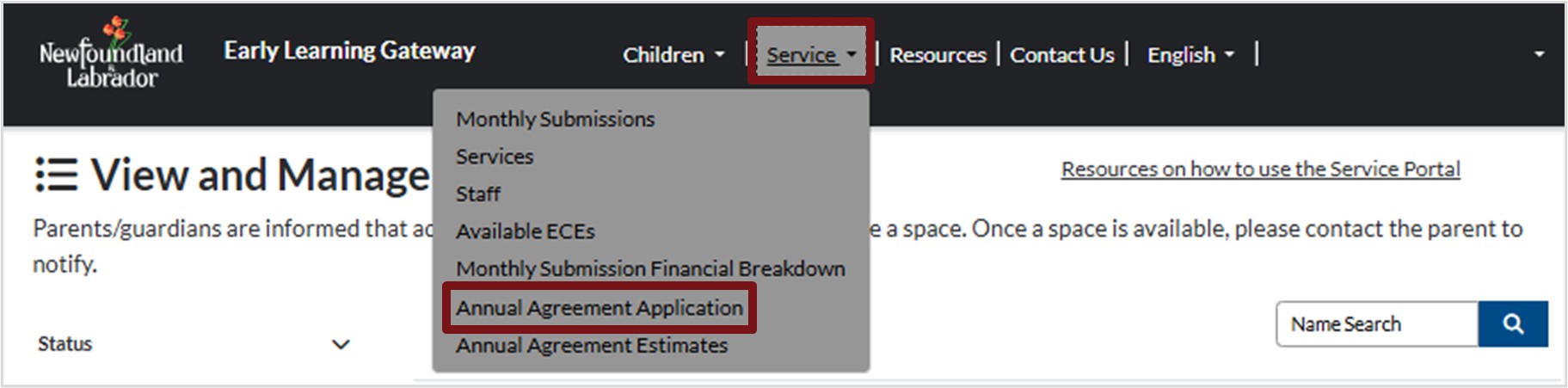
2. A new screen will appear. Click New Annual Agreement Application.

3. The Annual Agreement Application will display.
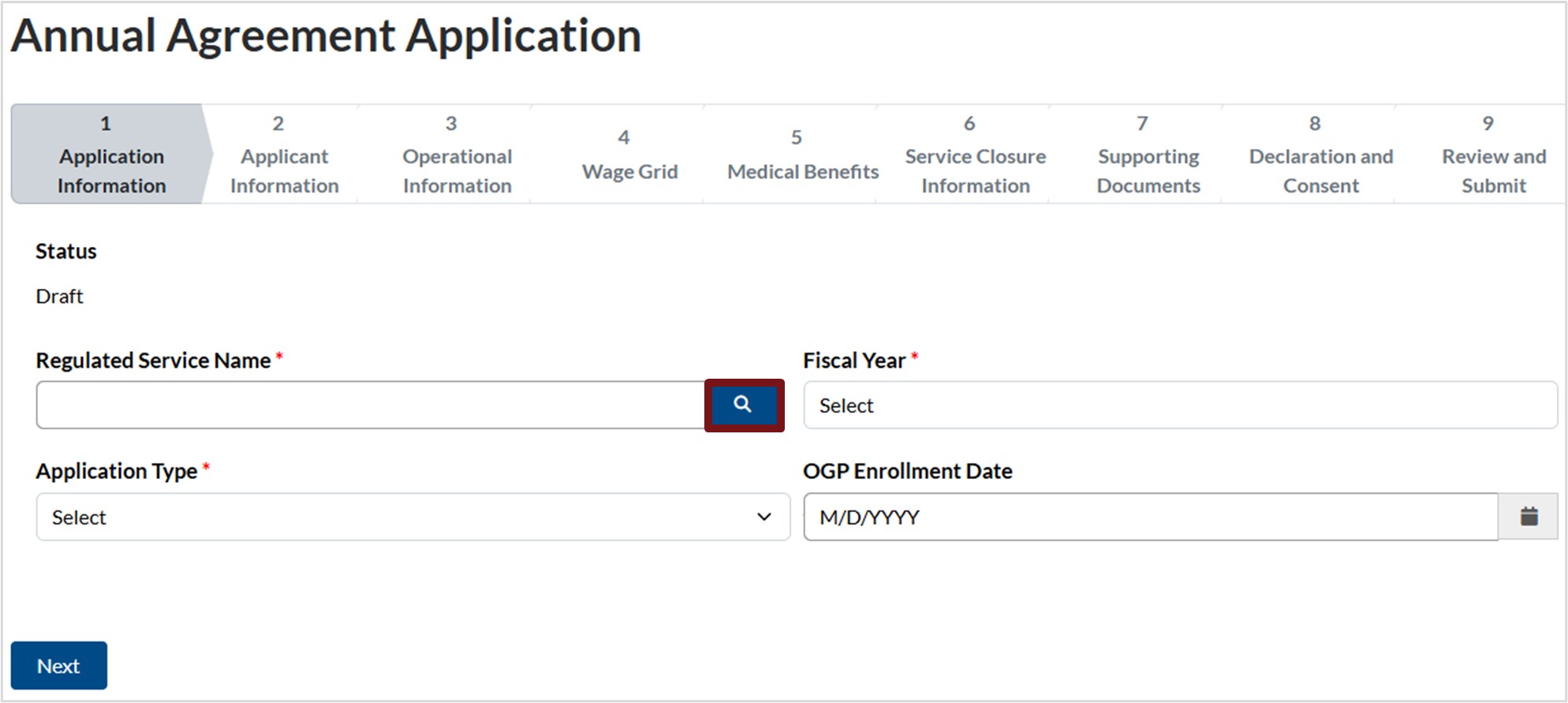
Section 1 : Application Information
- Regulated Service Name
- Click the magnifying glass to select the Regulated Service Name.
- Search for the applicable regulated service name by entering its name in the Search Then, select the check box next to the regulated service in the list. Alternatively, you can scroll through the list and select the check box next to the regulated service name.
- Click Select.
- To make another selection, click Remove value and select the appropriate regulated service.
- To cancel this action, click Cancel.

2. Application Type
-
- Click the down arrow to select either:
- New Application
- Renewal
- Click the down arrow to select either:
- Fiscal Year
- Click into the field and select the applicable fiscal year.
- OGP Enrollment Date
- If this is a new annual agreement application, you will need to enter the applicable date, otherwise, if this is not a new annual agreement application, the date will auto populate.
- Click Next to advance to the next step.
Section 2 : Applicant Information
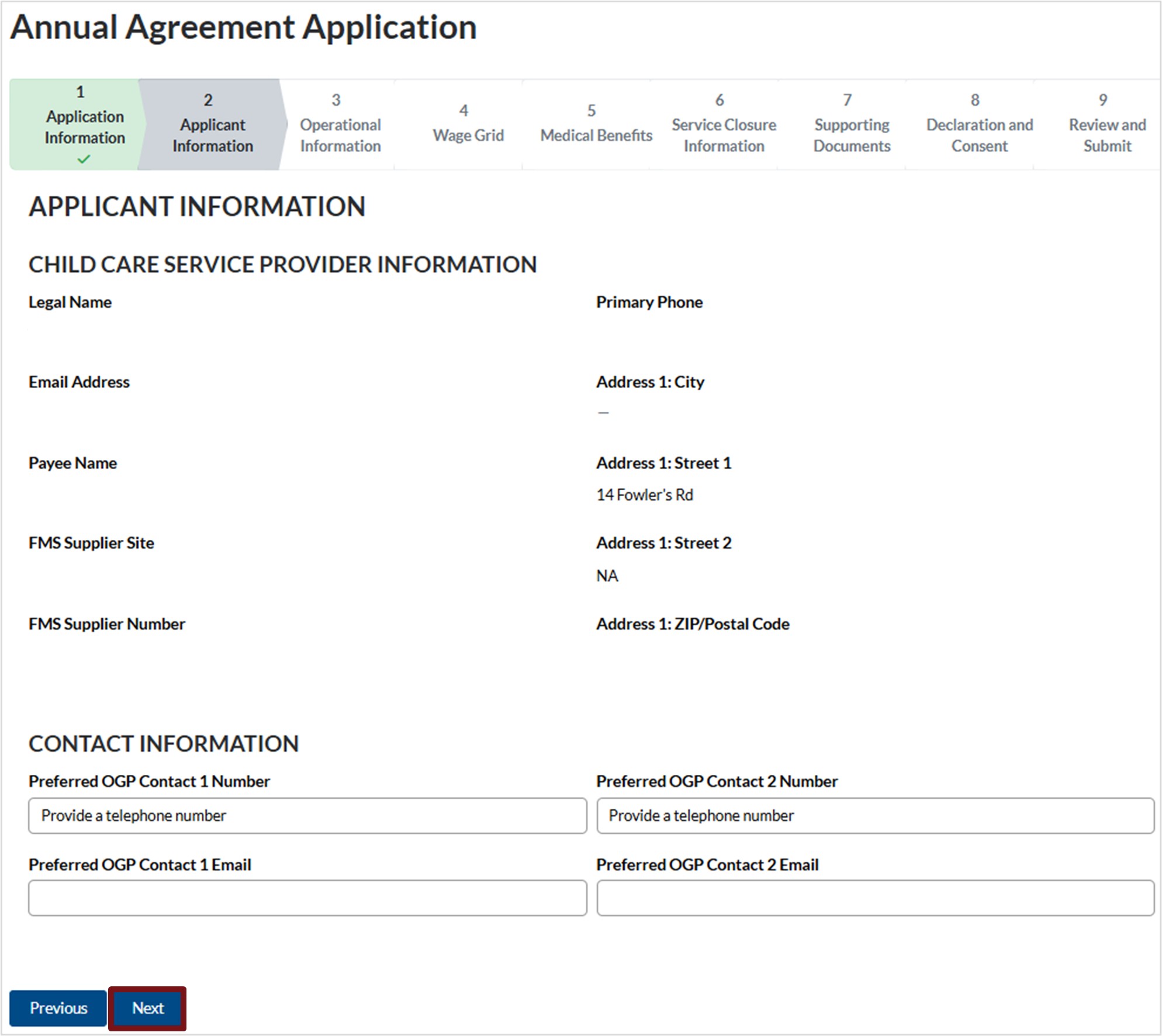
- Review the child care service provider information.
- Contact Information
- Entre the requested contact numbers and email addresses.
- Click Next to advance to the next section
Section 3 : Operational Information
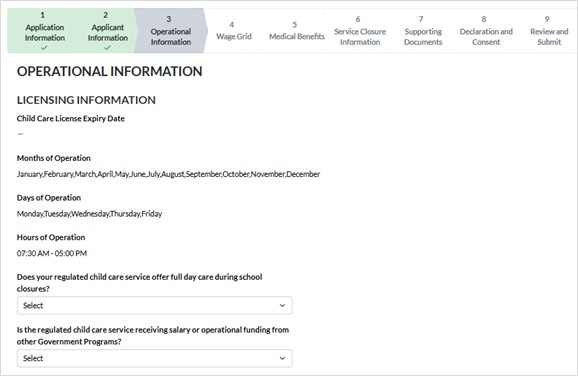
- Operational Information
- Review the licensing information
- Click the in the field then select if your regulated child care service offers full day care during school closures
- If the answer is Yes, an additional field will populate. Enter the number of School Closure Days.
- Click the in the field then select if your regulated child care service is receiving salary or operational funding from other Government Programs.
If the answer is yes, an additional field will populate. List the programs in the field provided.

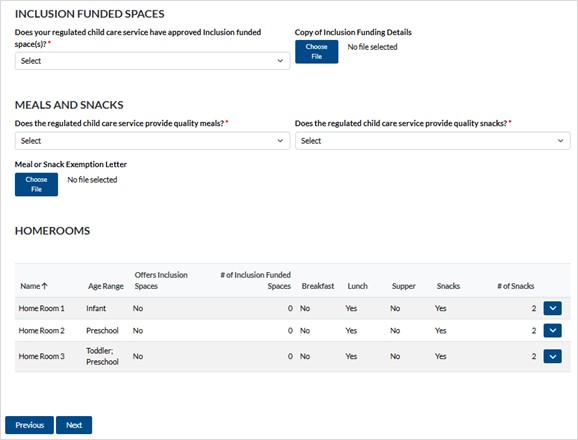
4. Inclusion Funded Spaces.
a. Click in the field then select Yes or No to indicate if your regulated child care service has approved Inclusion funded spaces.
b. If you answer yes, click on Choose File and upload the applicable documentation from your device.
5. Meals and snacks.
a. Click in the field and select Yes or Exempt to indicate if your regulated child care service provides quality meals as well as quality snacks.
b. If you select Exempt for either meals or snacks, click on Choose File and upload the applicable documentation from your device. Also, an additional field will populate. Enter the Emergency Meals and Snacks.

6. Homerooms
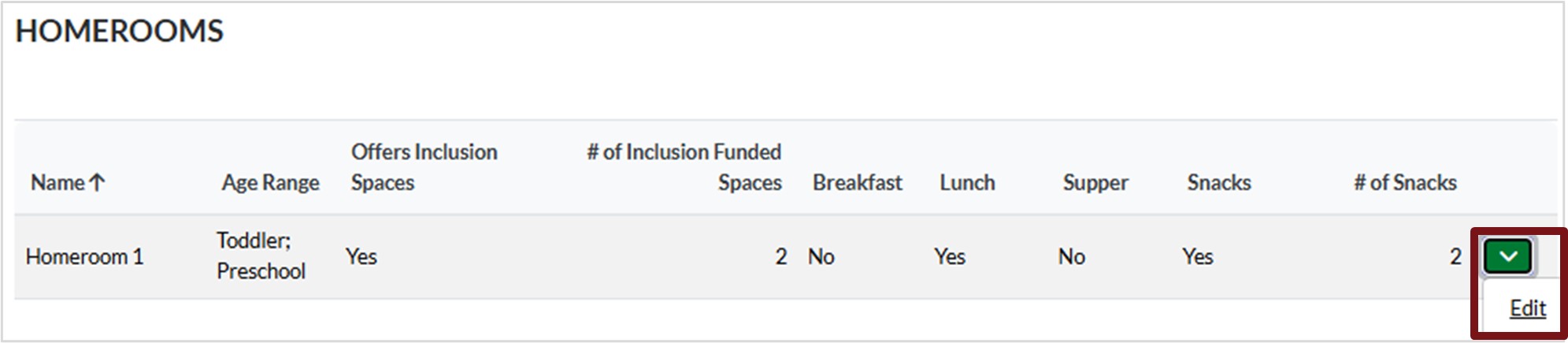
If you have Inclusion Funded Spaces, identify the Homeroom(s) they are for.
a. Click the down arrow next to the applicable Homeroom then select Edit.
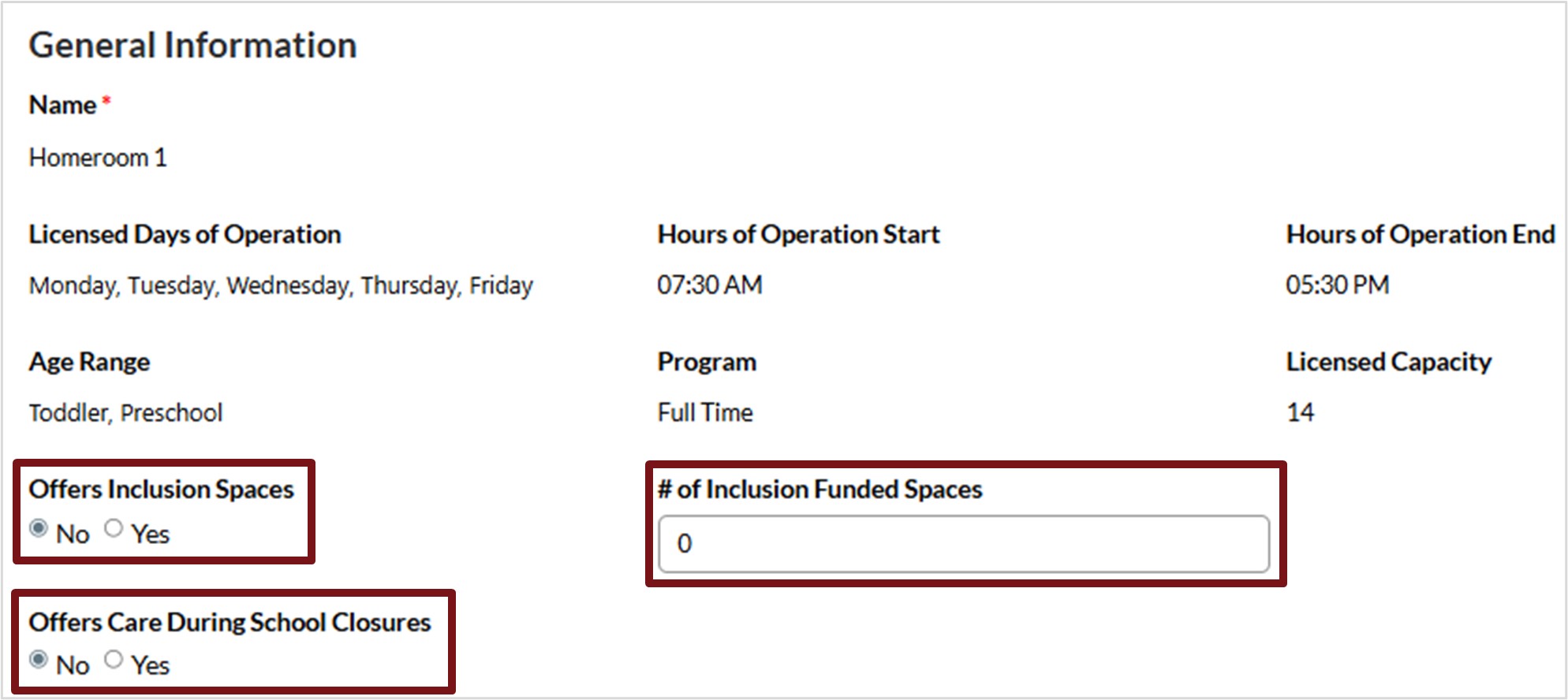
b. Select Yes for Offers Inclusion Spaces.
c. Enter the number of spaces in the Inclusion Funded Spaces field.
d. Select Yes or No for Offers Care During School Closures.
i. If you select Yes, another field will appear. Select the School Closure Age Range.
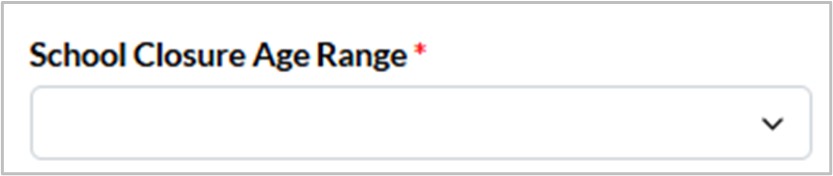
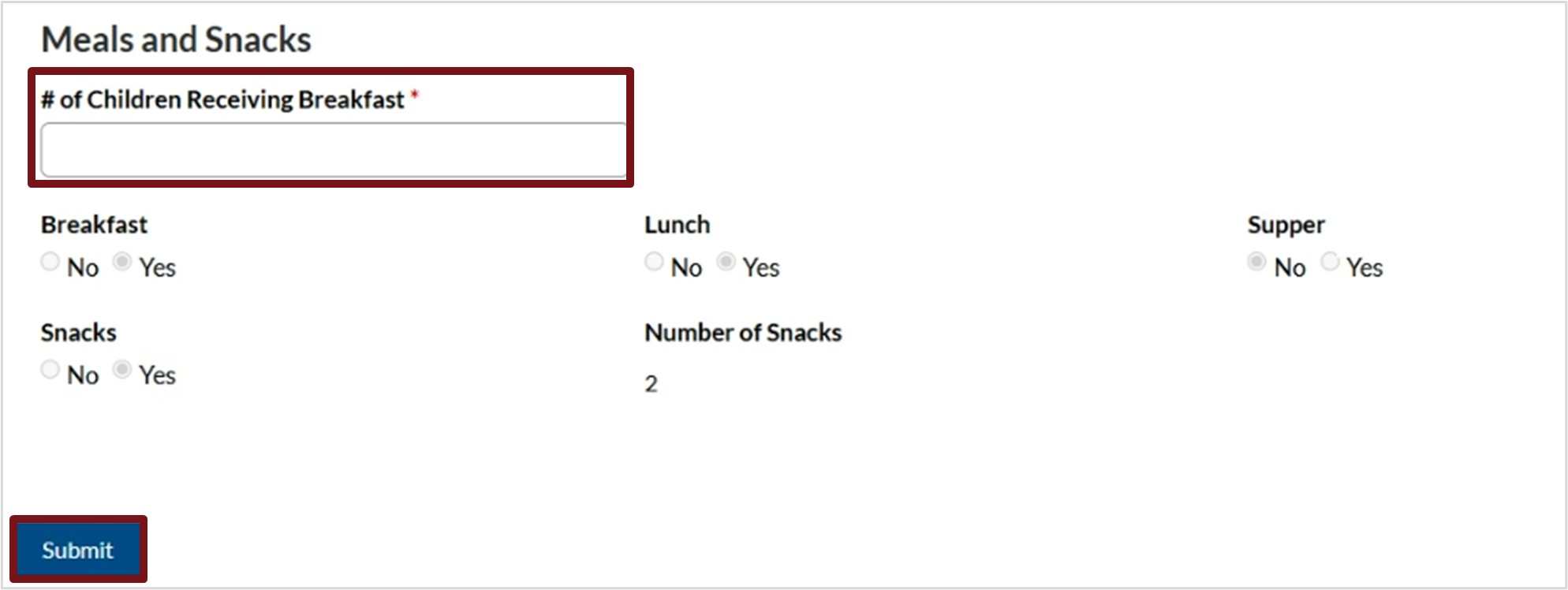
e. If you select Yes to Meals and Snacks, enter the number of Children Receiving Breakfast
f. Click Submit.
g. If you have additional Homerooms with Inclusion Funded Spaces, repeat steps (a) to (e).
7. Click Next to advance to the next section.
Section 4 : Wage Grid
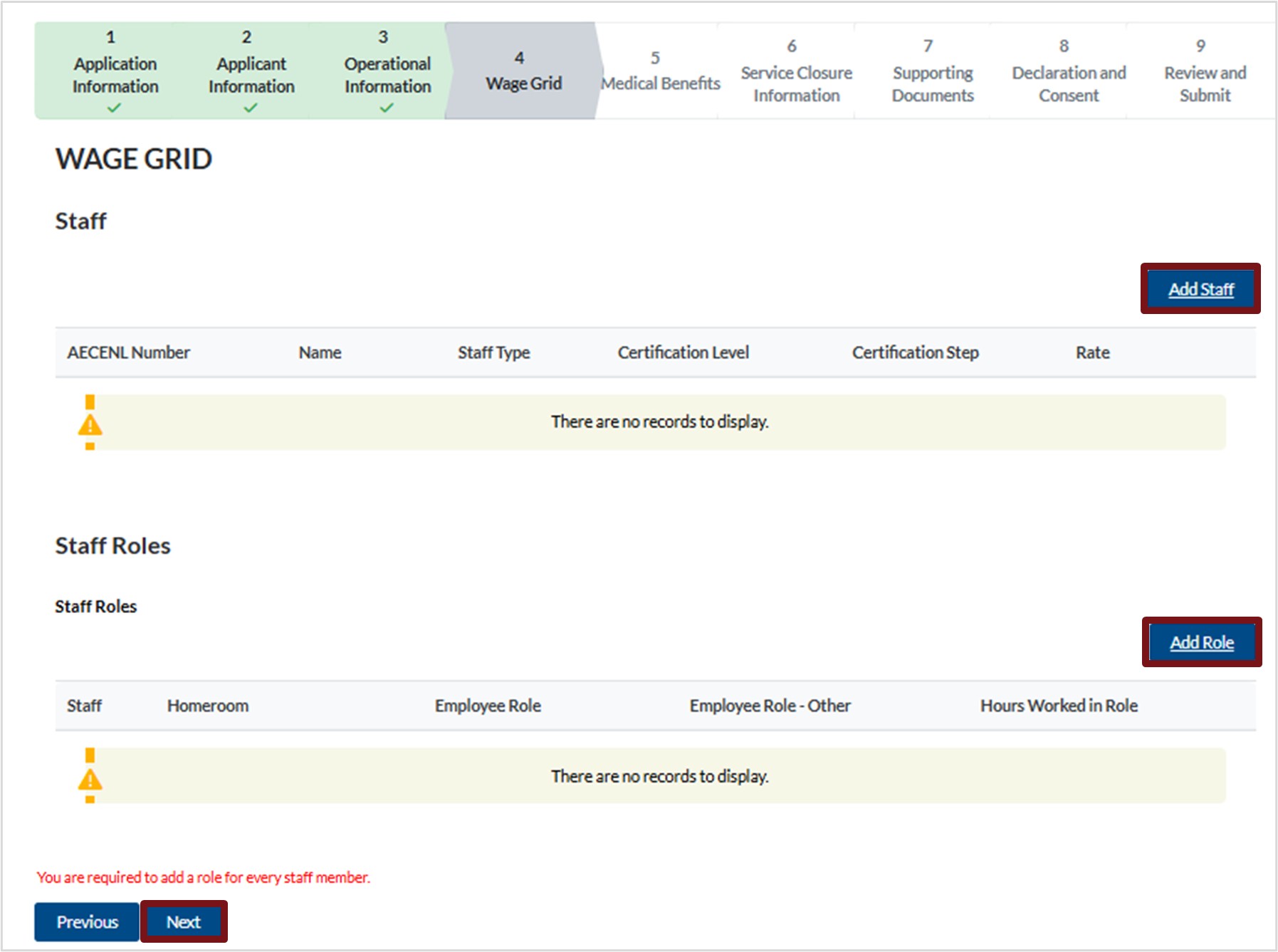
- If this is a new annual agreement, you will click Add Staff.
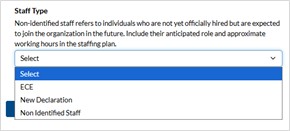
a. A new window will appear, click in the field then select the appropriate Staff Type.
Please note, depending on the Staff Type you select, additional fields will populate
b. Complete all fields.
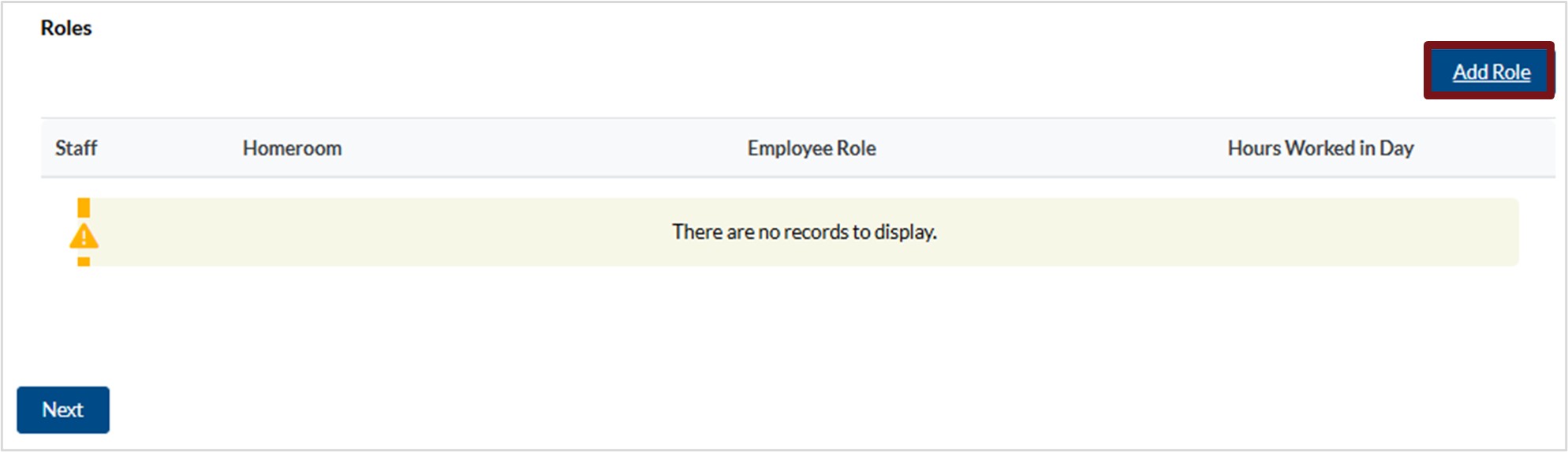
c. Click Add Role then complete the required details.
Please note, all staff will require a role.
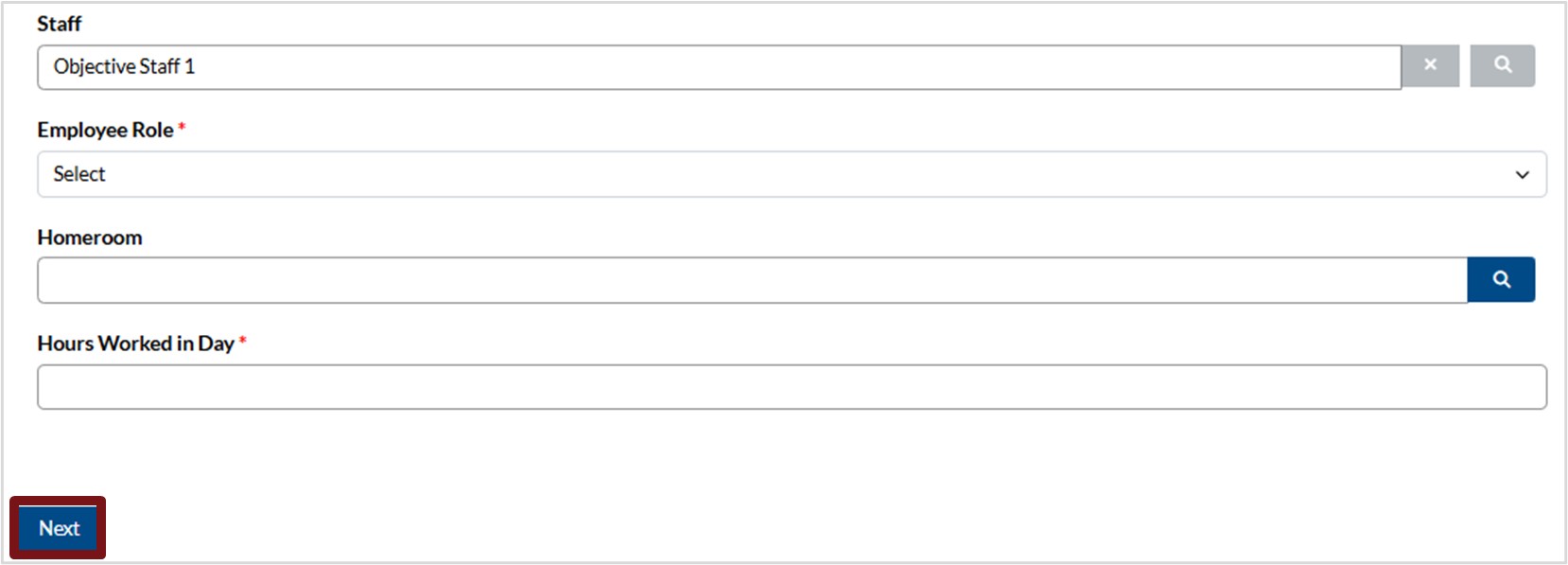
d. Complete all details.
e. Click Next
f. Repeat steps (a) to (e) until all staff and staff roles have been added.
2. If this is a renewal, review your staff and their roles.
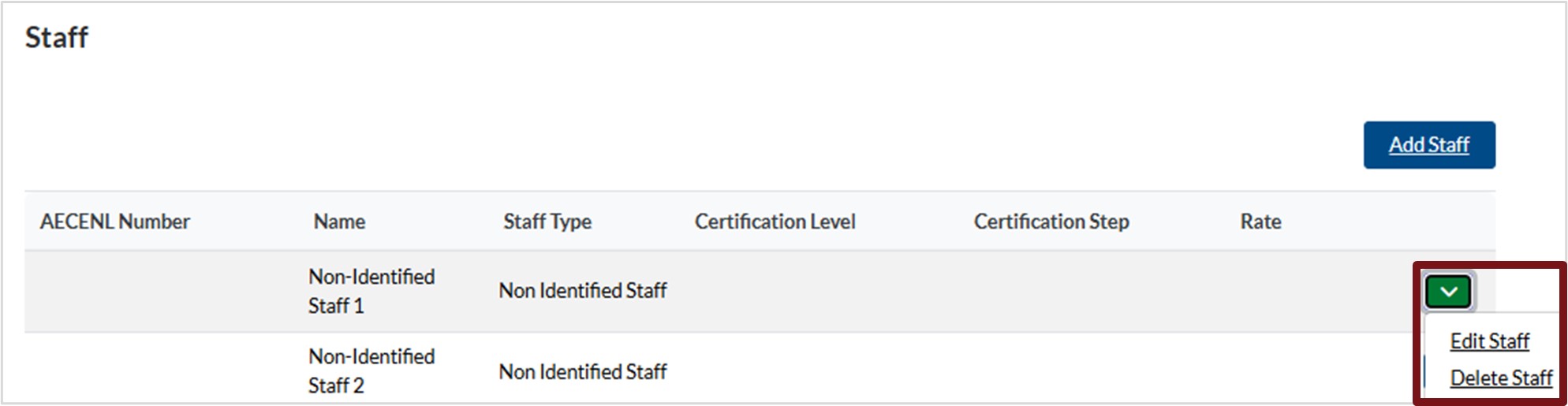
a. To make edits, click the down arrow next to the staff or the role and select Edit Staff
b. Make the necessary edits and click Next.
c. To delete staff, click the down arrow next to the staff or the role and select Delete Staff.
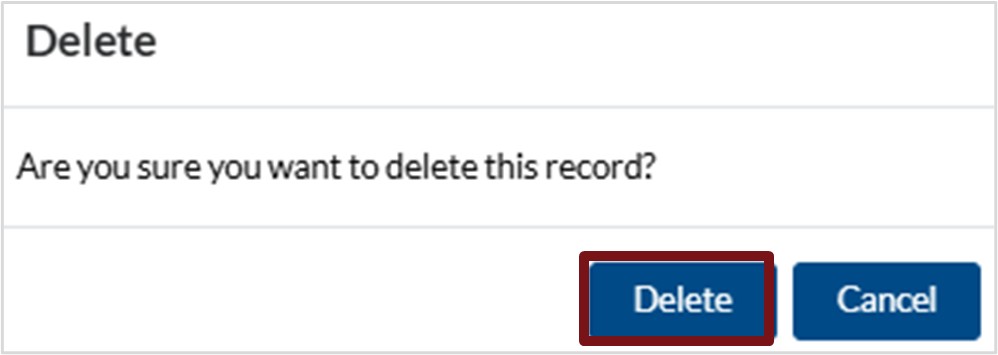
d. You will be prompeted to ensure you want to delete the record, click Delete.
3. Click Next to advance to the next section.
Section 5 : Medical Benefits
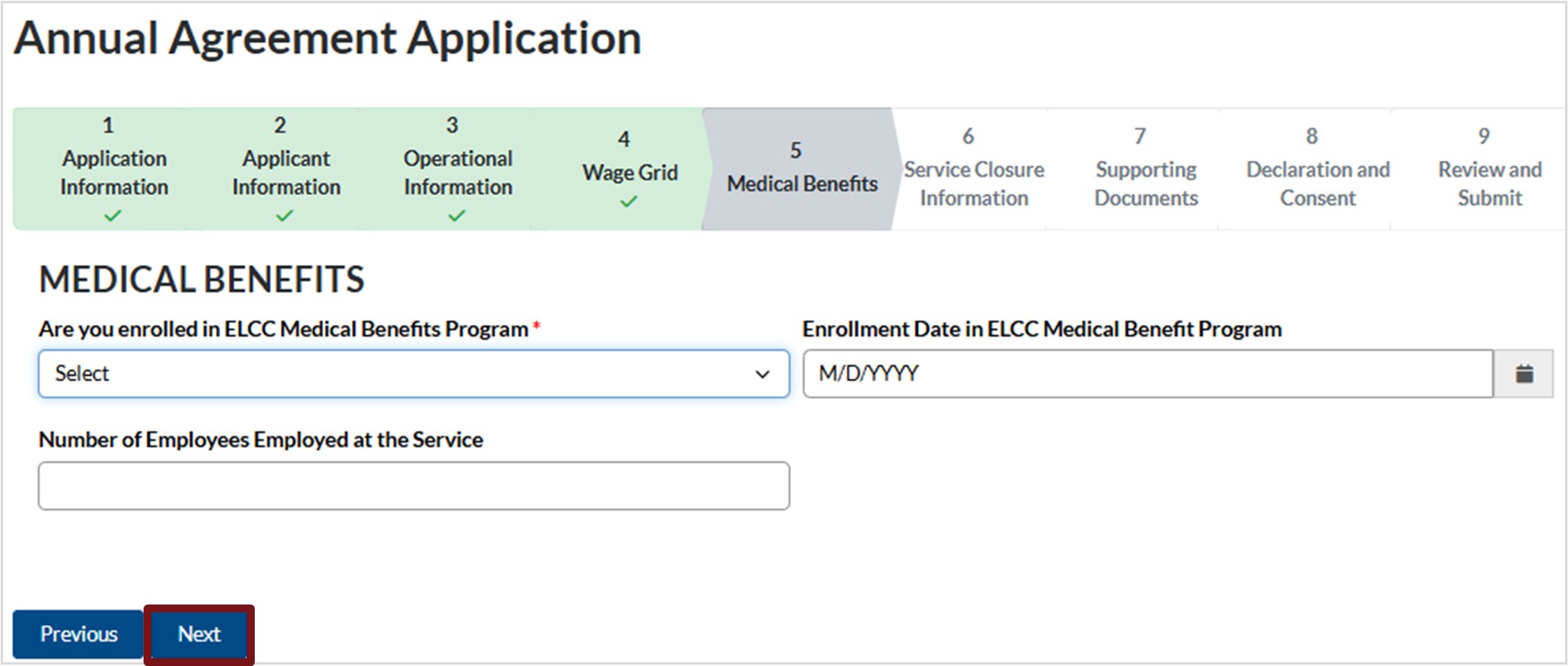
1. Click in the field and select Yes or No to indicate if you are enrolled in the ELCC Medical Benefits Program.
2. If you select Yes, click the calendar icon and select the Enrollment Date in ELCC Medical Benefits Program.
3. Enter the Number of Employees Employed at Service that use the ELCC Medical Benefits Program.
4. Click Next to advance to the next section.
Section 6 : Service Closure Information
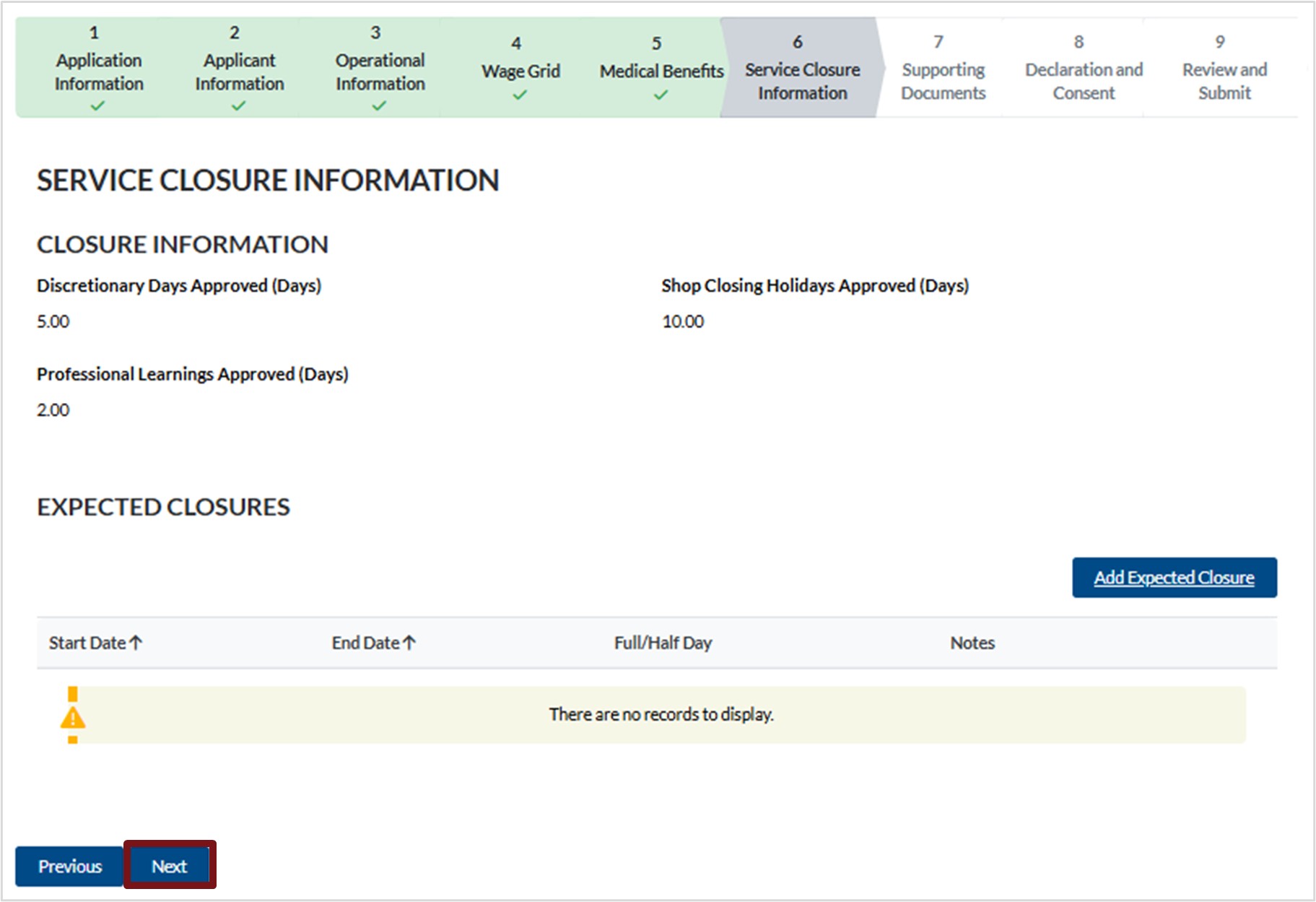
1. Service Closure Information
a. If this is a renewal, review the information provided.
b. If this is a new annual agreement application, this section will not have details included.
2. Expected Closures
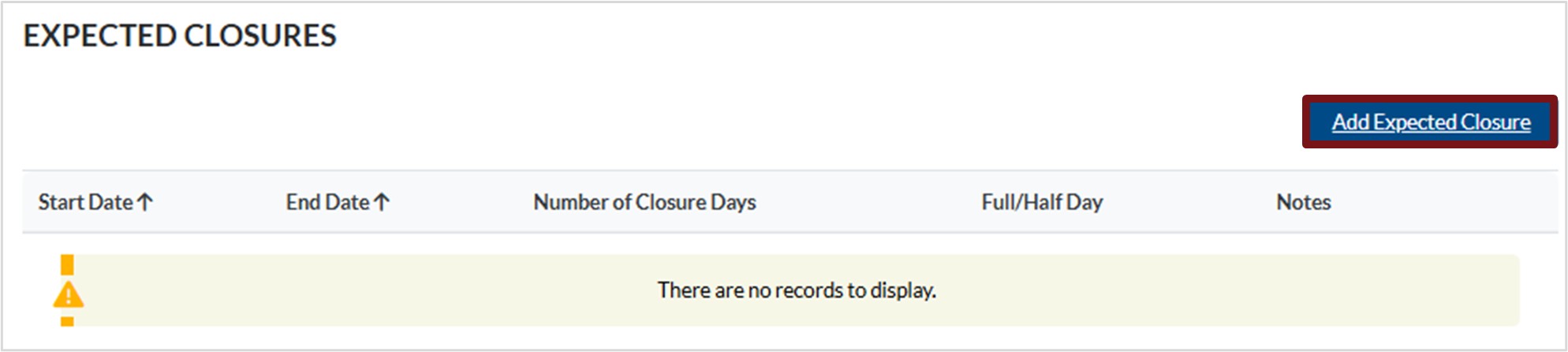
a. If there are closure days that you expect to occur, click Add Expected Closure.
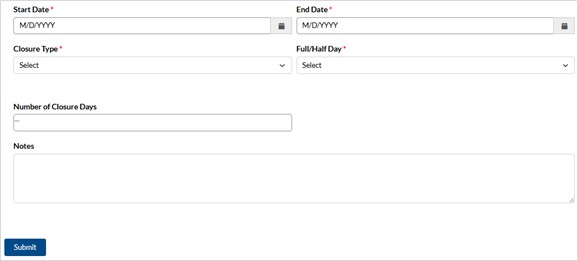
b. Click the calendar icons to enter the Start and End Date.
c. Click in the field to select Closure Type: Discretionary.
d. Click in the field to select Full or Half Day.
e. The Number of Closure Days will auto default.
f. Add a note in the Notes field.
g. Click Submit.
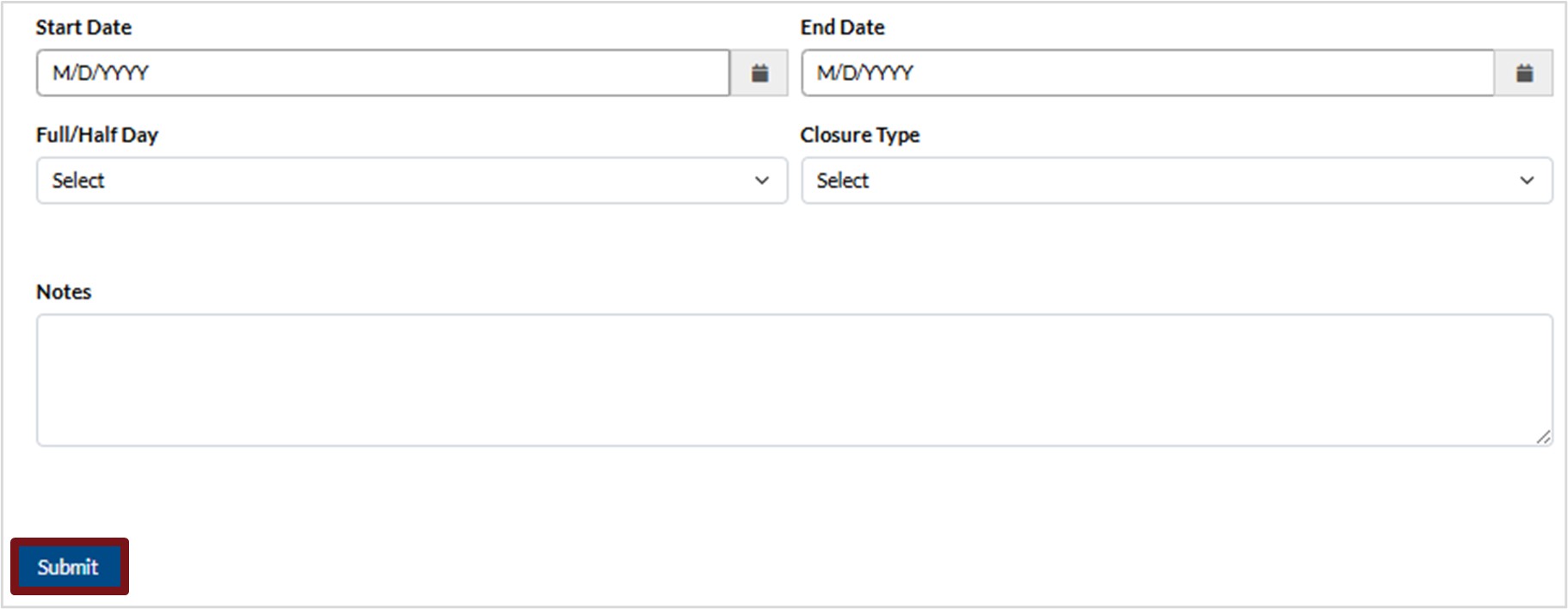
3. Click Next to advance to the next section.
Section 7 : Supporting Documents
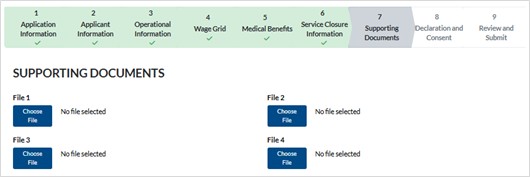
1. Supporting Documents
a. Click Choose File to upload the applicable file from your device. Repeat as necessary.
b. Click Next to advance to the next section.
Section 8 : Declaration Consent
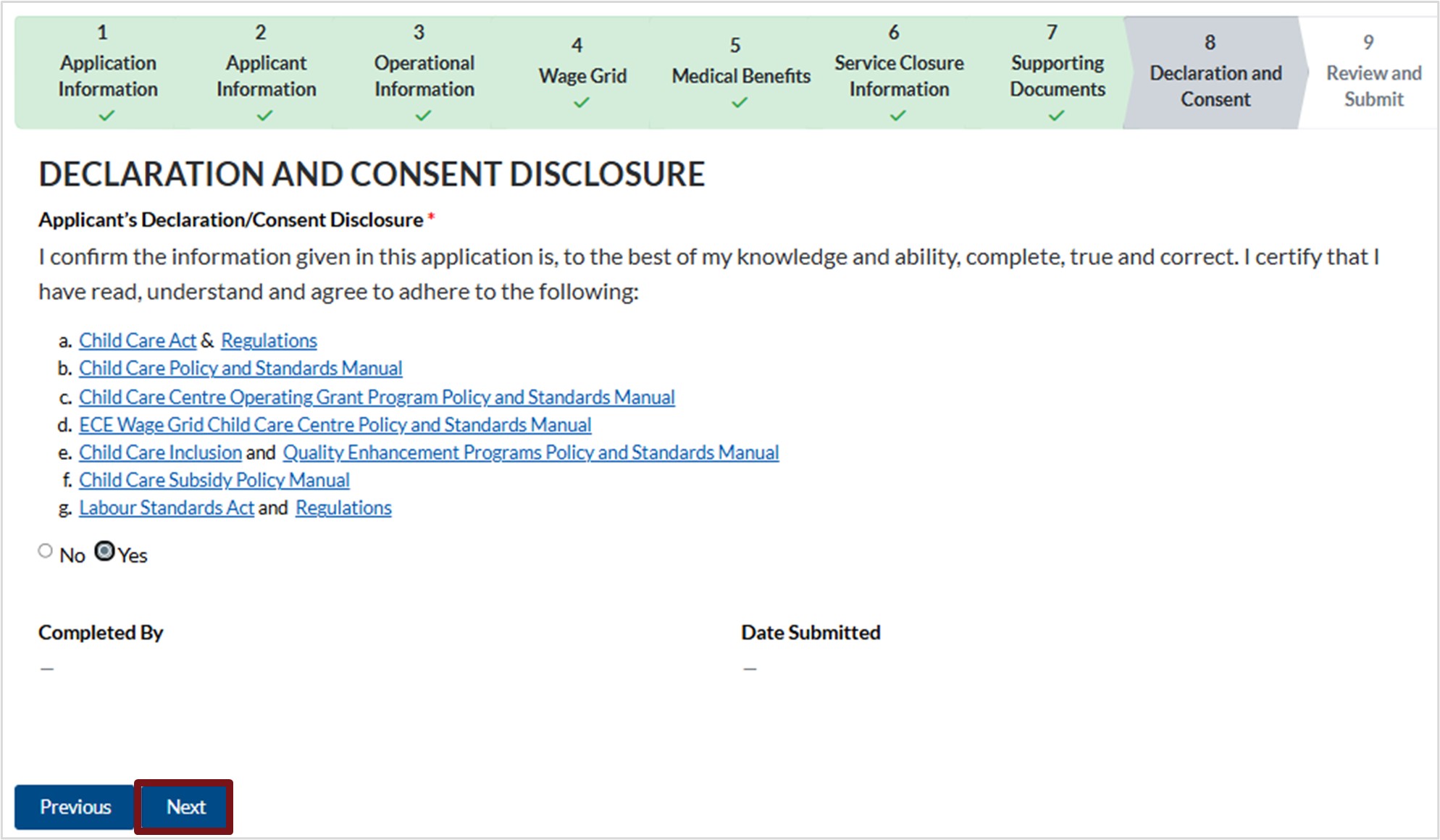
1. Review the declaration and consent disclosure, then select Yes.
2. Click Next to advance to the next section.
Section 9 : Review and Submit
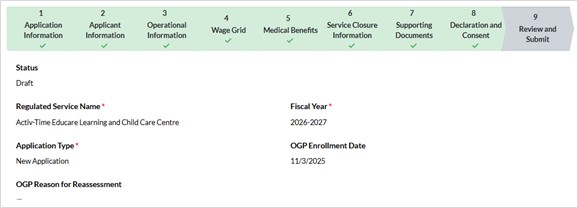
1. The final step is to review the annual agreement application.
a. Scroll down the screen to review all details.
b. To make edits, click Previous until you reach the applicable section then make the required edits.
c. Once the annual agreement is complete, click Submit for Review.
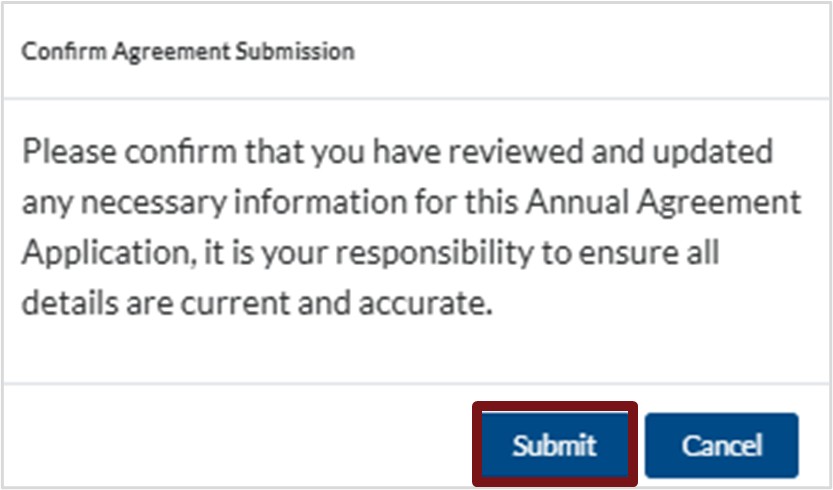
d. You will receive a prompt to confirm that you have reviewed and updated any necessary information for the Annual Agreement Application. Click Submit.
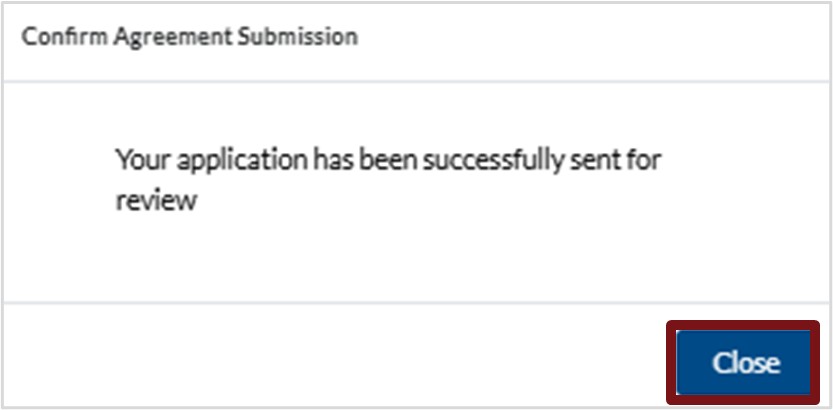
e. You will receive a message stating Your application has been successfully sent for review. Click Close.
The annual agreement is now sent to the Department of Education and Early Childhood Development Operating Grant Team for review. Once it is approved, you will receive an email asking for you to review and sign.
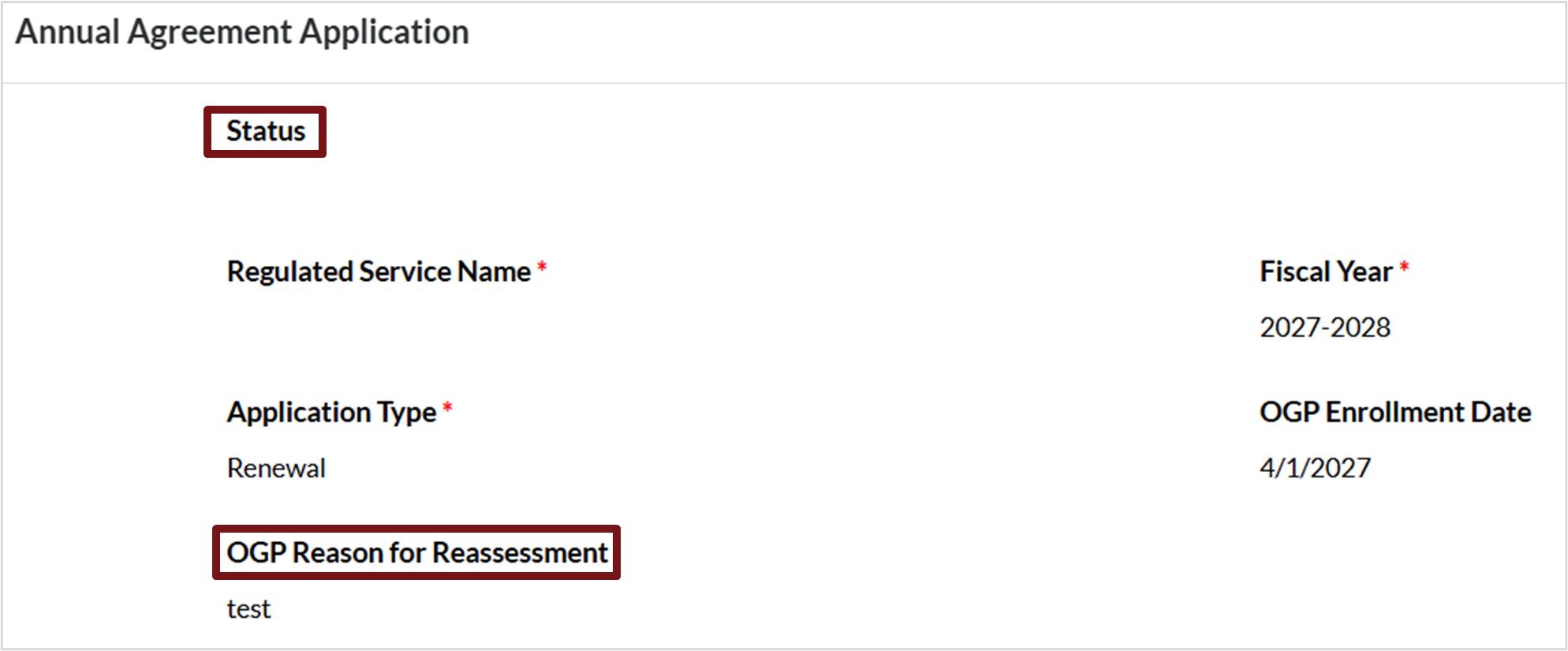
Please note, if a reassessment is required, the status will change to Reassessment Required and will include notes for your review.
Docusign
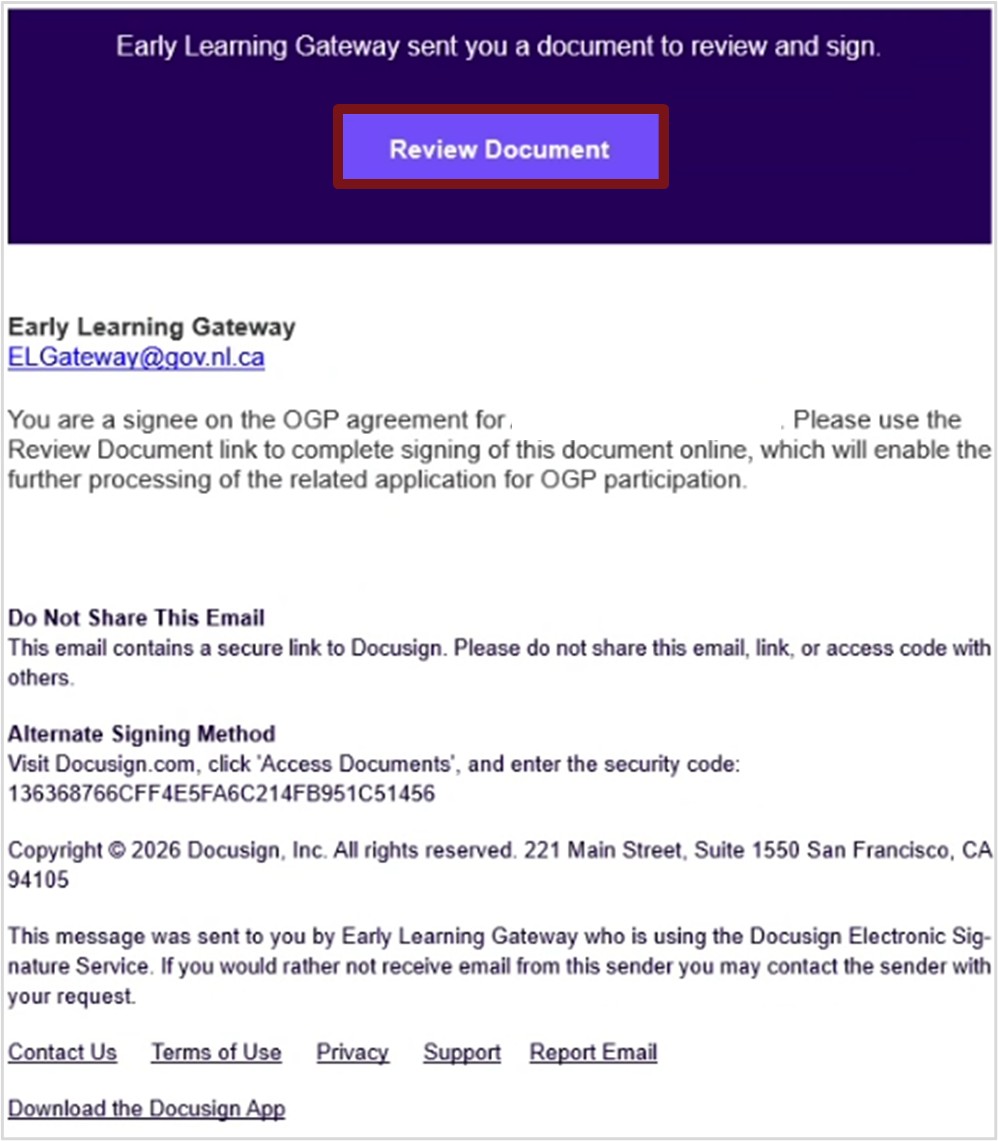
Once you submit your annual agreement, its status will change to OGP Review. After the OGP team finishes reviewing it, and the application has met all requirements, the status will update to Service Signature Required Annual Agreement Applications. When this happens, you will receive an email from the ELG letting you know that your signature is needed.
- Open the email from the ELG, click Review Document.
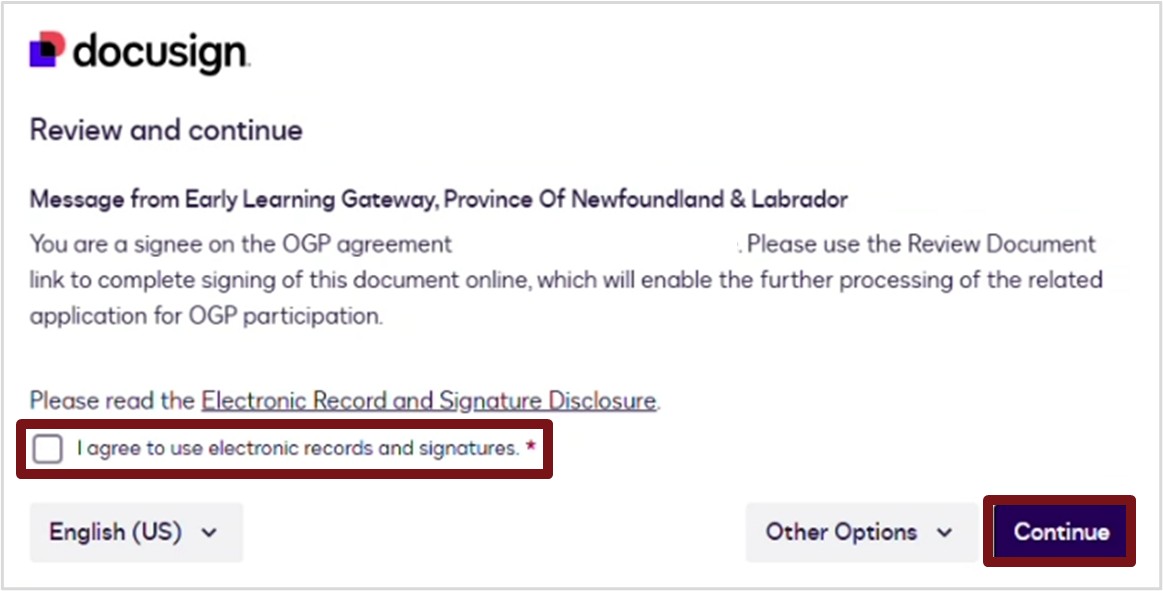
2. A pop-up window will open. Click the box next to I agree to use electronic records and signatures. Then click Continue.
3. Your annual agreement will open on the screen. Review it from top to bottom. When you reach the end of the document, click the blue Sign
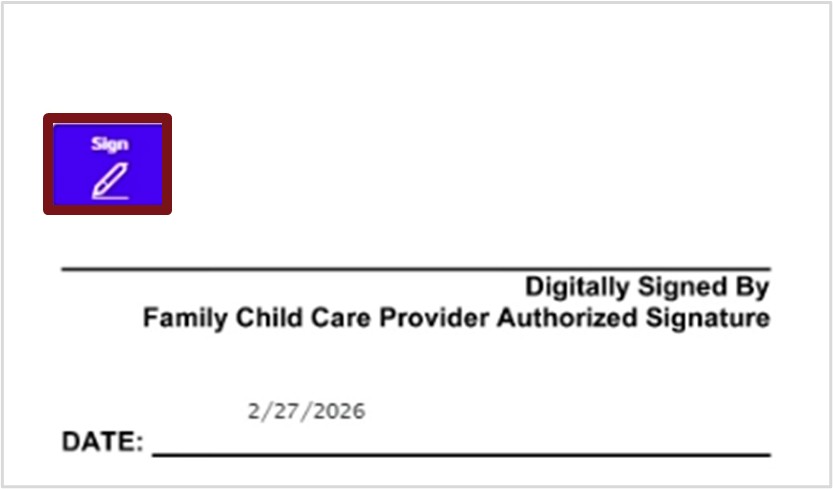
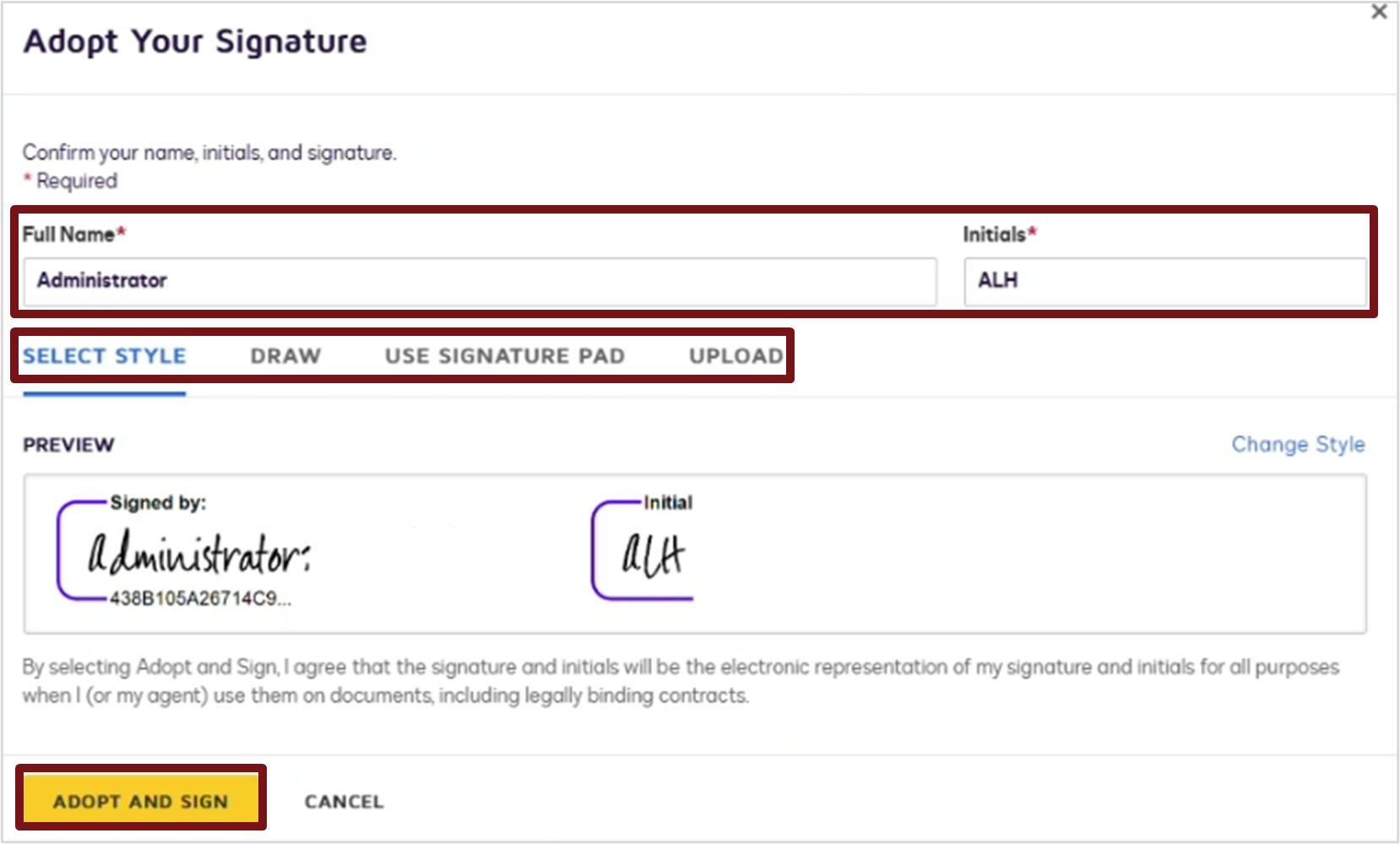
4. This is where you add your signature:
a. Type your full name.
b. Type your initials.
c. Choose how you want to create your signature. You can pick Select Style, Draw, Use Signature Pad or Upload for signature.
d. When your signature appears in Preview, click Adopt and Sign.
e. Your signature and the date will automatically appear on the annual agreement.
5. Click Finish in the top right corner

6. To save a copy of your annual agreement with your signature, click Save a Copy.
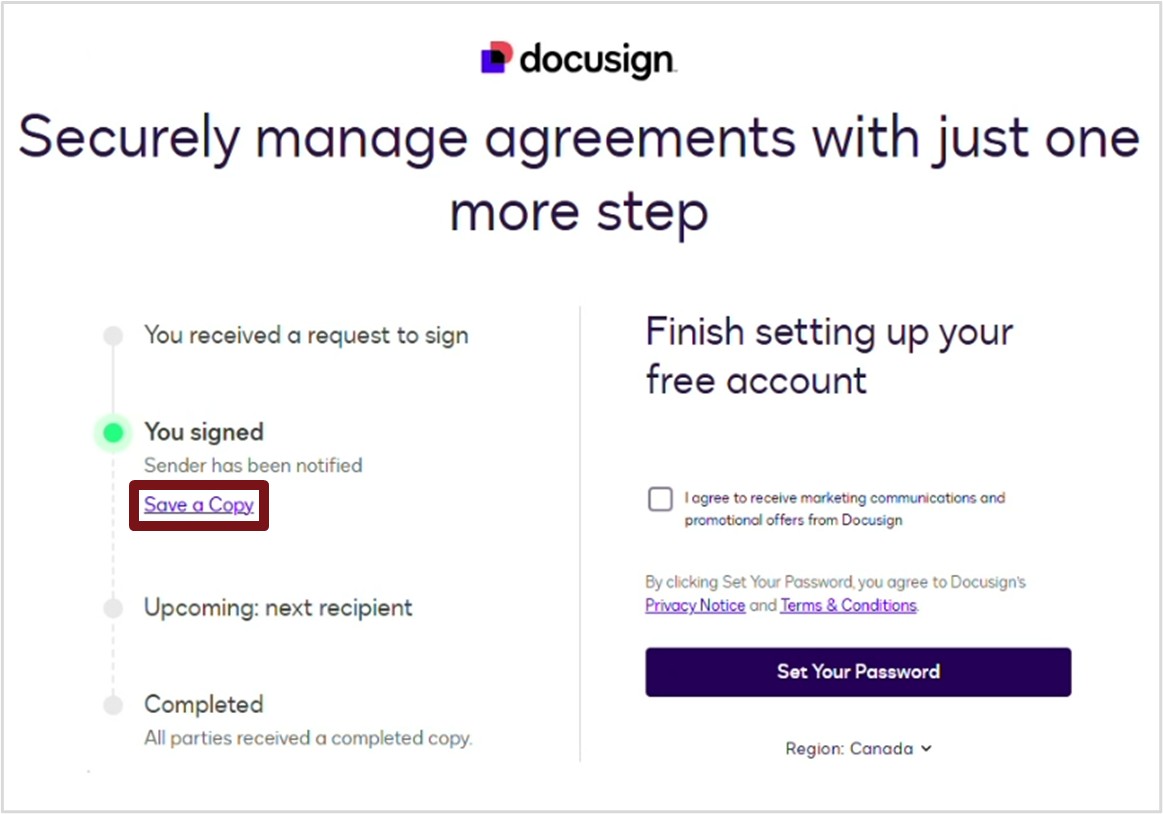
7. Close the docusign window.
After you sign the annual agreement, it is automatically sent back to the OGP team. The status will change to OGP Review. The OGP team will add their final signatures, and once that is complete, the status will change to Complete.
View and Print your Annual Agreement
To view and print the finalized signed annual agreement, follow the steps below:
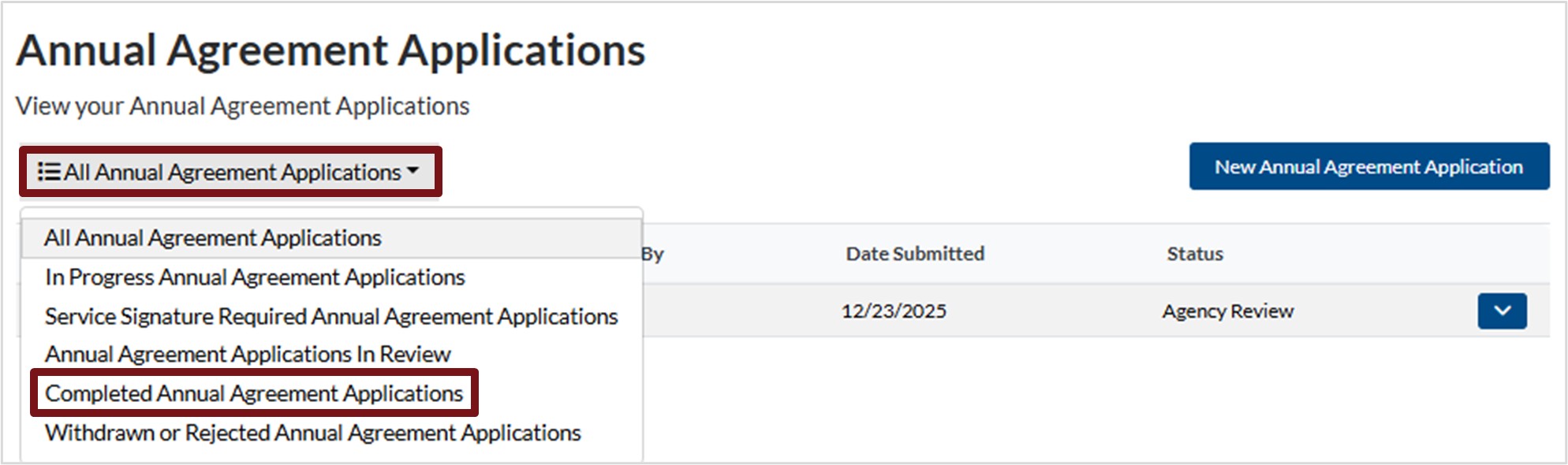
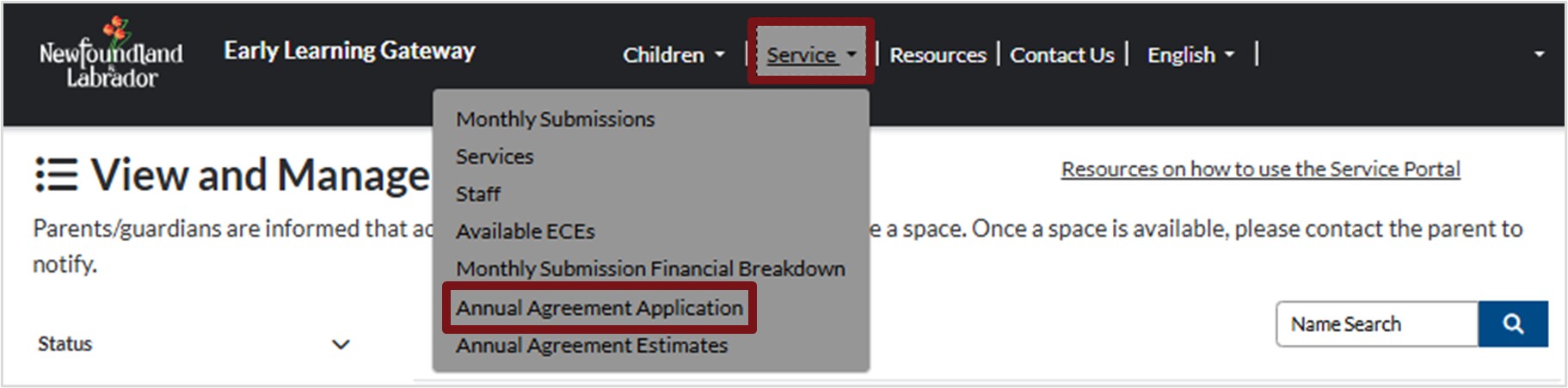
- Click Service at the top of your screen, then select Annual Agreement Application.
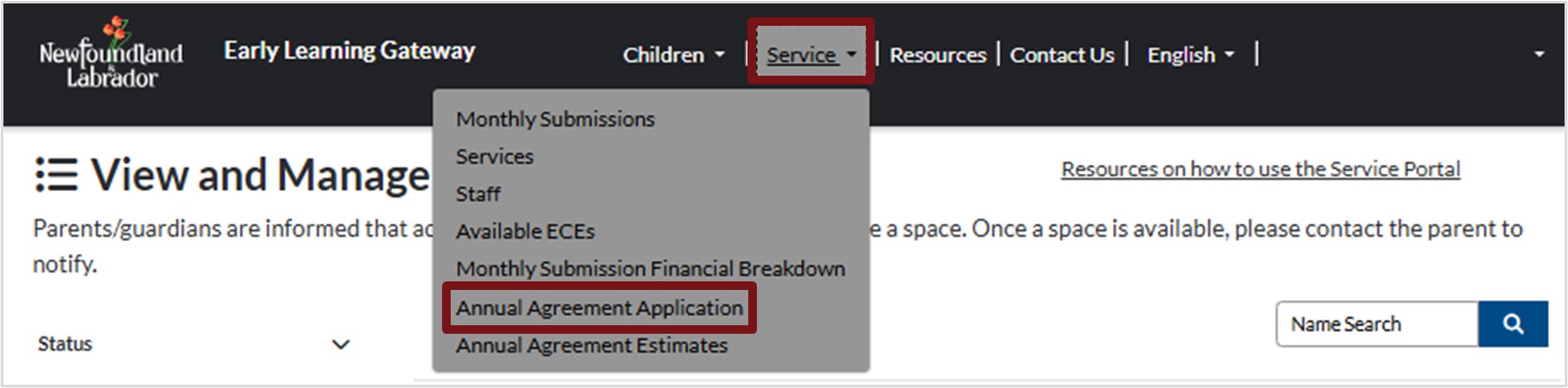
2. Click the down arrow next to All Annual Agreement Applications and select Completed Annual Agreement Applications.
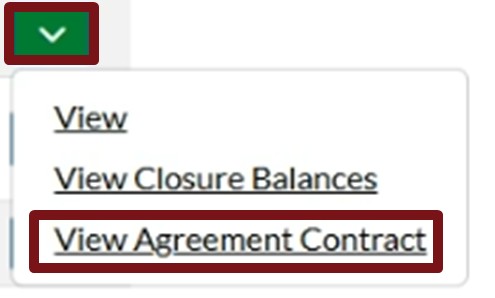
3. Click the down arrow next to the annual agreement for the service and the year that you are searching for, then select View Agreement Contract.
4. Click Signed Agreement – Service Copy.pdf to download a copy.
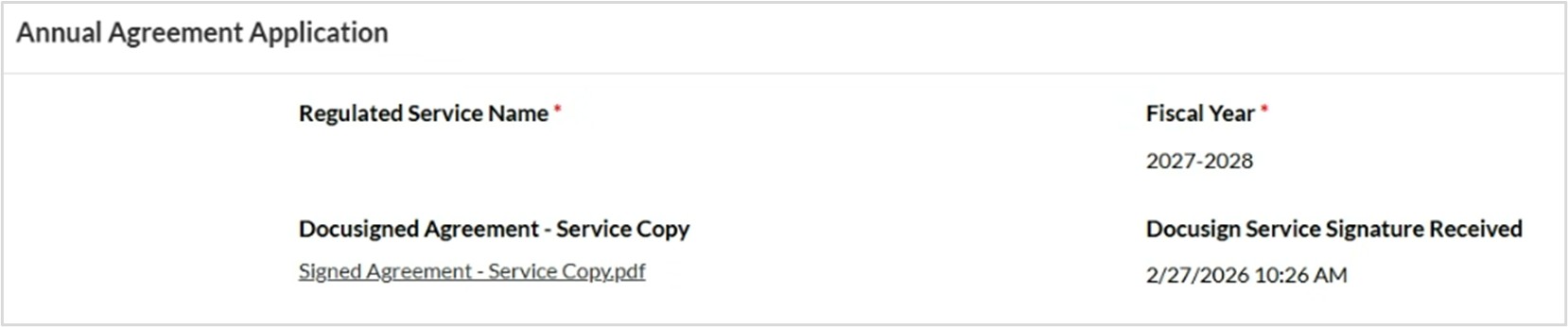
5. Open the downloaded Signed Agreement – Service Copy.pdf and print a copy to keep for your records.
Reviewing Your Annual Agreement Status
To assess the status of an annual agreement that you have submitted, or view details of that status, follow the steps below:
6. Click Service at the top of your screen, then select Annual Agreement Application.
7. A list of all annual agreements will appear. Check the Status column to see the status of each application.
8. To filter or review an annual agreement, click the down arrow next to All Annual Agreement Applications and select the view you want.
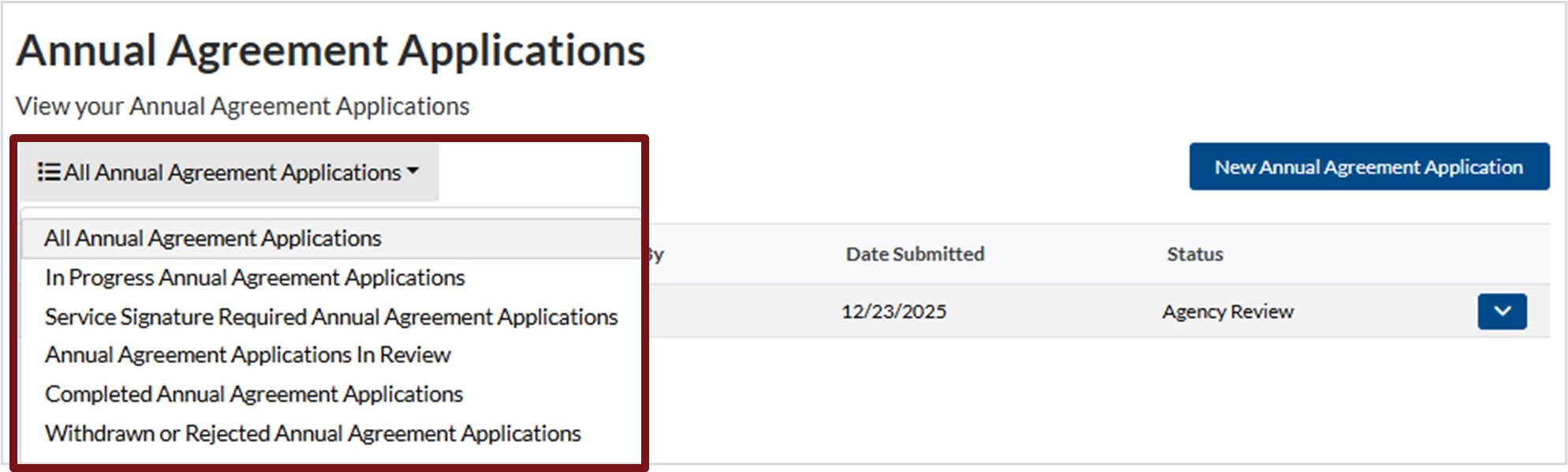
In Progress Annual Agreement Applications
The application is submitted and waiting for review.
Service Signature Required Annual Agreement Applications
The application is approved and requires your electronic signature. You will receive an email indicating you need to provide your electronic signature on the annual agreement application.
Annual Agreement Applications in Review
The application is under OGP review.
Completed Annual Agreement Applications
The application has been reviewed, approved, and signed.
Withdrawn or Rejected Annual Agreement Applications
The annual agreement has been rejected and withdrawn by the OGP team.
4. To view more details of an annual agreement, click the down arrow next to the annual agreement and select View. A new window will appear showing the status of the agreement, as well as details provided by the OGP team.
Annual Agreement Estimates
To review the annual agreement estimates, follow these steps:
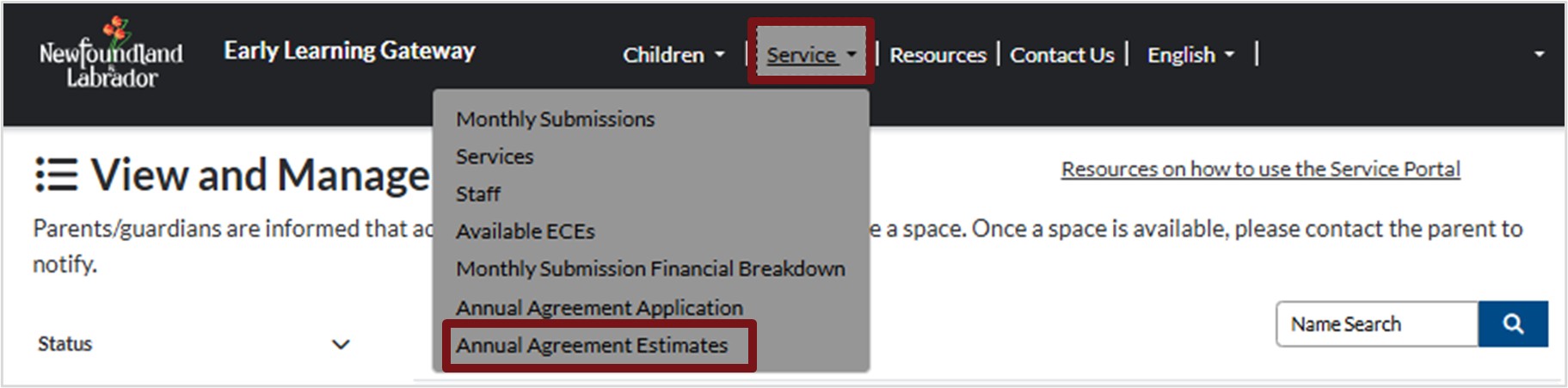
1. Click Services at the top of your screen, then select Annual Agreement Estimates.
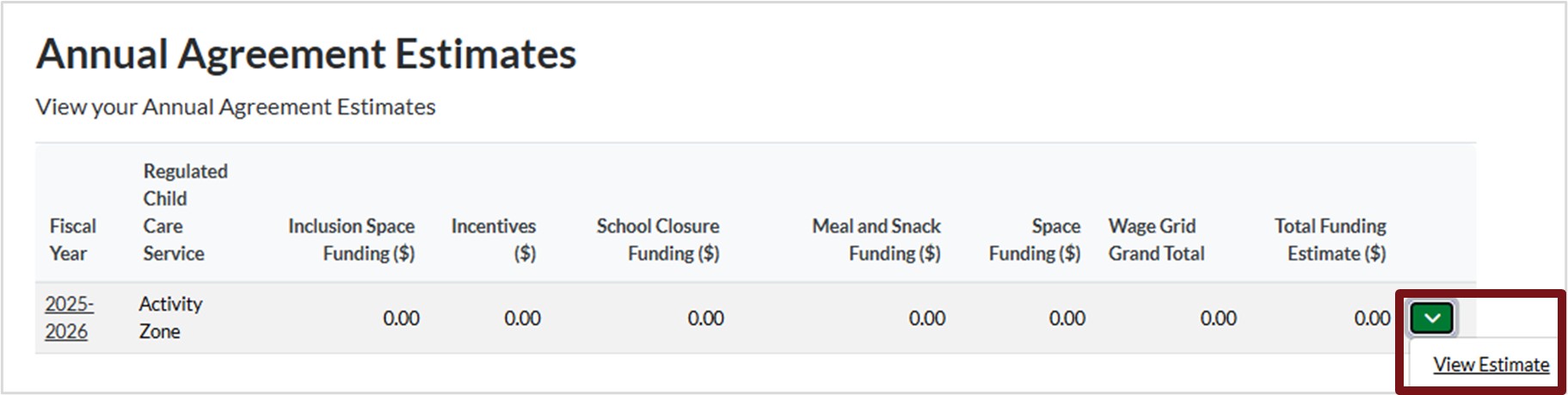
2. A new screen will appear. Click the down arrow next to the fiscal year you wish to review.
3. The Annual Agreement Estimates window will open, scroll down the screen to review the estimates.
How to Give Administrative Staff Agreement and Financials Access
Licenses can provide Administrative Staff with access to annual agreements and financial details. Follow the steps below.
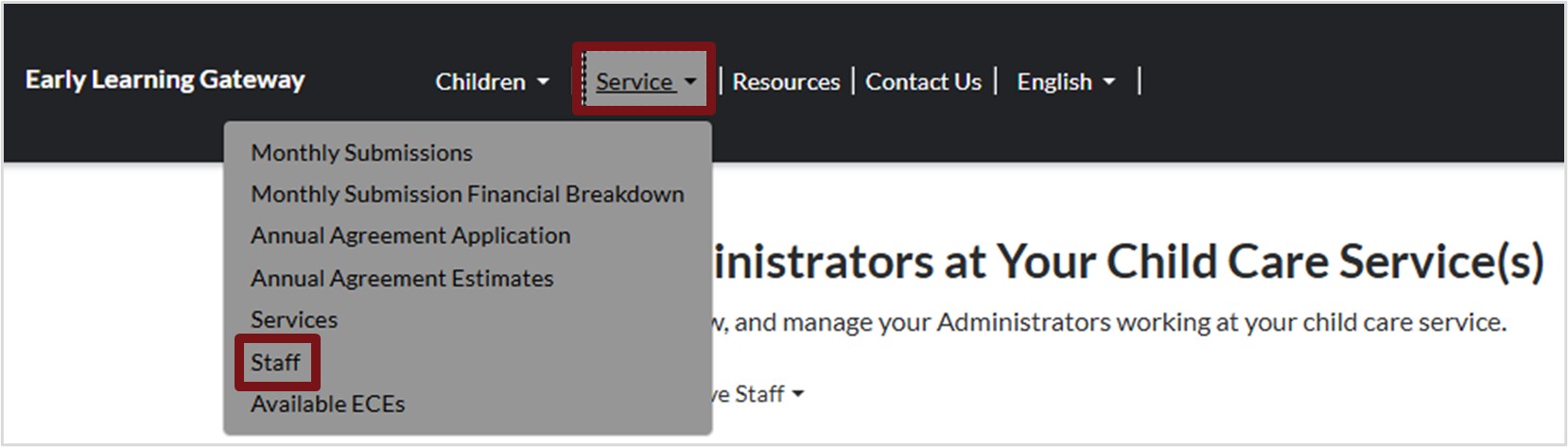
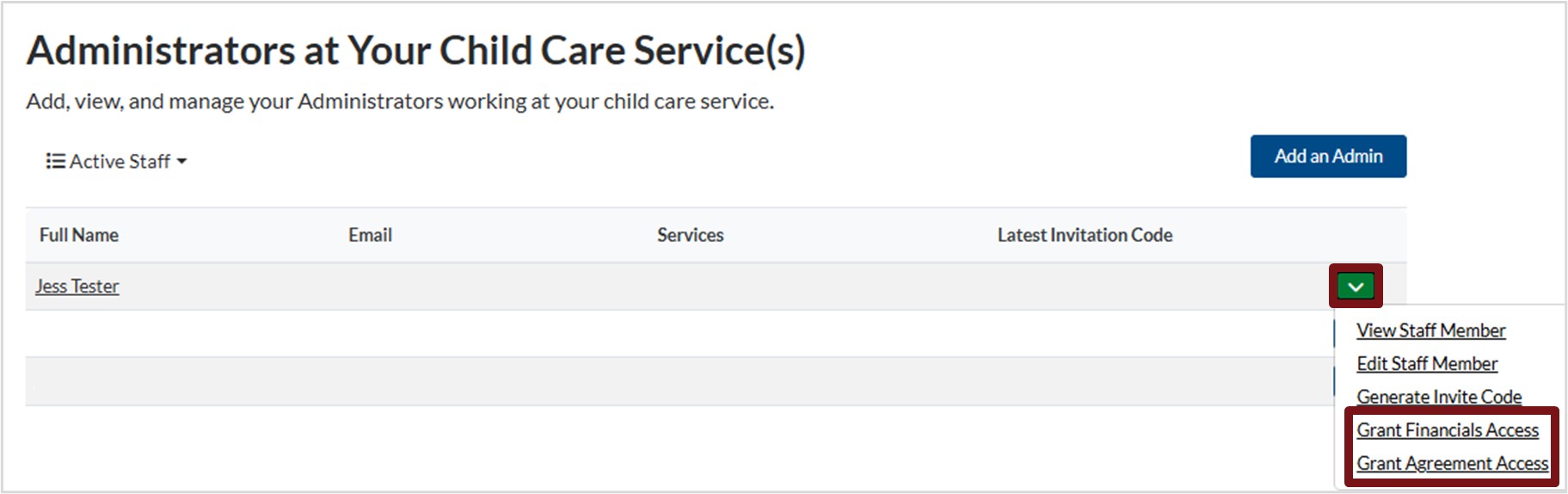
1. Click Service on the top of your screen, then select Staff.
2. Click the down arrow next to the staff you want to provide access to, then select Grant Financial Access and Grant Agreement Access.
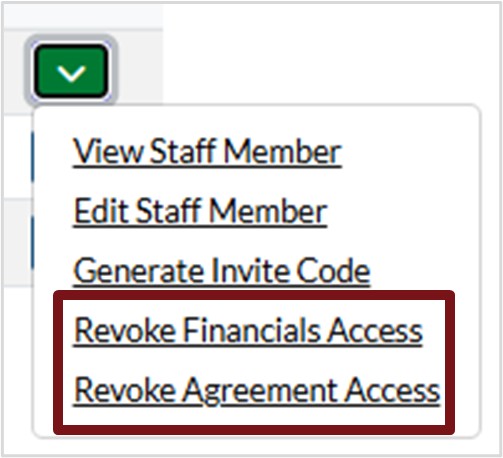
3. To remove access, repeat steps 1 and 2 then select Revoke Financial Access and Revoke Agreement Access.
Annual Agreement Application : Family Based
To complete a new, or renew your annual agreement, follow these steps:
1. Click Services at the top of your screen, then select Annual Agreement Application.
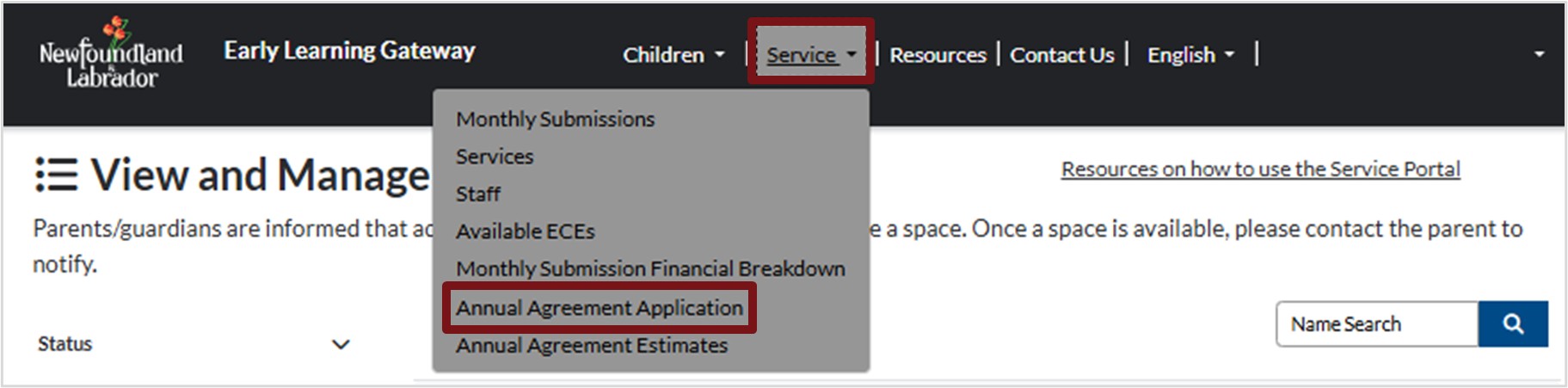
2. A new screen will appear. Click New Annual Agreement Application.

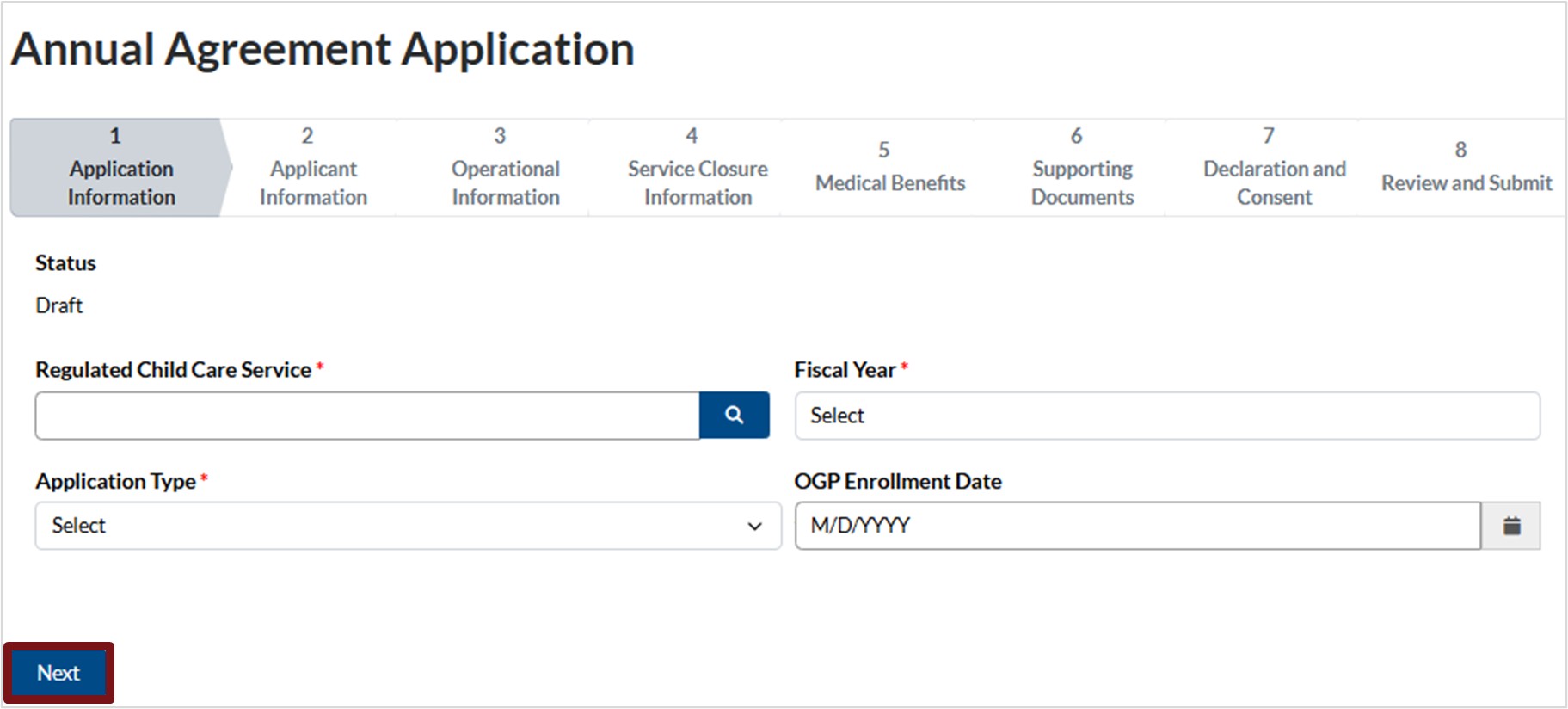
3. The Annual Agreement Application will display.
Application Information
1. Regulated Service Name
-
- Click the magnifying glass to select the Regulated Service Name.
- Search for the applicable regulated service name by entering its name in the Search Then, select the check box next to the regulated service in the list. Alternatively, you can scroll through the list and select the check box next to the regulated service name.
- Click Select.
- To make another selection, click Remove value and select the appropriate regulated service.
- To cancel this action, click Cancel.

2. Application Type
- Click the down arrow to select either:
- New Application
- Renewal
3. Fiscal Year
- Click into the field and select the applicable fiscal year
4. OGP Enrollment Date
-
- If this is a new application, no action is required.
- If this is renewal, the date will auto populate.
5. Click Next to advance to the next step.
Applicant Information
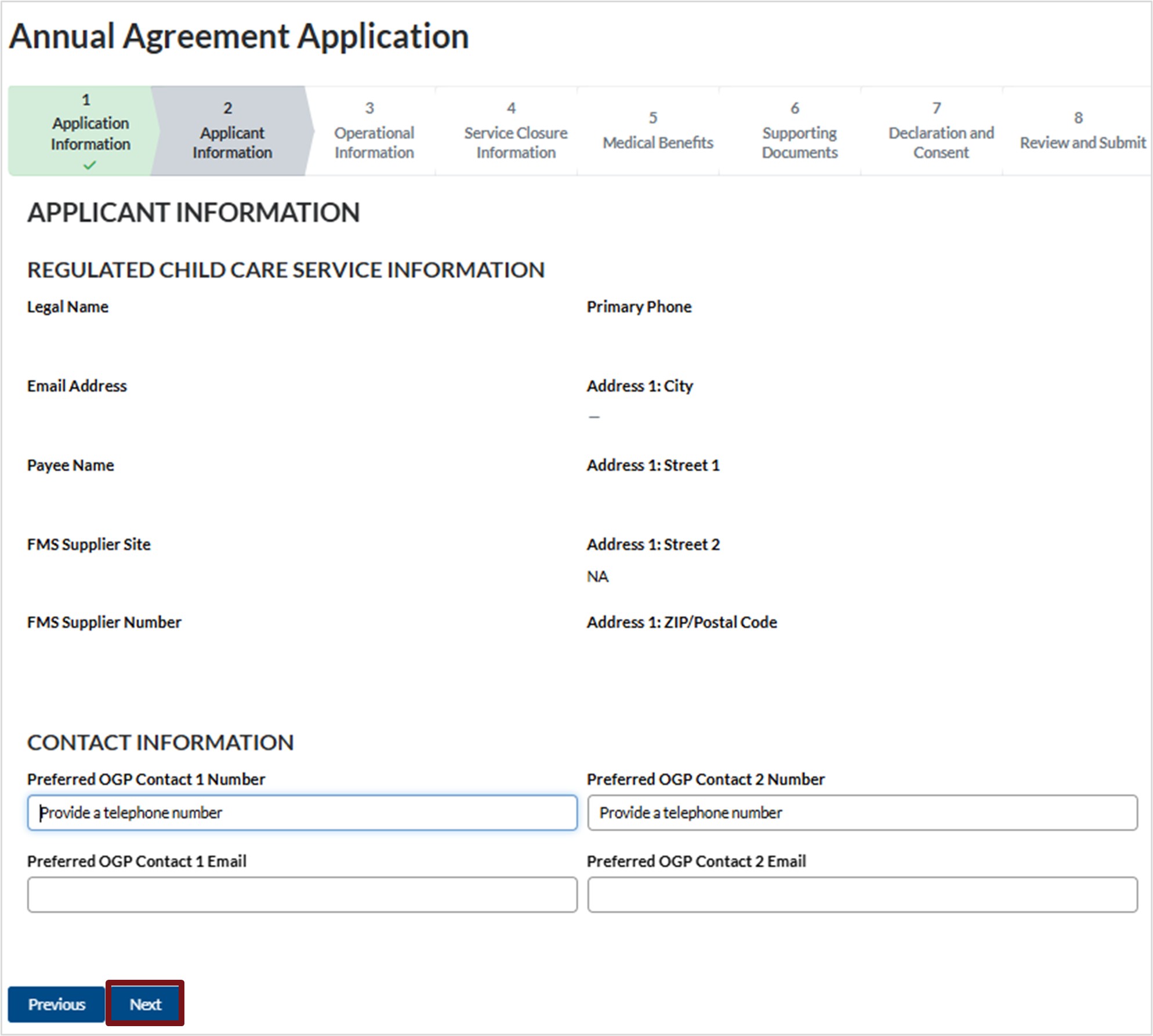
1. Review the child care service provider information.
2. Contact Information
a. Enter the requested contact numbers and email addresses.
3. Click Next to advance to the next section.
Operational Information
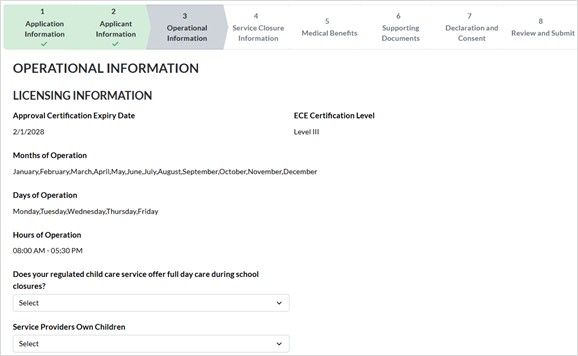
1. Operational Information
a. Review the licensing information.
2. Click in the field provided to select the appropriate response to indicate if your regulated child care service offers full day care during school closures.
b. If you select Yes, an additional field will appear. Enter the Number of School Closure Days.

3. Click in the field provided to select Yes or No to identify if your own children will be in attendance.
a. If you select Yes, an additional field will appear. Enter the number of your own children.

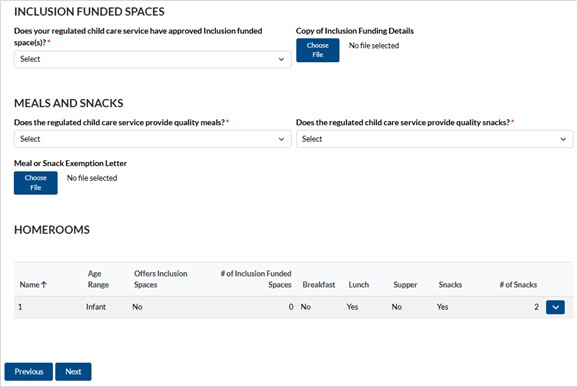
4. Inclusion funded spaces.
a. Click in the field provided, select Yes or No to indicate if your regulated child care service has Inclusion Funded space(s).
b. If you answer yes, click on Choose File and upload the applicable documentation from your device.
5. Meals and snacks.
a. Click in the field, select Yes or Exempt to indicate if your regulated child care service provides quality meals as well as quality snacks.
b. If you select Exempt for either meals or snacks, click on Choose File and upload the applicable documentation from your device.
6. Homerooms
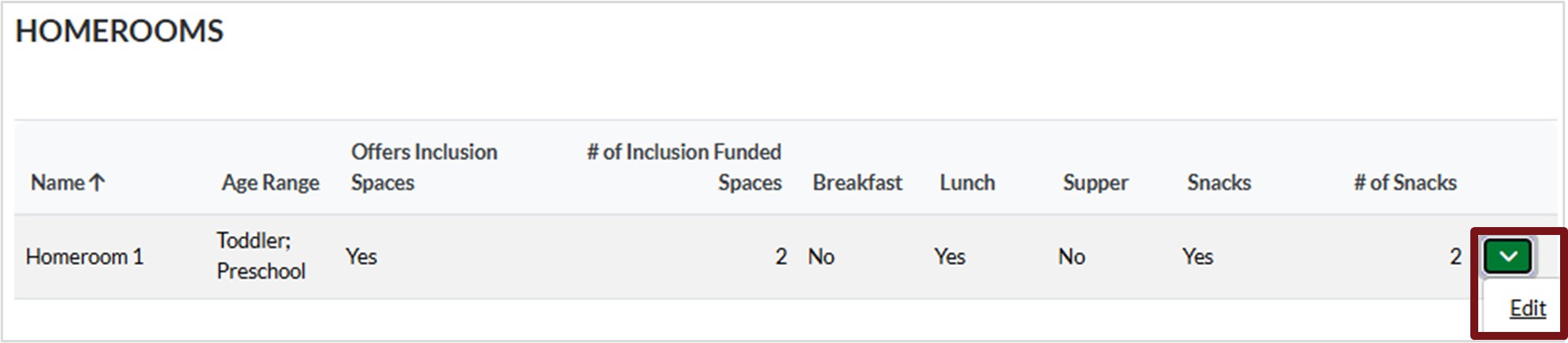
If you have Inclusion Funded Spaces, choose the Homeroom(s) they belong to.
a. Click the down arrow next to the applicable Homeroom then select Edit.
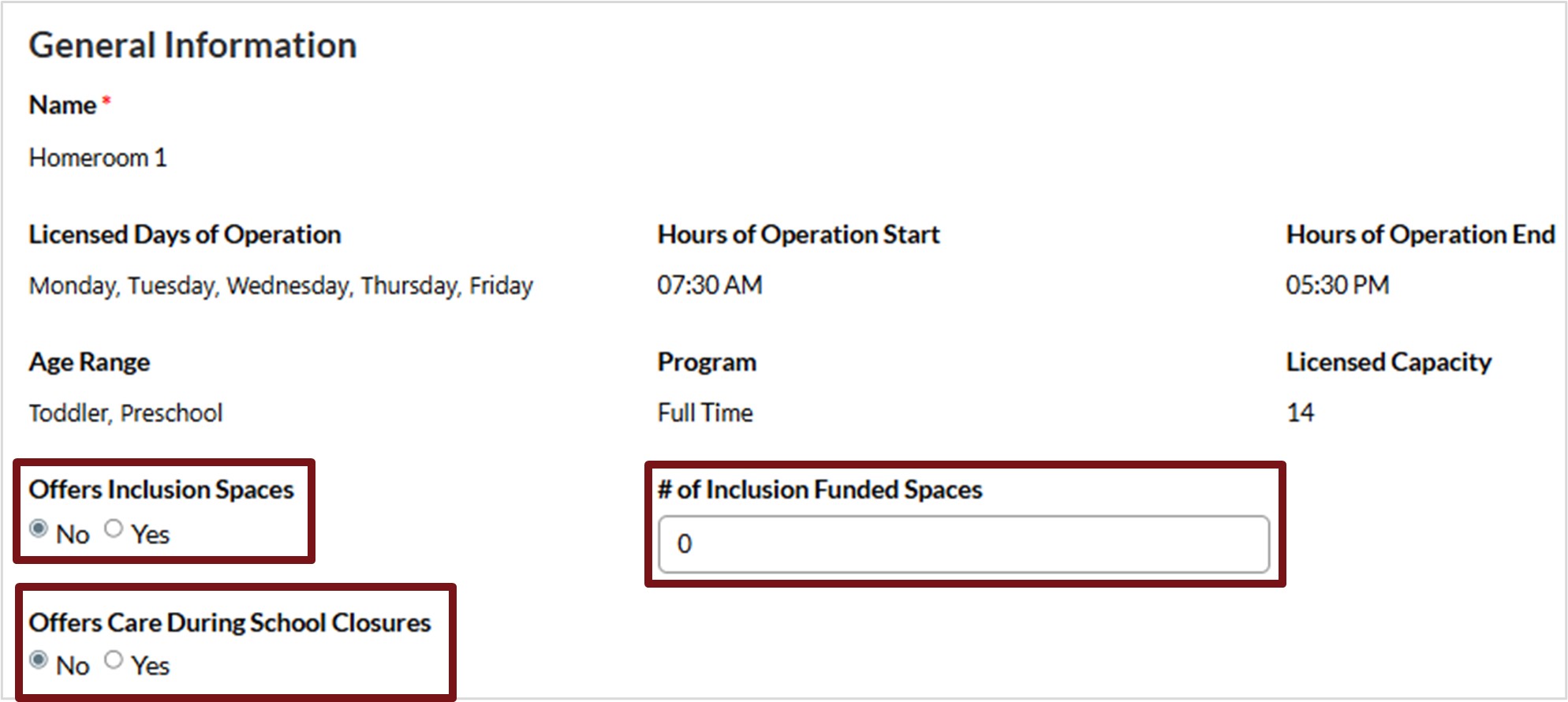
b. Select Yes for Offers Inclusion Spaces.
c. Enter the number of spaces in the # of Inclusion Funded Spaces
d. Select Yes or No for Offers Care During School Closures.
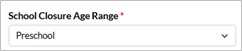
i. If you select Yes, another field will appear. Select the School Closure Age Range.
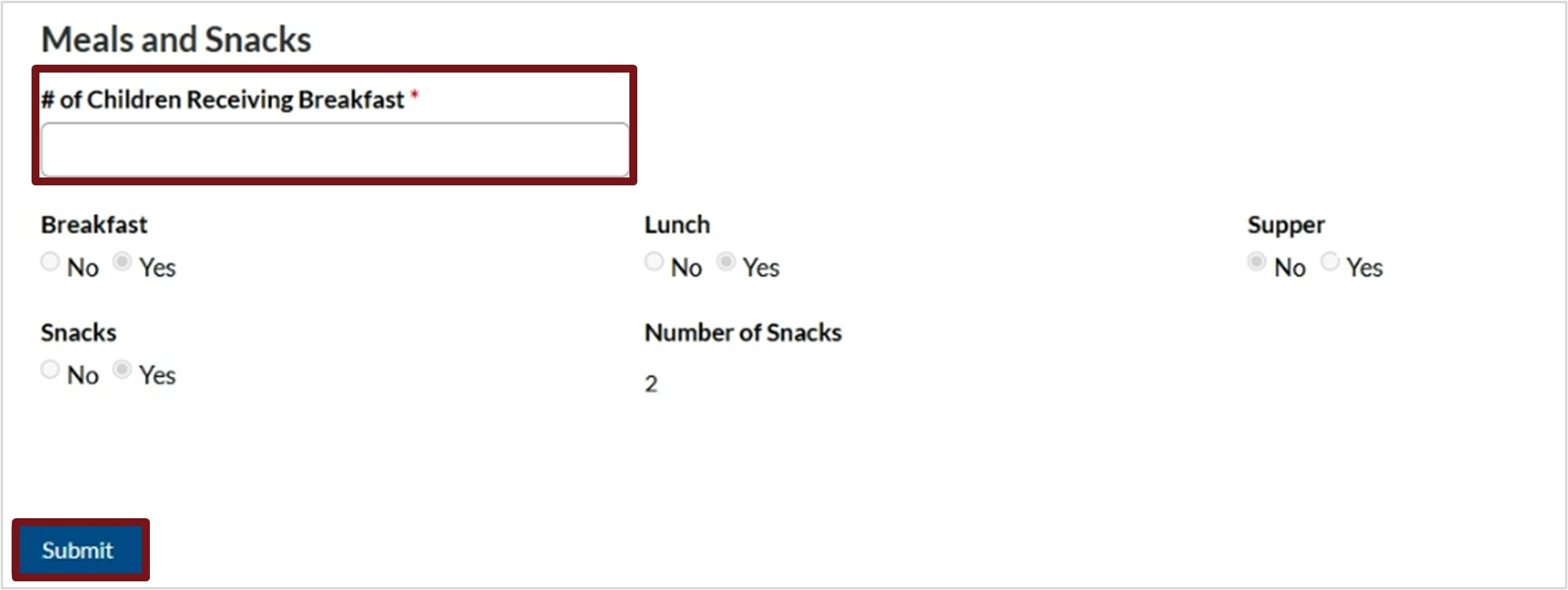
e. If you select Yes to Meals and Snacks, enter the number of Children Receiving Breakfast.
f. Click Submit.
g. If you have additional Homerooms with Inclusion Funded Spaces, repeat steps (a) to (e).
7. Click Next to advance to the next section.
Service Closure Information
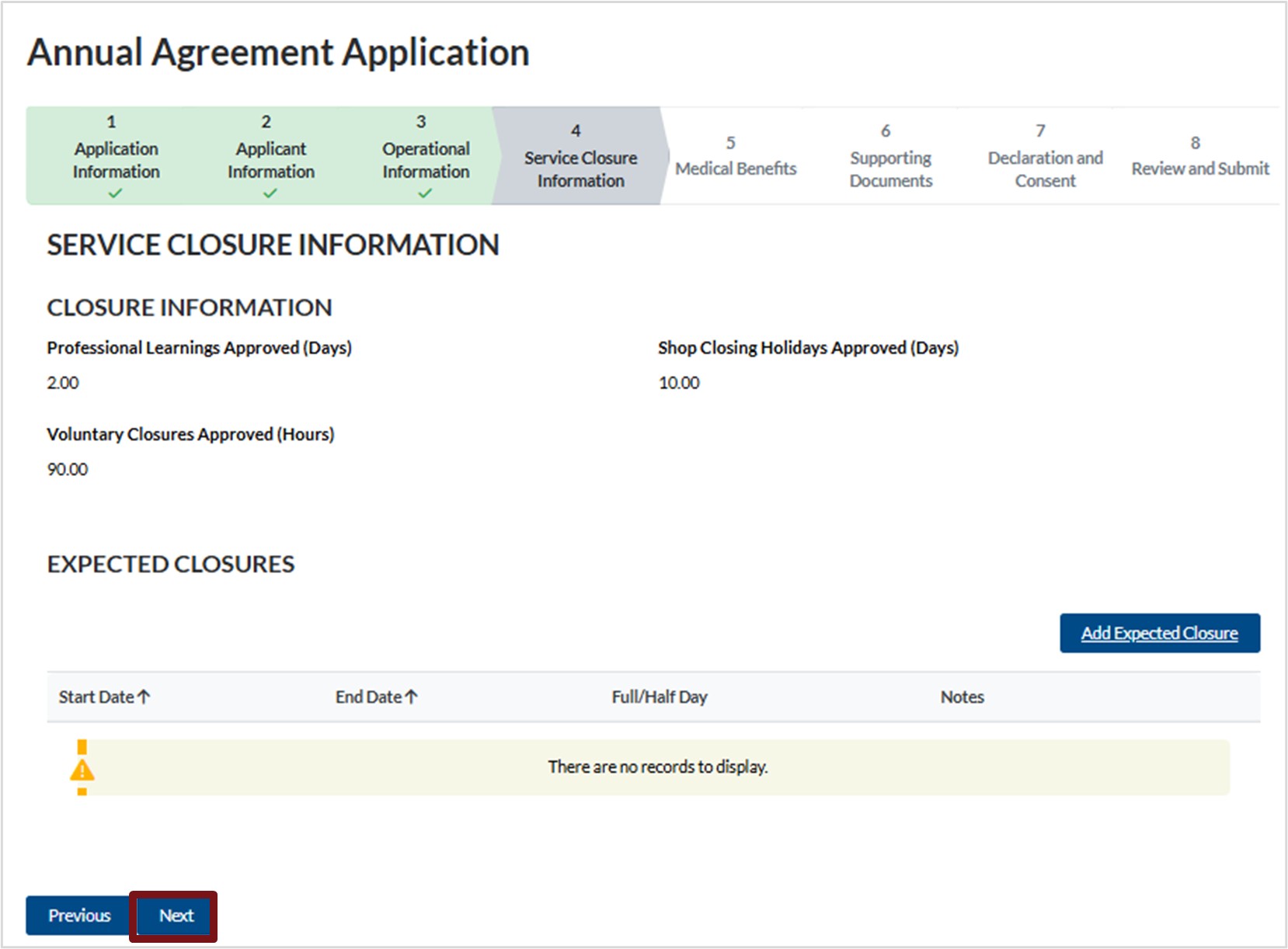
1. Service Closure Information
a. If this is a renewal, you can review the information provided.
b. If this is a new application, this section will not have the applicable information.
2. Expected Closures
a. If there are closure days that you expect to occur, click Add Expected Closure.

b. Click the calendar icon to enter the Start and End Date.
c. Click in the field provided, select Full or Half Day.
d. Click in the field provided, select the Closure Type.
e. Add your Note, then click Submit.
3. Click Next to advance to the next section.
Medical Benefits
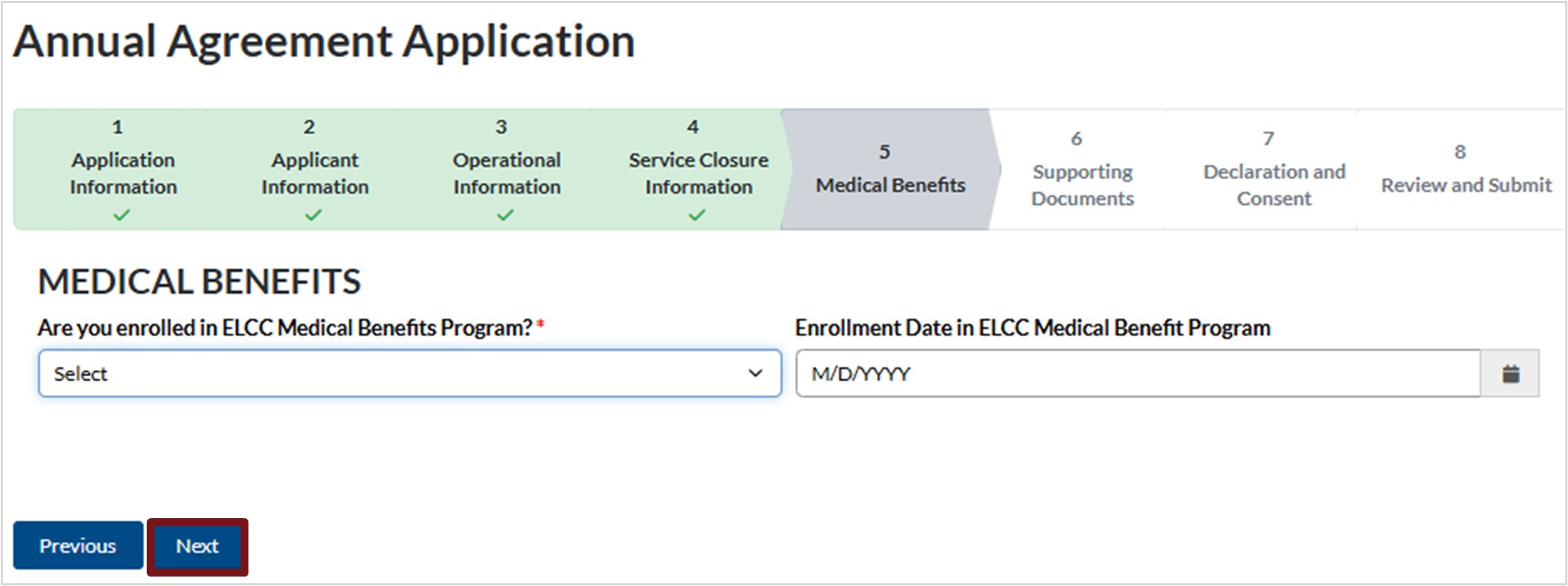
1. Click the down arrow and select Yes or No to indicate if you are enrolled in the ELCC Medical Benefits Program.
2. If you select Yes, click the calendar icon and select the Enrollment Date in the ELCC Medical Benefits Program.
3. Click Next to advance to the next section.
Supporting Documents
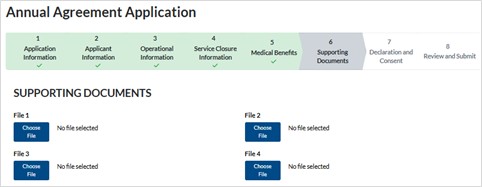
1. Supporting Documents
a. Click Choose File to upload the applicable file from your device. Repeat as necessary.
b. Click Next to advance to the next section.
Declaration Consent
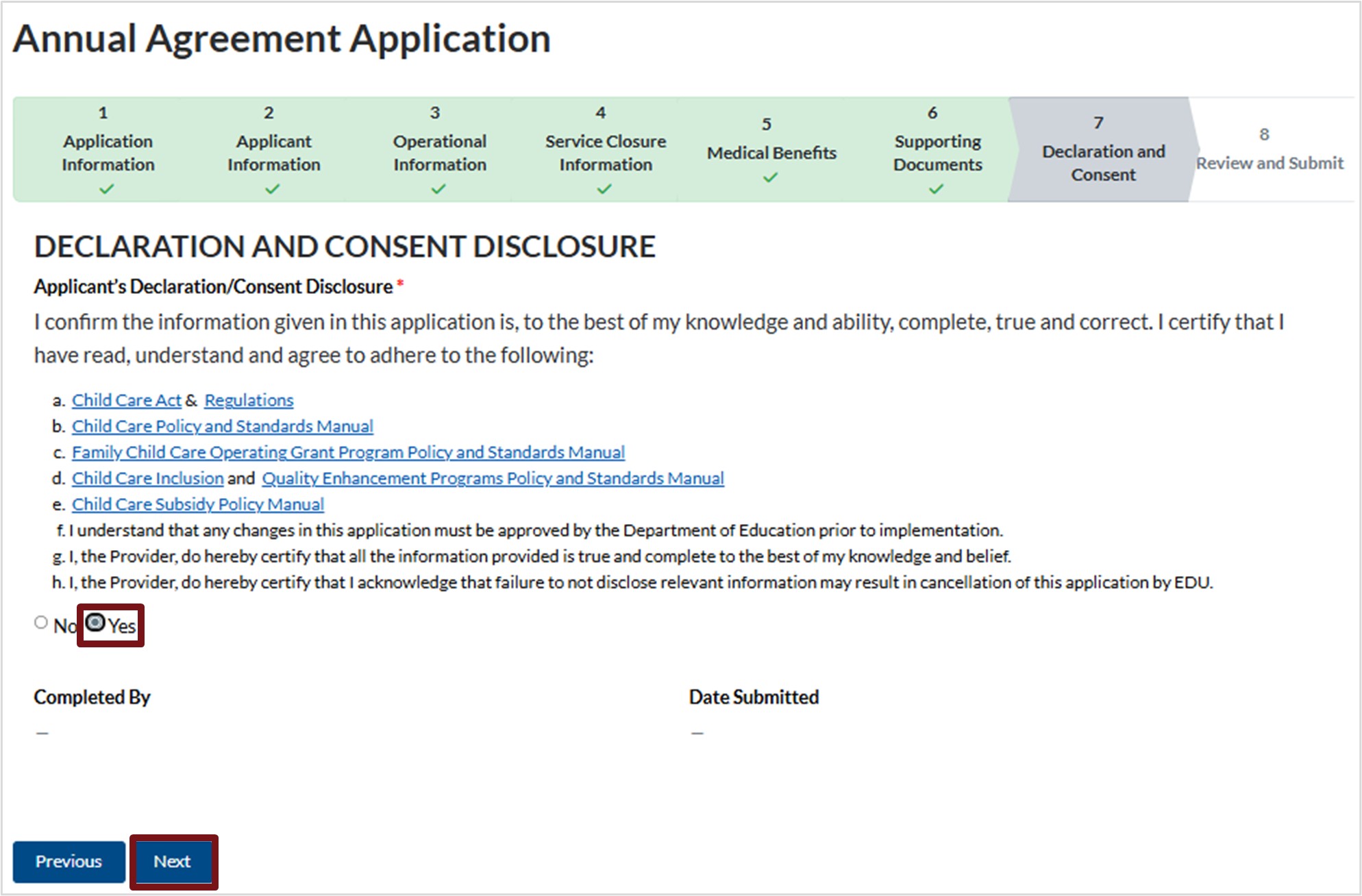
1. Review the declaration and consent disclosure, then select Yes.
2. Click Next to advance to the next section.
Review and Submit
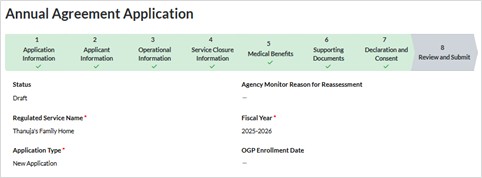
1. The final step is to review the annual agreement application.
a. To make edits, click Previous until you reach the applicable section to make edits.
b. Once the annual agreement is complete, click Submit for Review.
c. You will receive a prompt to confirm that you have reviewed and updated any necessary information for the Annual Agreement Application. Click Submit.
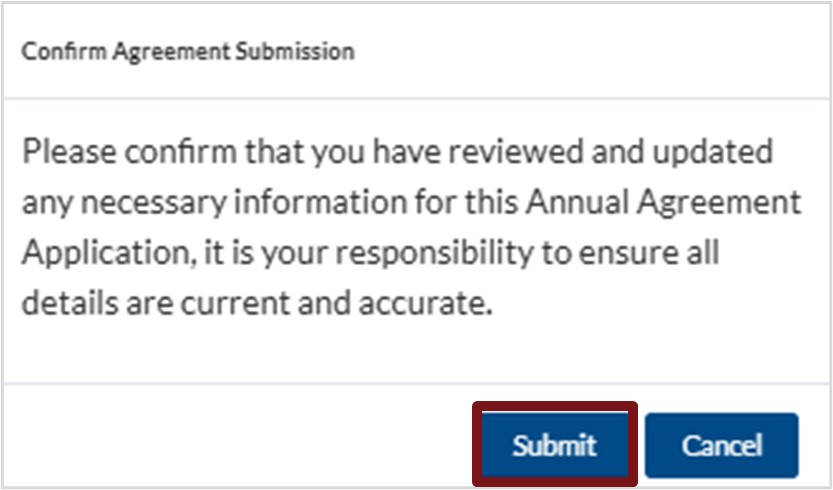
d. You will receive a prompt to confirm that you have reviewed and updated any necessary information for the Annual Agreement Application. Click Submit.
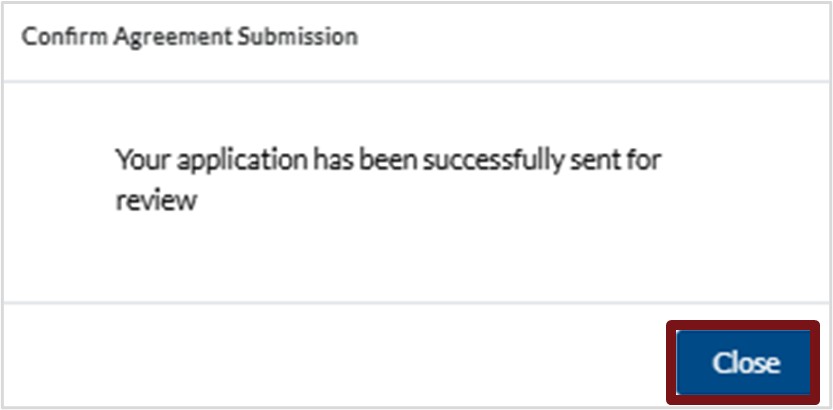
e. You will receive a message stating Your application has been successfully sent for review. Click Close.
The annual agreement is now sent to the Department of Education and Early Childhood Development Operating Grant Team for review. Once it is approved, you will receive an email asking for your e-signature. After you sign, the annual agreement is sent back to the Department of Education for their e-signatures. Please note, if a reassessment is required, the status will change to Reassessment Required and will include notes for your review.
Docusign
Once you submit your annual agreement, its status will change to Agency Review. After the OGP team finishes reviewing it, and the application has met all requirements, the status will update to Service Signature Required Annual Agreement Applications. When this happens, you will receive an email from the ELG letting you know that your signature is needed.
1. Open the email from the ELG, click Review Document.
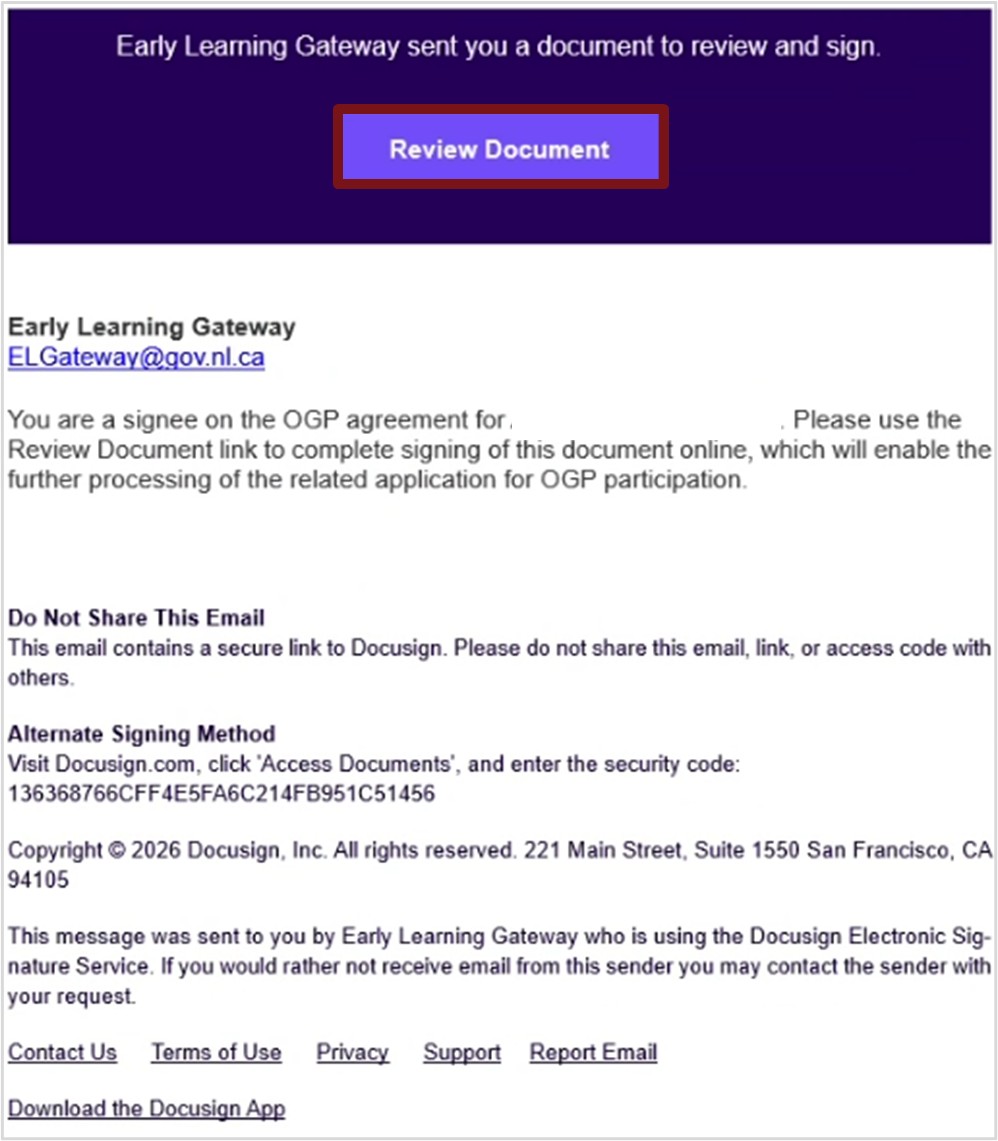
2. A pop-up window will open. Click the box next to I agree to use electronic records and signatures. Then click Continue.
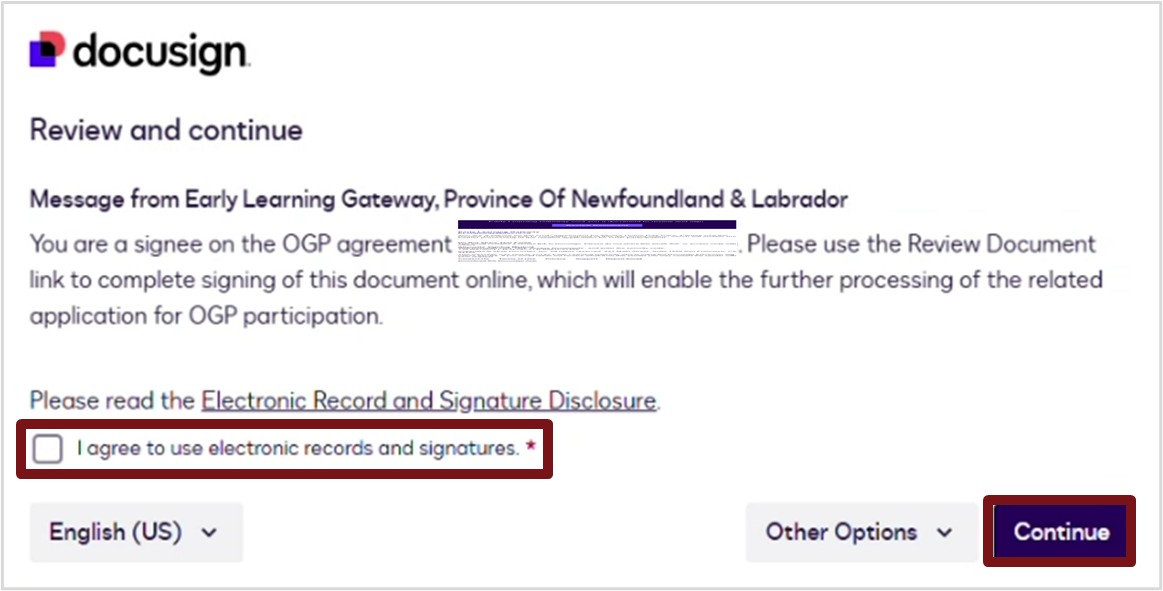
3. Your annual agreement will open on the screen. Review it from top to bottom. When you reach the end of the document, click the blue Sign
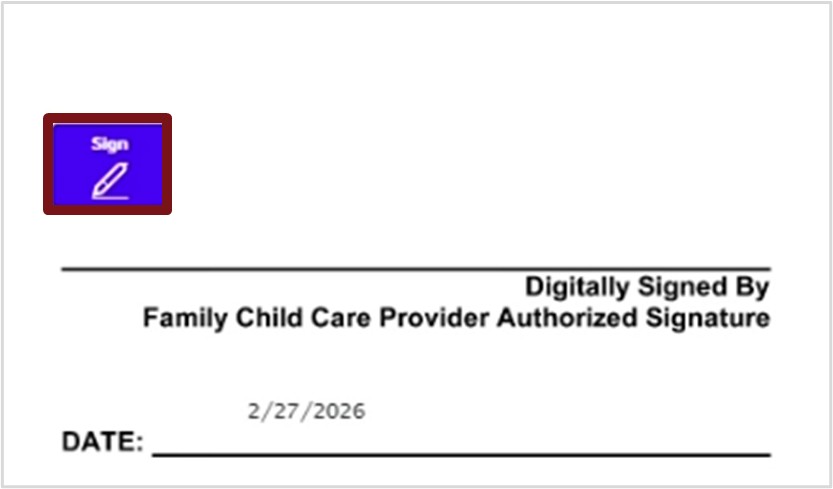
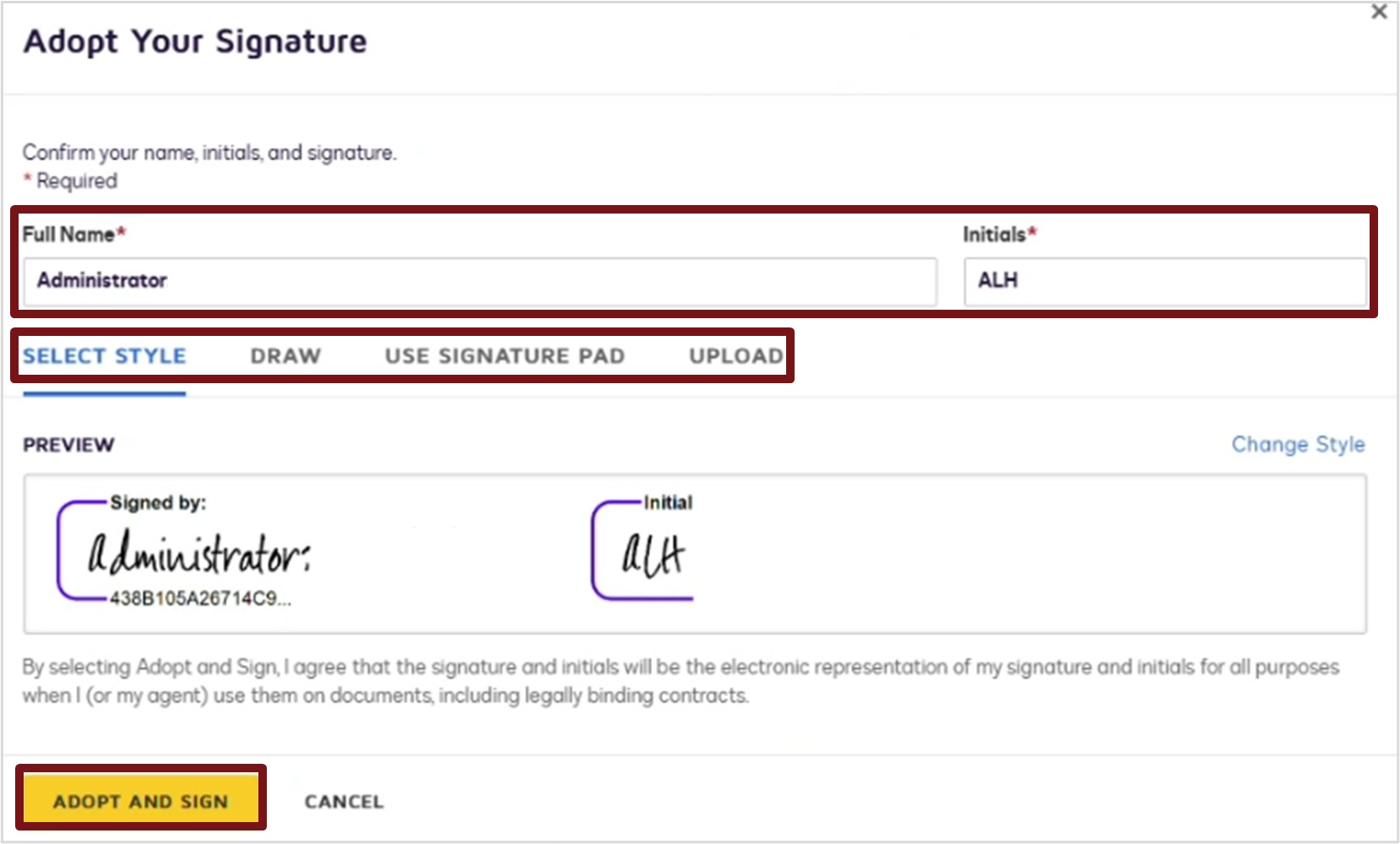
4. This is where you add your signature:
a. Type your full name.
b. Type your initials.
c. Choose how you want to create your signature. You can pick Select Style, Draw, Use Signature Pad or Upload for signature.
d. When your signature appears in Preview, click Adopt and Sign.
e. Your signature and the date will automatically appear on the annual agreement.
5. Click Finish in the top right corner

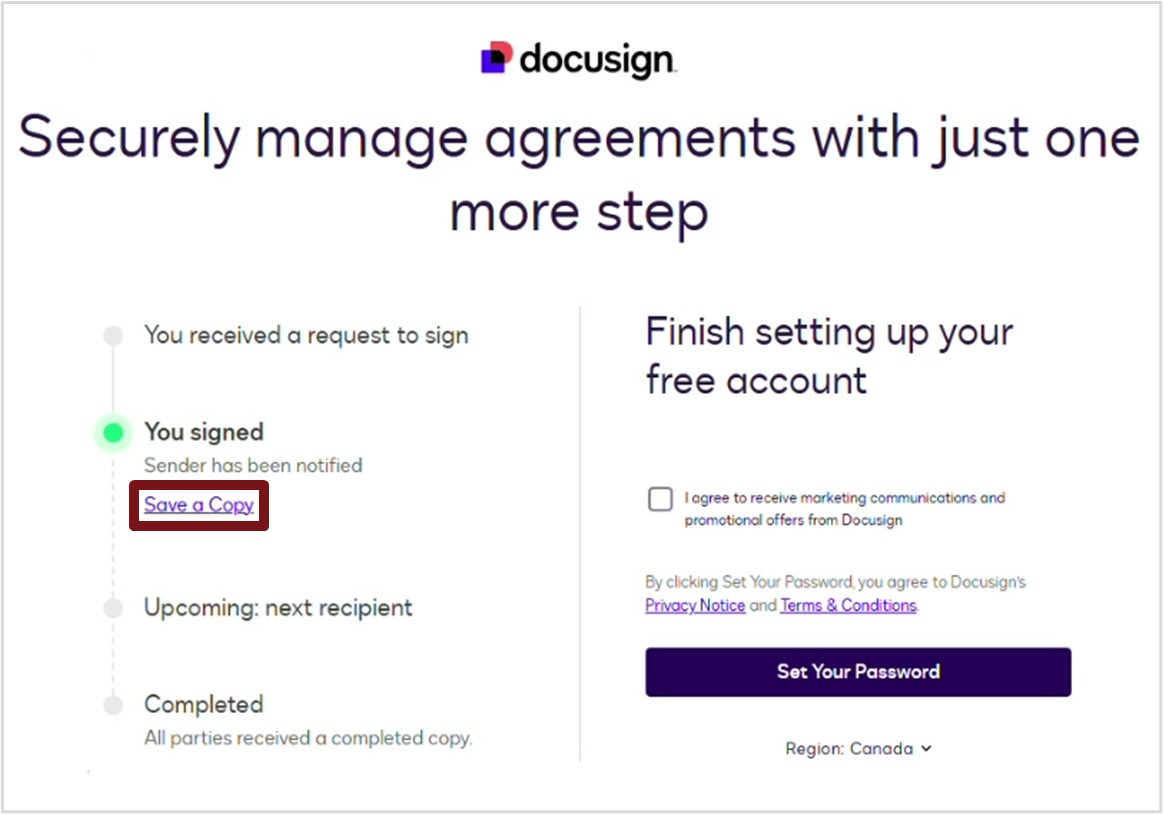
6. To save a copy of your annual agreement with your signature, click Save a Copy.
7. Close the docusign window.
After you sign the annual agreement, it is automatically sent back to the OGP team. The status will change to OGP Review. The OGP team will add their final signatures, and once that is complete, the status will change to Complete.
View and Print your Annual Agreement
To view and print the finalized signed annual agreement, follow the steps below:
1. Click Service at the top of your screen, then select Annual Agreement Application.
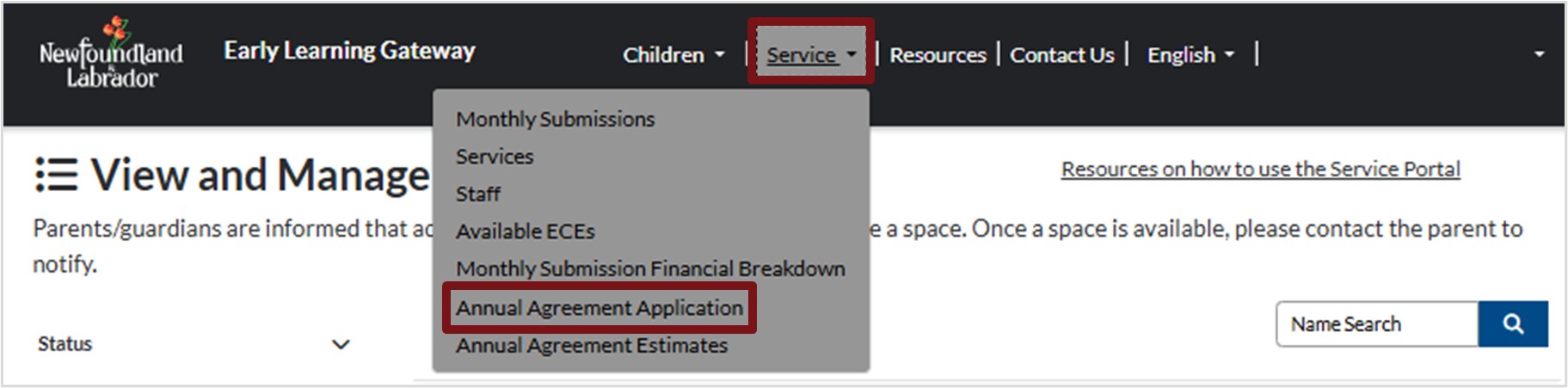
2. Click the down arrow next to All Annual Agreement Applications and select Completed Annual Agreement Applications.
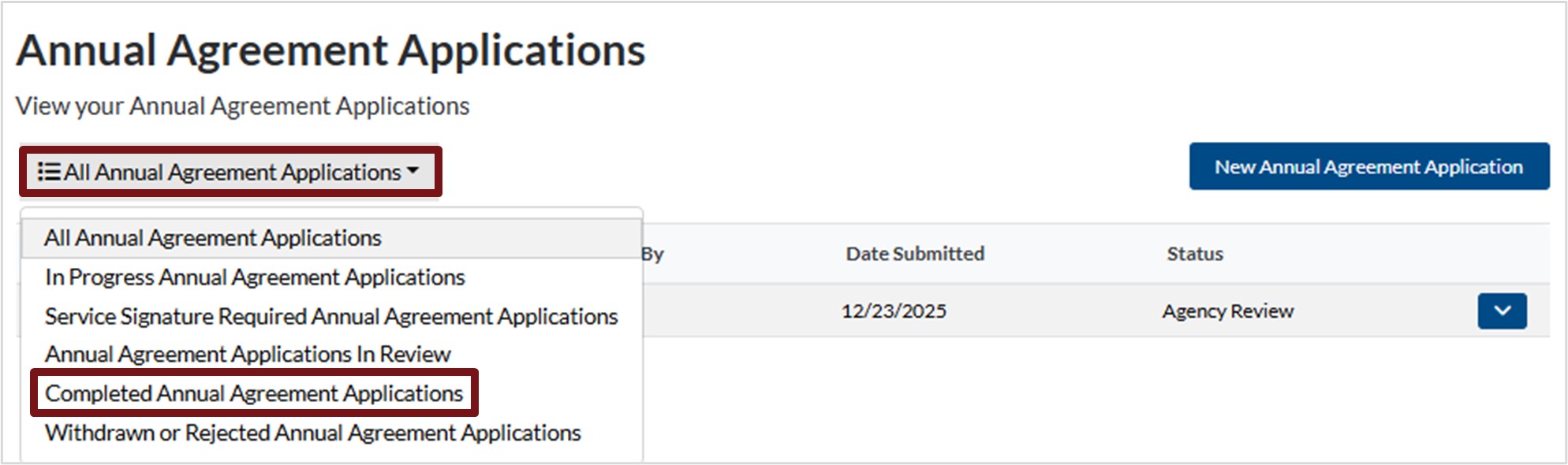
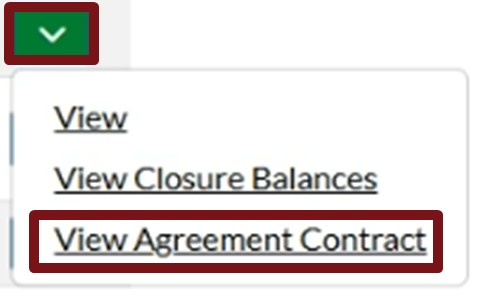
3. Click the down arrow next to the annual agreement, for the year that you are searching for, then select View Agreement Contract.
4. Click Signed Agreement – Service Copy.pdf to download a copy.
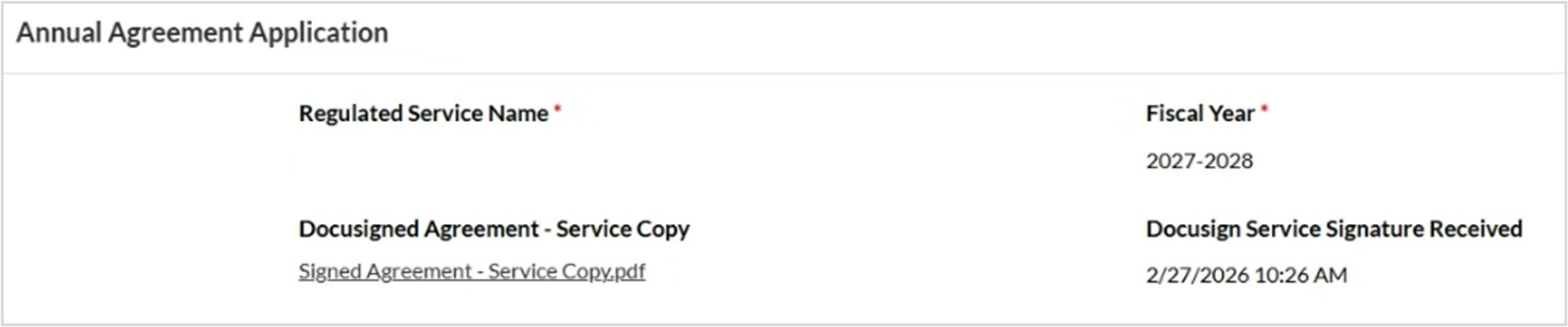
5. Open the downloaded Signed Agreement – Service Copy.pdf and print a copy to keep for your records.
Reviewing Your Annual Agreement Status
To assess the status of an annual agreement that you have submitted, or view details of that status, follow the steps below:
6. Click Services at the top of your screen, then select Annual Agreement Application.
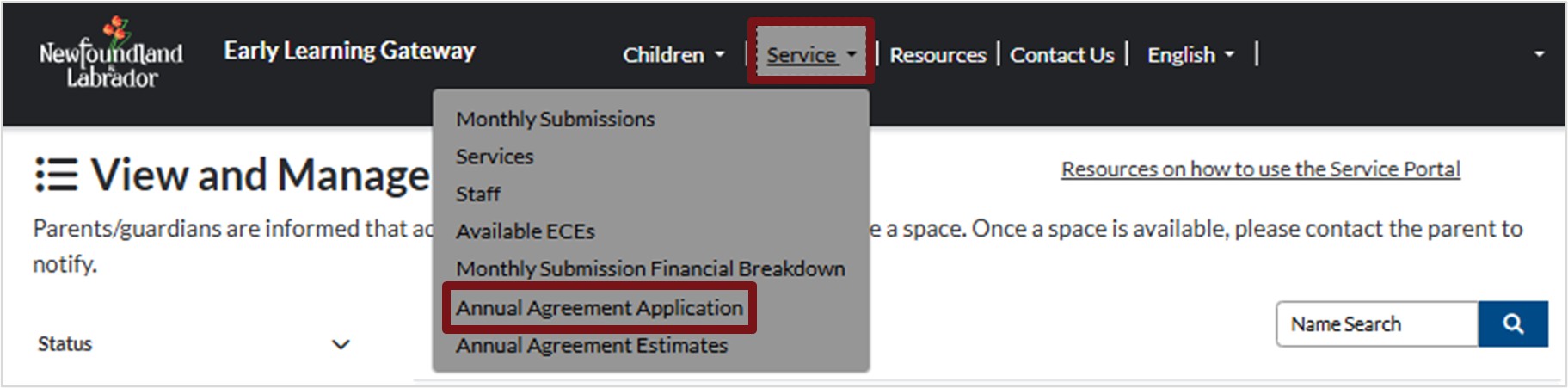
7. A list of all annual agreements will appear. Check the Status column to see the status of each application.
8. To filter or review an annual agreement, click the down arrow next to All Annual Agreement Applications and select the view you want.
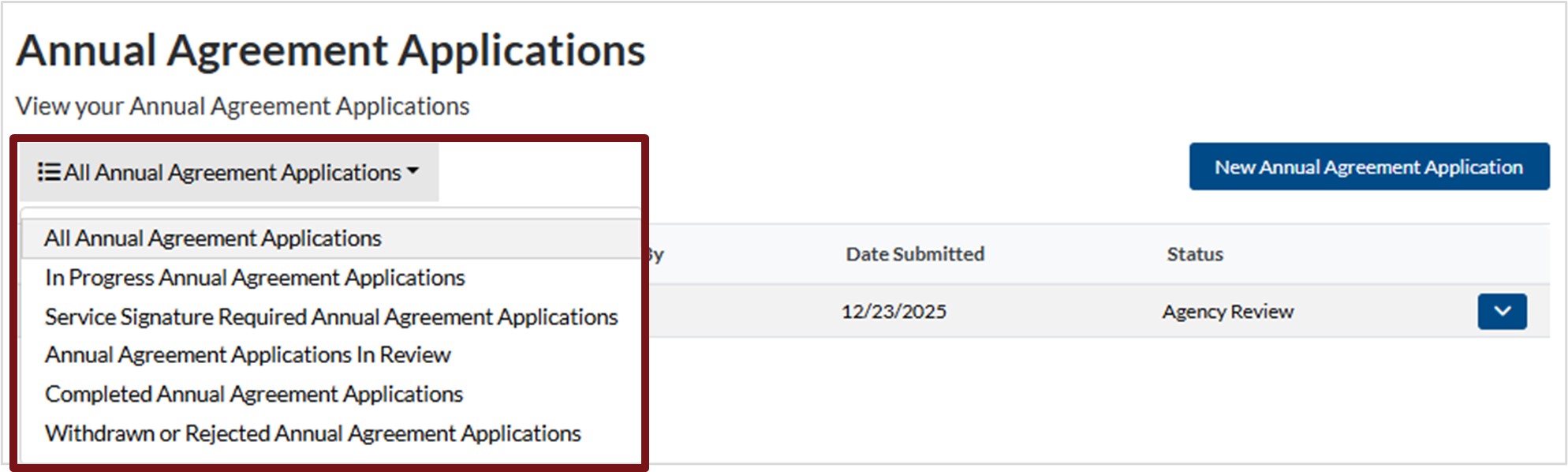
In Progress Annual Agreement Applications
The application has been submitted and is waiting for review.
Service Signature Required Annual Agreement Applications
The application is approved and requires your electronic signature. You will receive an email indicating you need to provide your electronic signature on the annual agreement application.
Annual Agreement Applications in Review
The application is under OGP review.
Completed Annual Agreement Applications
The application has been reviewed, approved, and signed.
Withdrawn or Rejected Annual Agreement Applications
The annual agreement has been rejected and withdrawn by the OGP team.
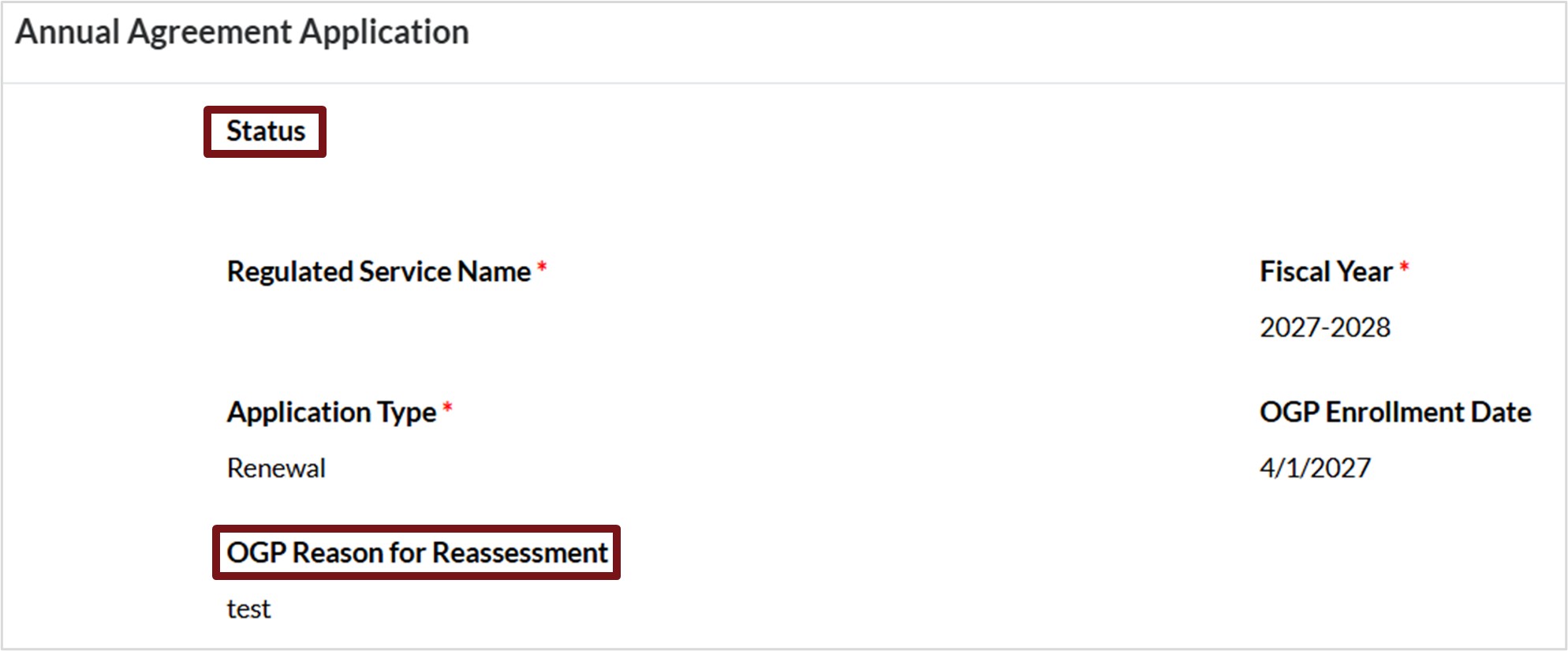
To view more details of an annual agreement, click the down arrow next to the annual agreement and select View. A new window will appear showing the status of the agreement, as well as details provided by the OGP team.
Annual Agreement Estimates
To review the annual agreement estimates, follow these steps:
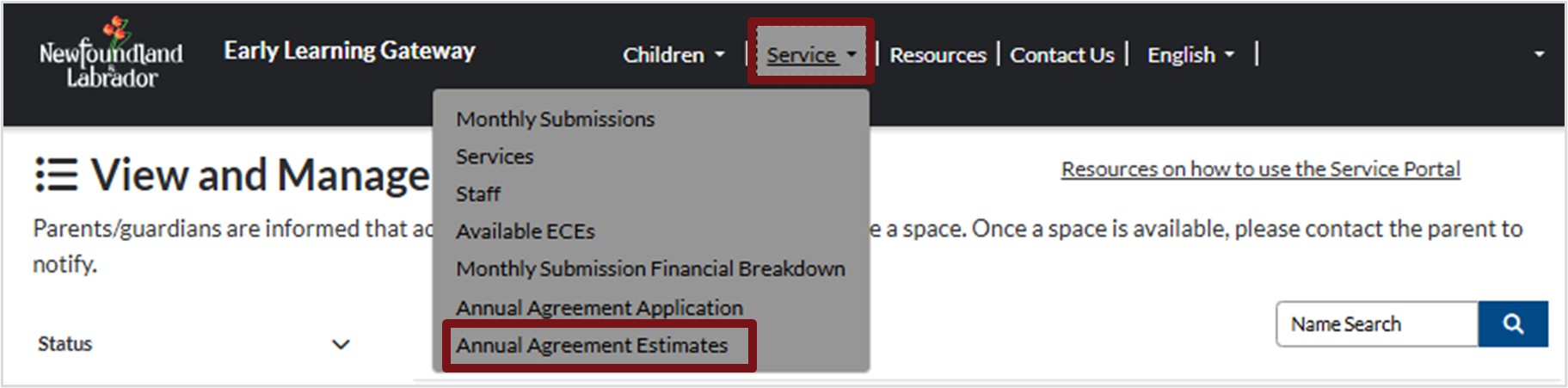
1. Click Services at the top of your screen, then select Annual Agreement Estimates.
2. A new screen will appear. Click the down arrow next to the fiscal year you wish to review.
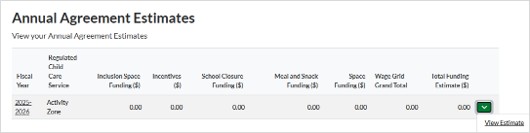
3. The Annual Agreement Estimates window will open, scroll down the screen to review the estimates.
Monthly Submissions – Centre Based
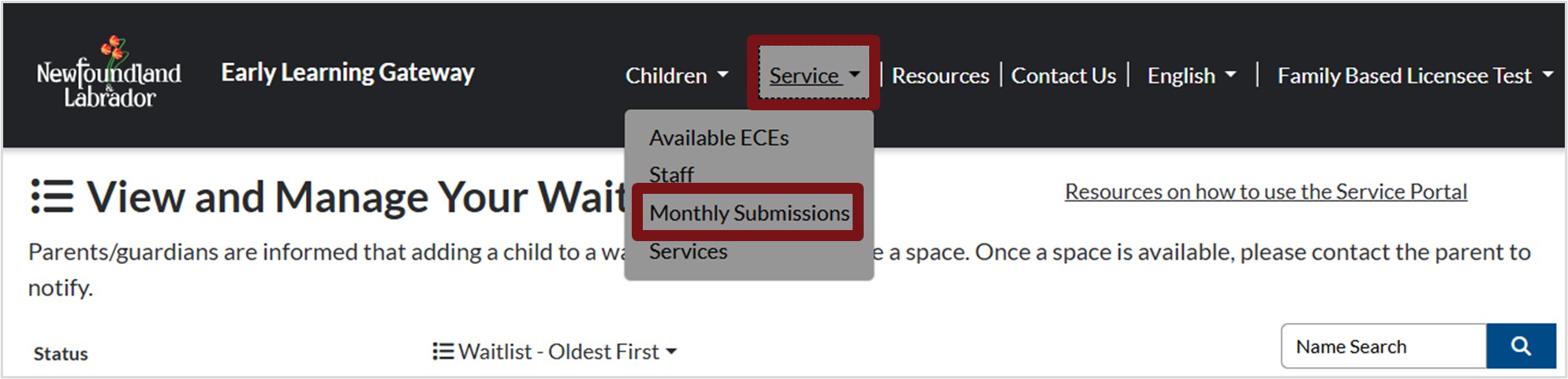
- Click Service on the top of the screen.
- Select Monthly Submissions.
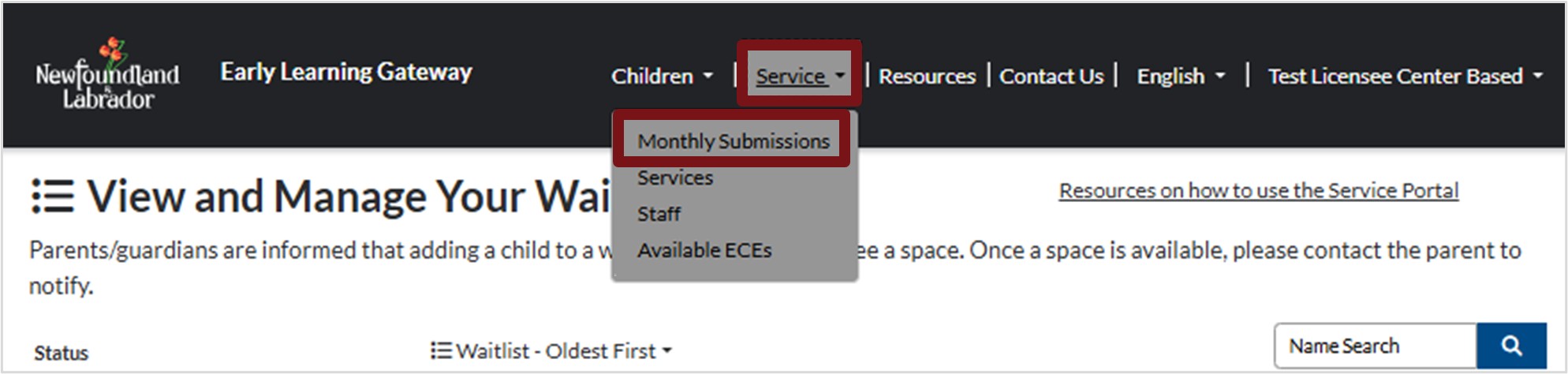
3. To enter a new monthly submission, click Create New Submission.

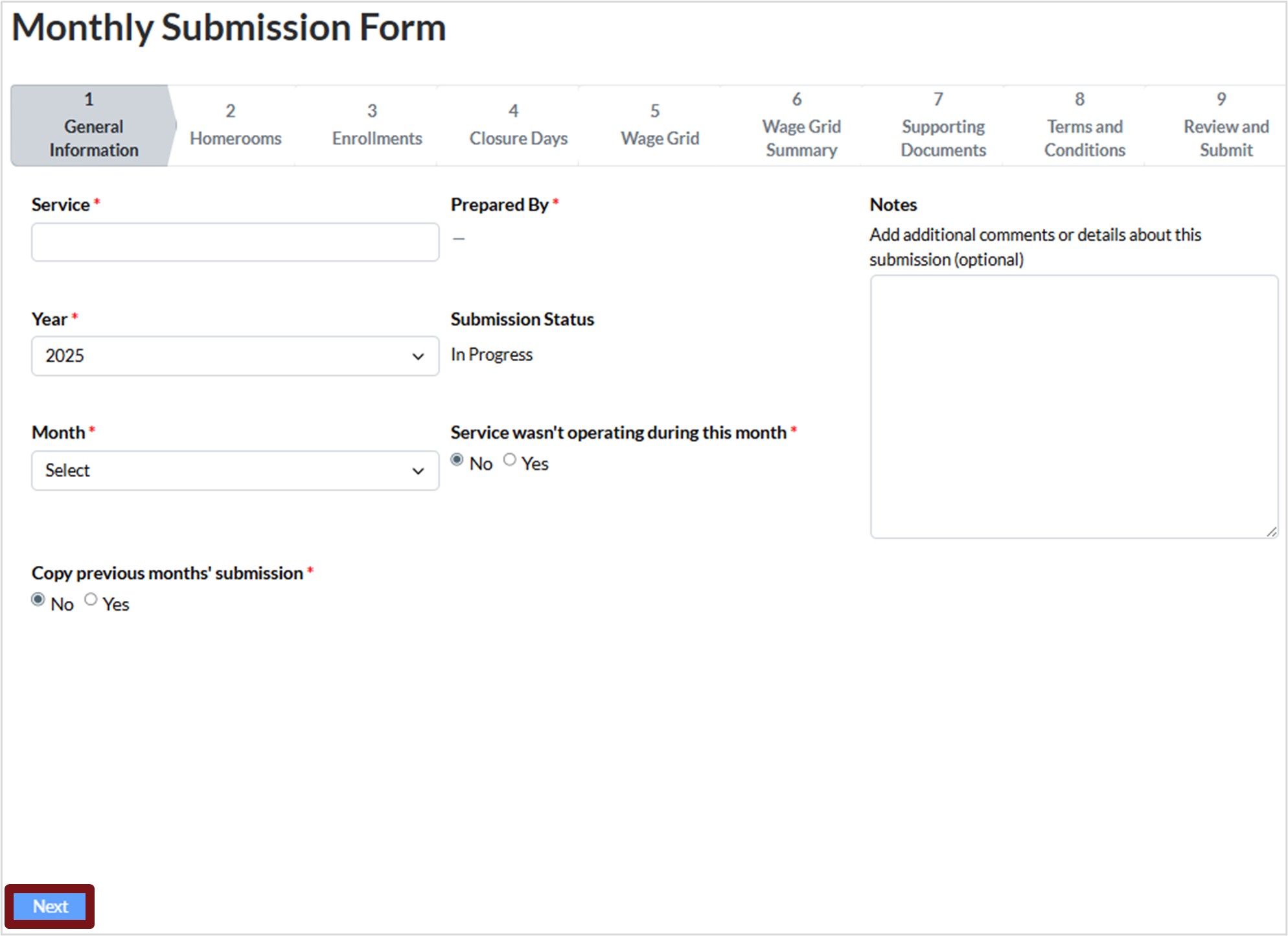
4. You will be directed to the Monthly Submission Form.
General Information
- Click in the Service field to select the service you are submitting the monthly submission for. Please note, you will only see the centres that are applicable to you.
- Click in the Year field to select the applicable fiscal year you are submitting the monthly submission for.
- Click in the Month field to select the applicable month you are submitting the monthly submission for.
- Copy previous months’ submission – after your initial monthly submission and approval, and your homerooms have been set up, you have the option to select Yes to carry over last month’s details.
- Service wasn’t operating during this month – if you are a service that is closed for various months during the year, you can select Yes for the months you are closed.
- You can add additional Notes if applicable.
- Click Next.
Homerooms
Children enrolled on the Enrolled Children tab will automatically appear in the correct homerooms. You can also:
- Add a child
- Remove a child from the homeroom
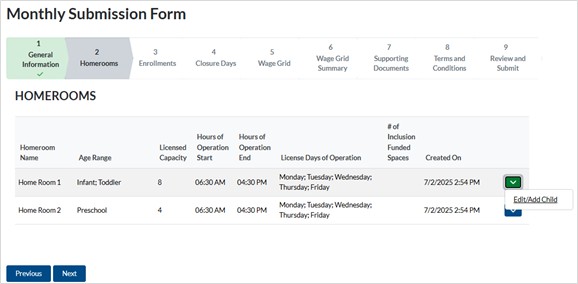
1. Add a child to the homeroom:
a. If you need to add a child to a homeroom, click the down arrow next to the applicable homeroom then select Edit/Add Child.
b. Scroll down the screen and click Add Child.
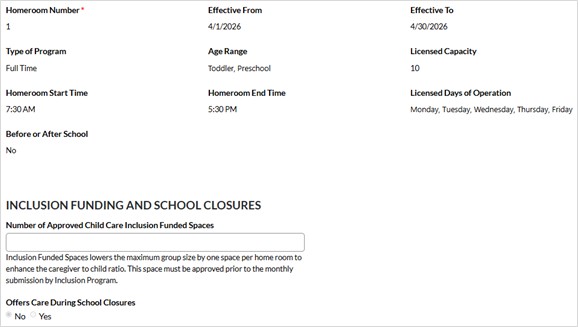
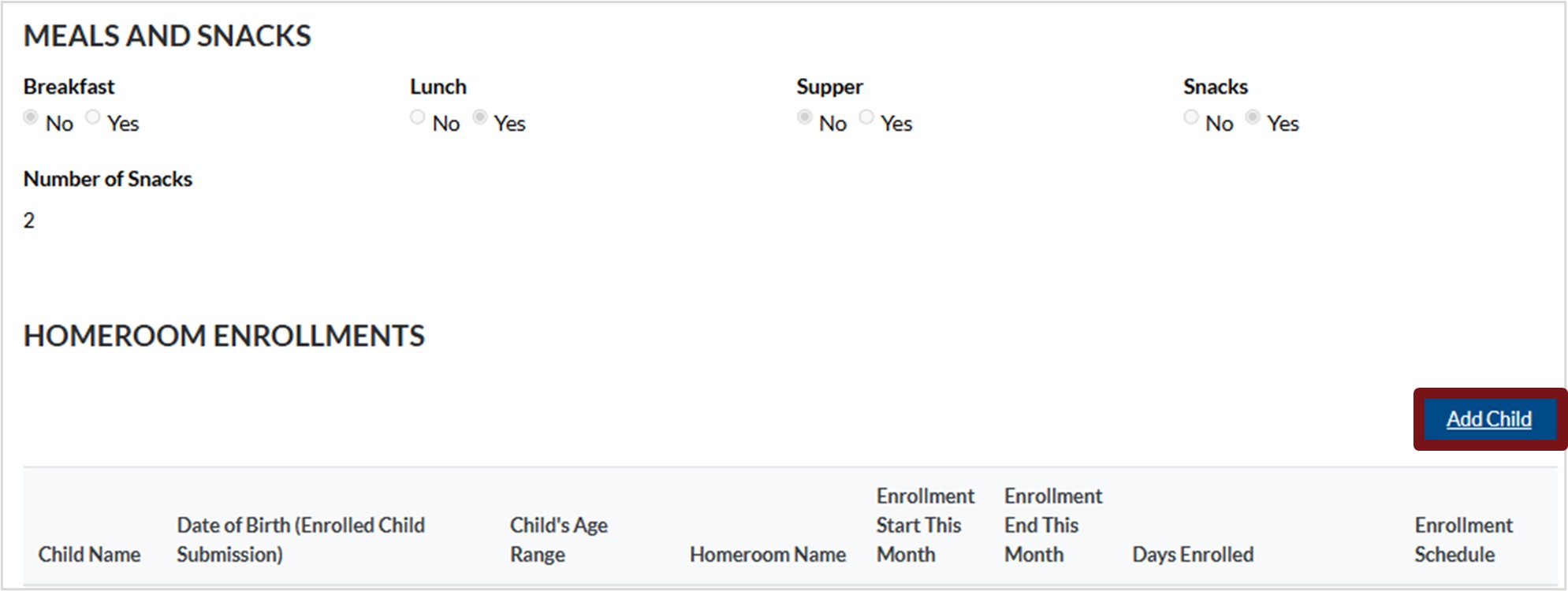
Please note, if you provided breakfast or supper, enter the number of breakfasts and the number of suppers you served.
c. Click the magnifying glass to search for the child.
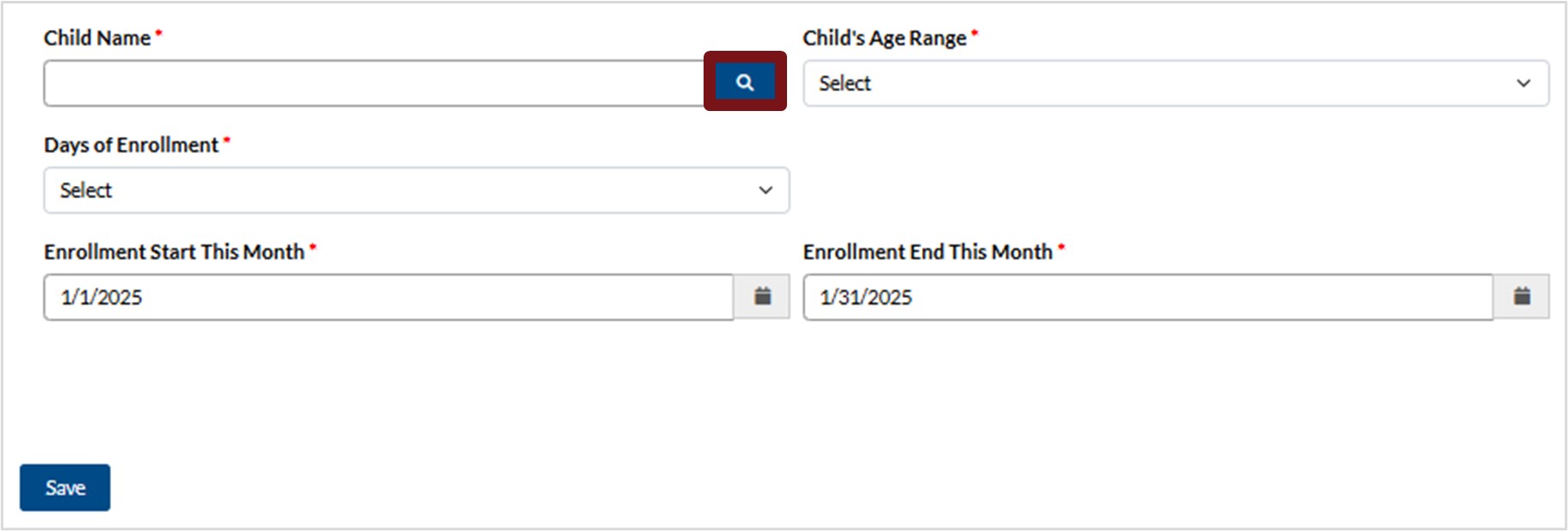
d. Search for the applicable child by entering the child’s name in the Search Then, select the check box next to the child in the list. Alternatively, you can scroll through the list and select the check box next to the child’s name.
e. Click Select.
i. To make another selection if an incorrect child was selected, click Remove value and select the appropriate child.
ii. To cancel this action, click Cancel.

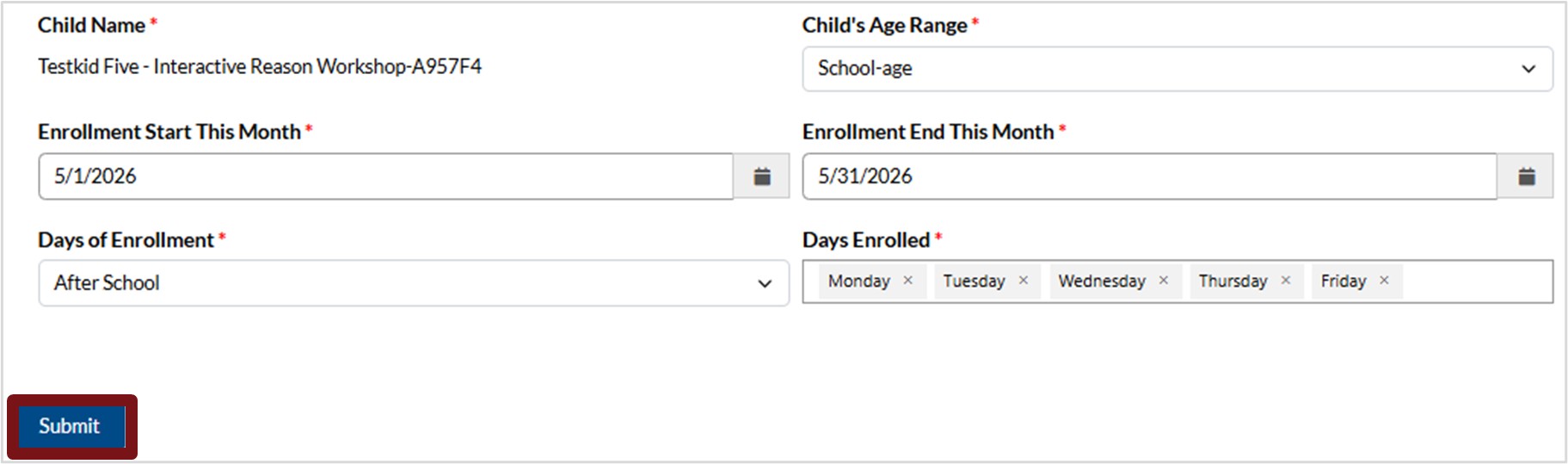
f. Please enter the details below:
i. Enrollment Schedule – Click the down arrow and select from the list. When a selection is made an additional Days Enrolled field will populate. If you select Full Time, Day Enrolled will auto populate with Monday – Friday.
ii. Enrollment Start This Month and Enrollment End this Month – Will auto populate with the month the submission is being made.
iii. Days Enrolled –
-
- Select from the list provided.
- You can add more than one selection.
- To remove a selection, hover over the field and click the X next to the selection you want removed.
- Child’s Age Range – Select from the list provided.
g. Click Save.
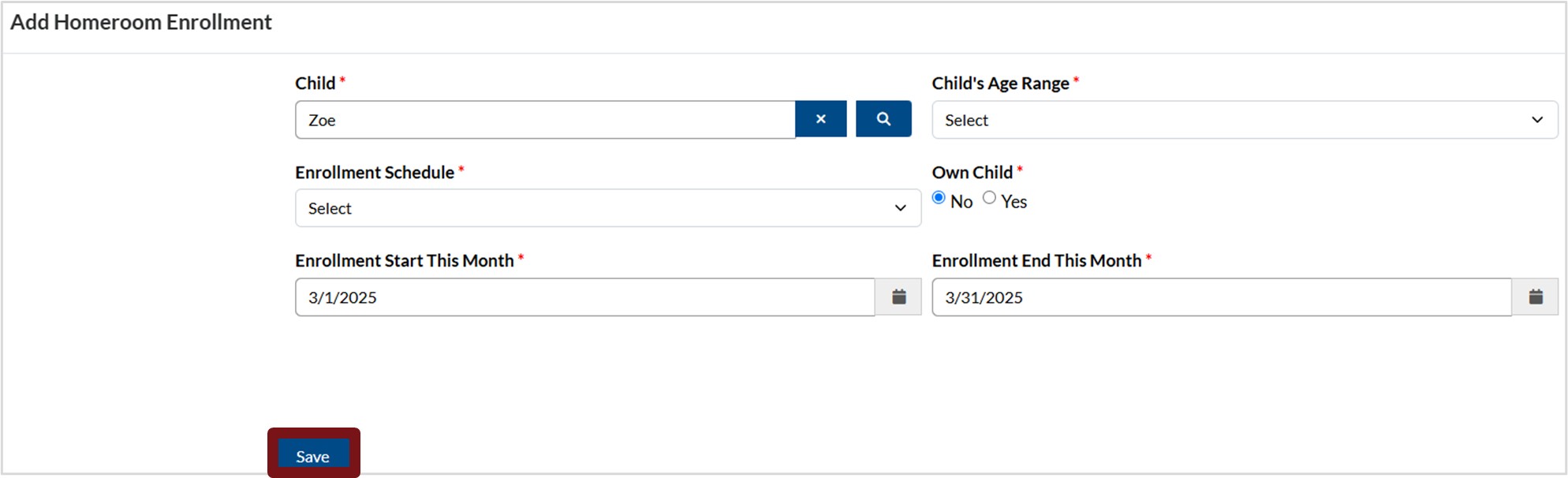
h. Repeat this process until you have all children added to the homeroom(s).
2. Remove a child from the homeroom.
a. You need to remove a child if:
-
- The child is leaving your service, or
- The child is moving from one homeroom to another homeroom.
To remove a child from the homeroom, click the down arrow next to the applicable homeroom.
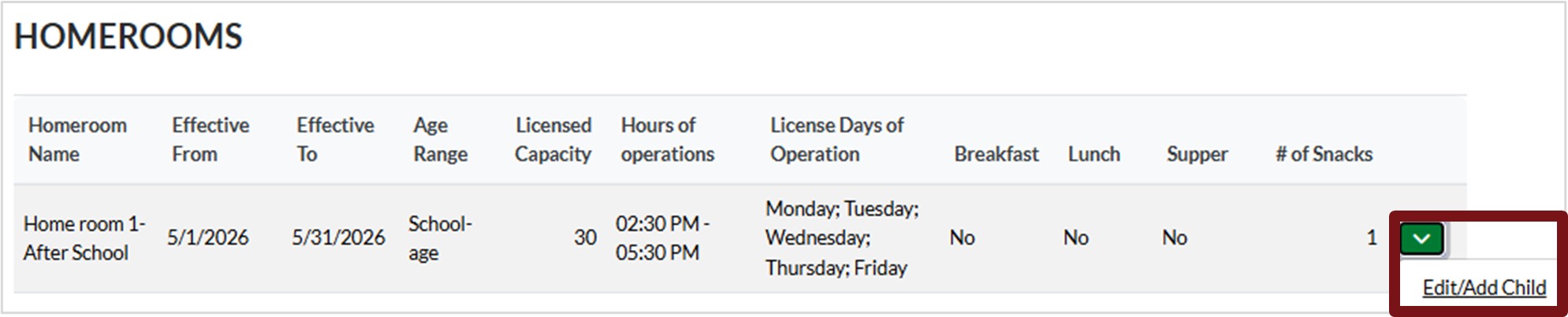
b. Scroll down the screen and click the down arrow next to the child you wish to remove and select Delete.
c. You will be asked if you are sure you want to delete the record, click Delete.
3. When complete, click Next.
Please note, to return to a previous section at any point click Previous.
Enrollments
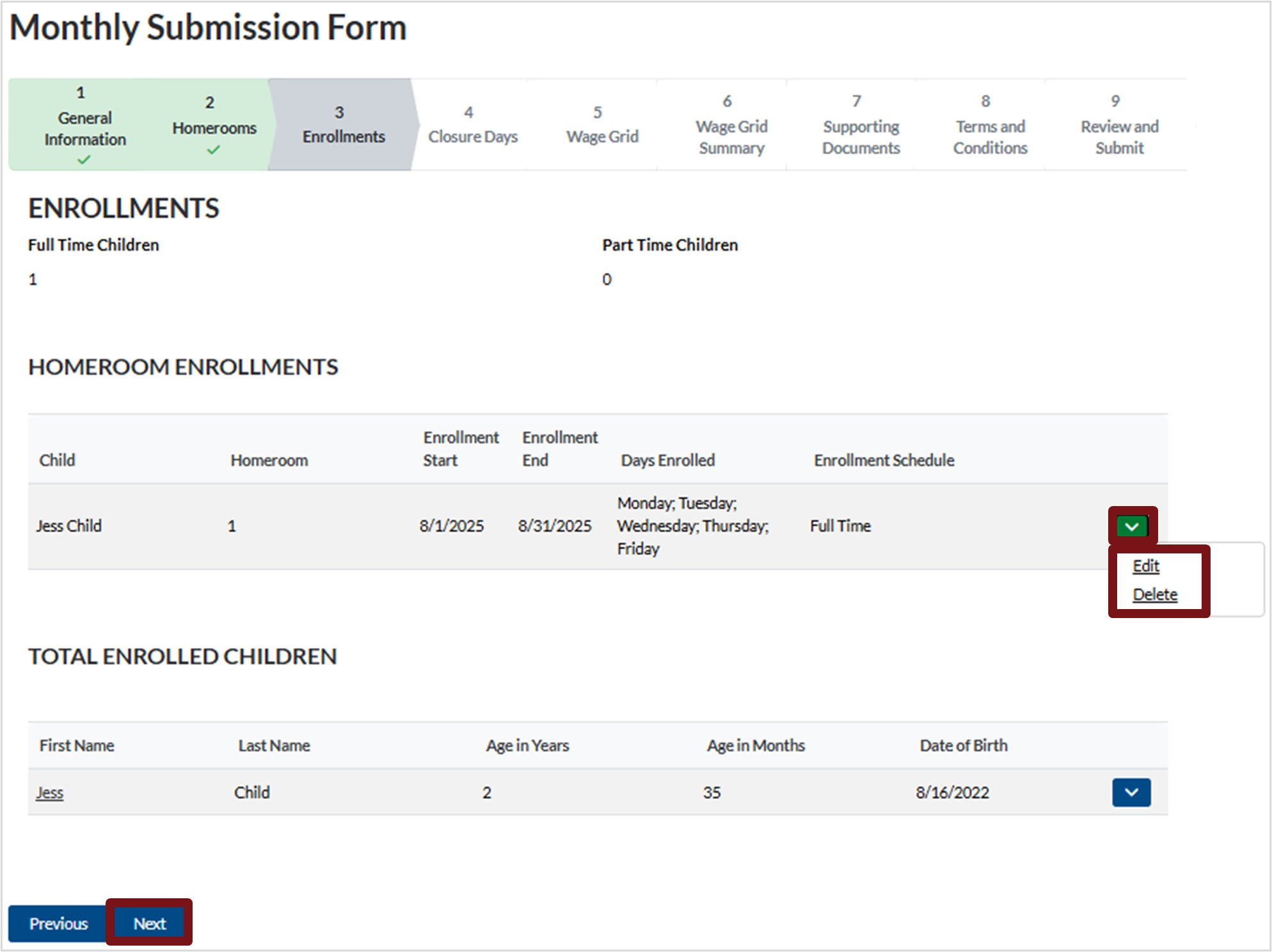
Please review the enrolled children to confirm the information is correct.
If you need to edit a child’s details:
1. Click the down arrow next to the applicable child under Homeroom Enrollments.
2. Select Edit or Delete.
a. If you are editing, click Submit after making the required changes.
Please note, if the Child’s Age Range has changed, please ensure it is updated.
b. If deleting, click Delete when prompted.
3. Click Next
Closure Days
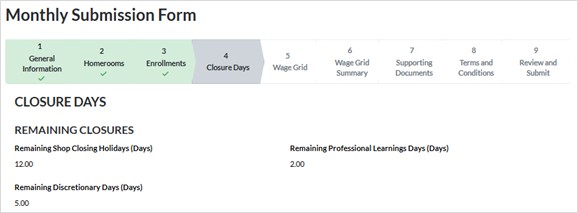
Remaining Closures – this will provide you with the balance remaining for:
- Remaining Shop Closing Holidays (Days)
- Remaining Discretionary Days (Days)
- Remaining Professional Learning Days (Days)
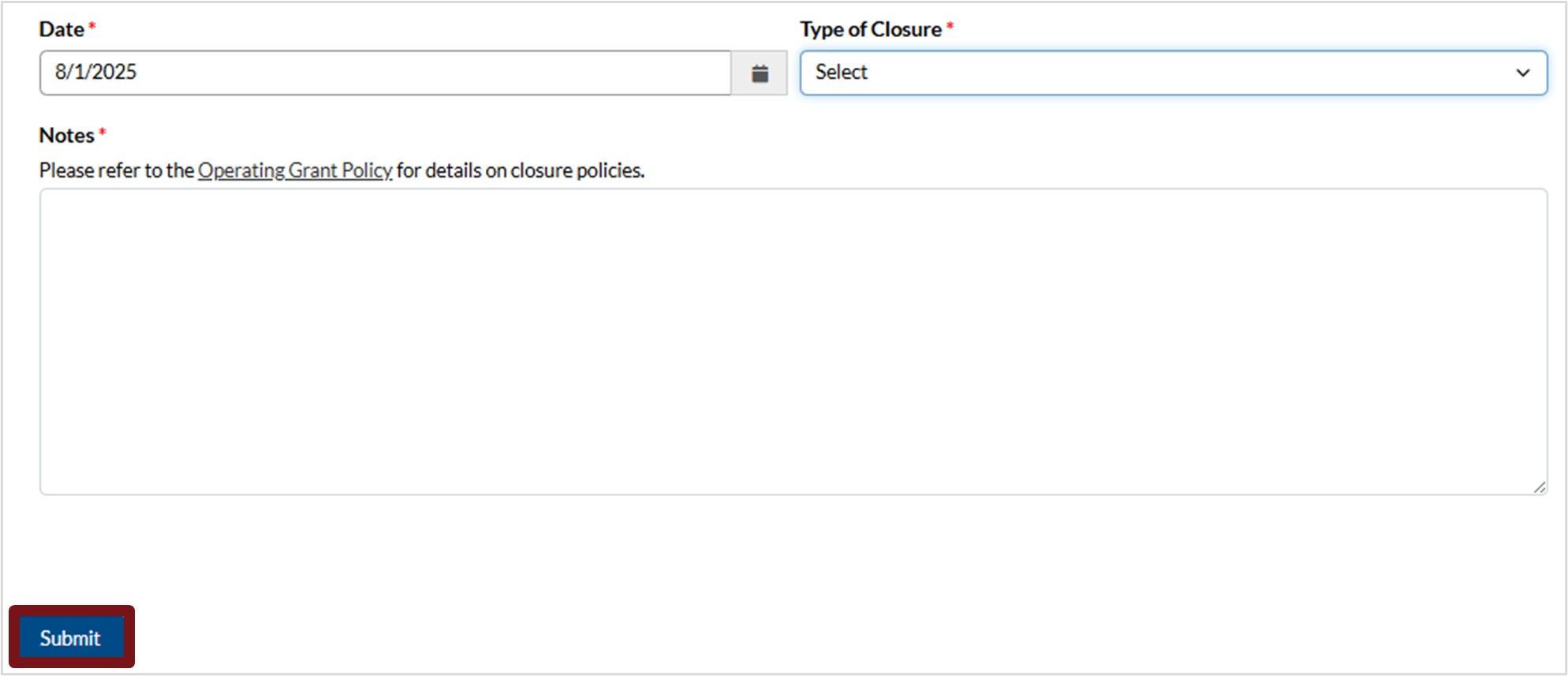
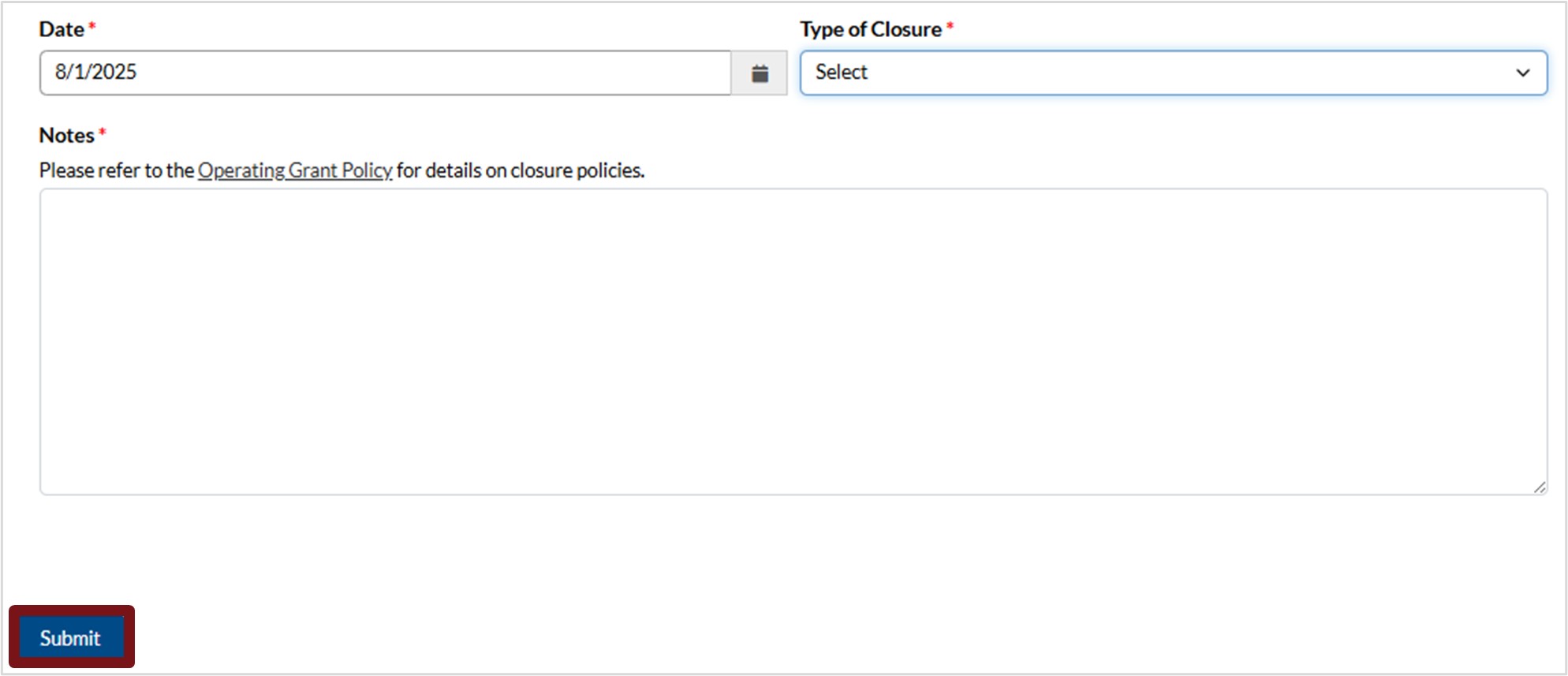
1. Closure Days – to enter a new closure day, follow these steps:
a. Click New Closure Day.

b. Enter the Date by clicking the calendar icon and selecting from the calendar provided.
c. Click the down arrow under Type of Closure, then select the applicable type from the list provided.
d. An additional field, Full/Half Day will populate when the type of closure is selected. Click the down arrow and select the applicable response from the list provided.
e. Enter a note that includes details for the closure.
f. Click Submit.
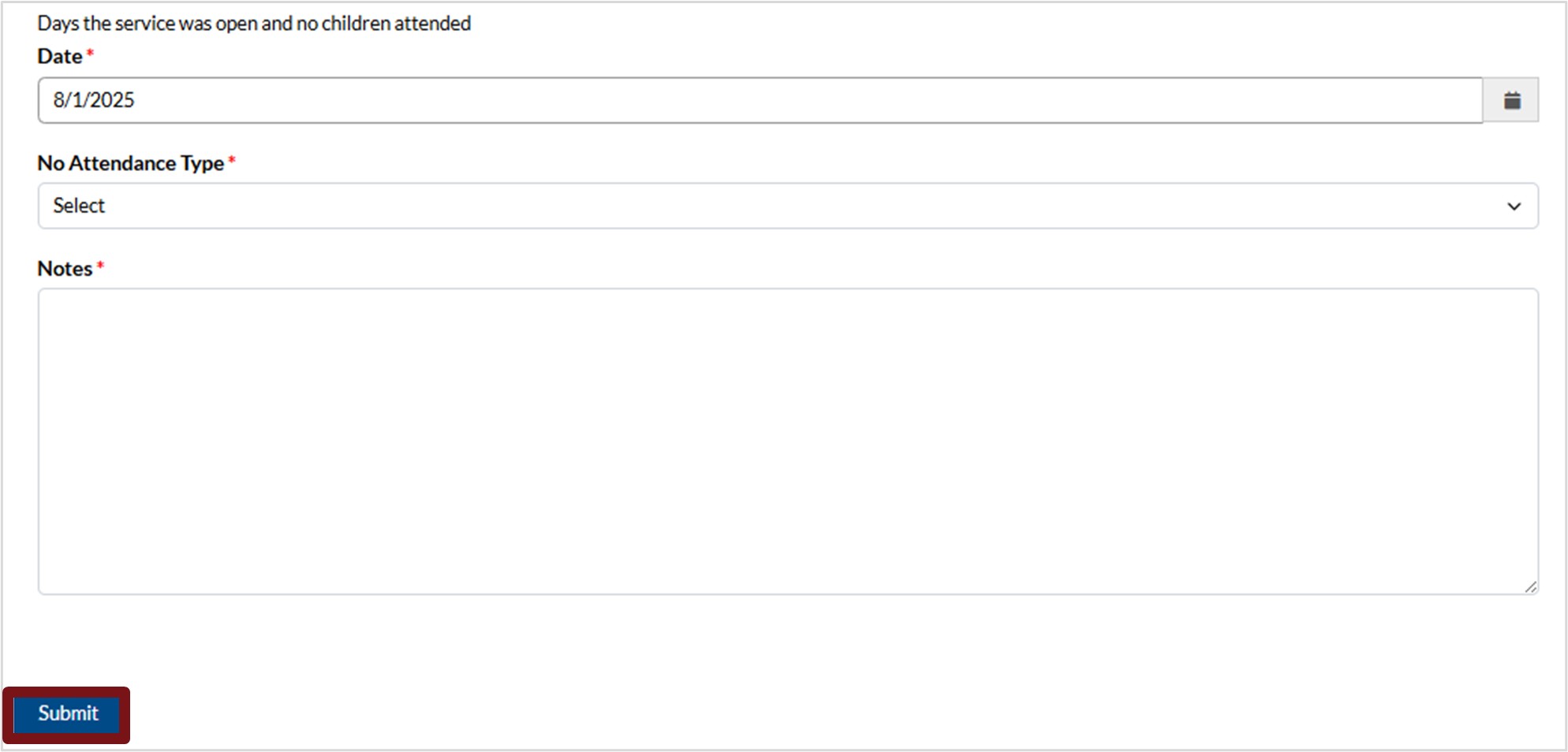
2. No Attendance Days – To enter a new no attendance day, follow these steps:
a. Click New No Attendance Day.

b. Enter the Date by clicking the calendar icon and selecting from the calendar provided.
c. Click in the field under No Attendance Type, then select from the list provided.
d. Enter a note with details regarding the not attendance day.
e. Click Submit.
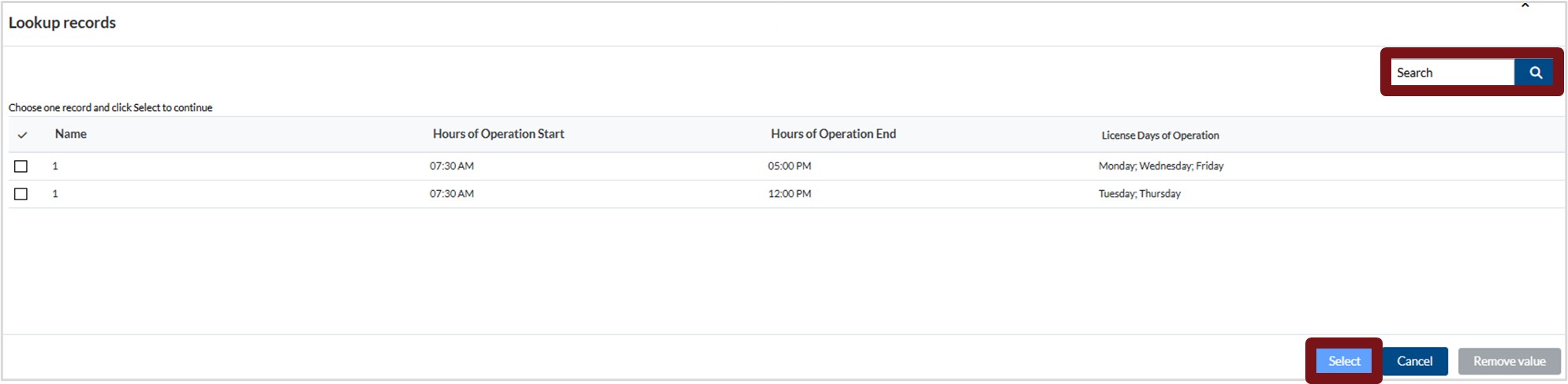
3. School Closure Days – to enter a new school closure day, follow these steps:
a. Click New School Closure Day.

b. Click the magnifying glass next to the Homeroom
c. Search for the applicable homeroom by entering its name in the Search Then, select the check box next to the homeroom in the list. Alternatively, you can scroll through the list and select the check box next to the homeroom name.
Please note:
- If your homeroom offers both before and after school programs, choose the after school homeroom.
- If there is more than one after school homeroom, please add a closure day for each homeroom.
d. Click Select.
1. To make another selection if an incorrect homeroom was selected, click Remove value and select the appropriate homeroom.
2. To cancel this action, click Cancel.
e. Enter the Start Date and End Date by clicking the calendar icon and selecting from the calendar provided.
f. Enter a note with details regarding the school closure day.
g. Click Submit.
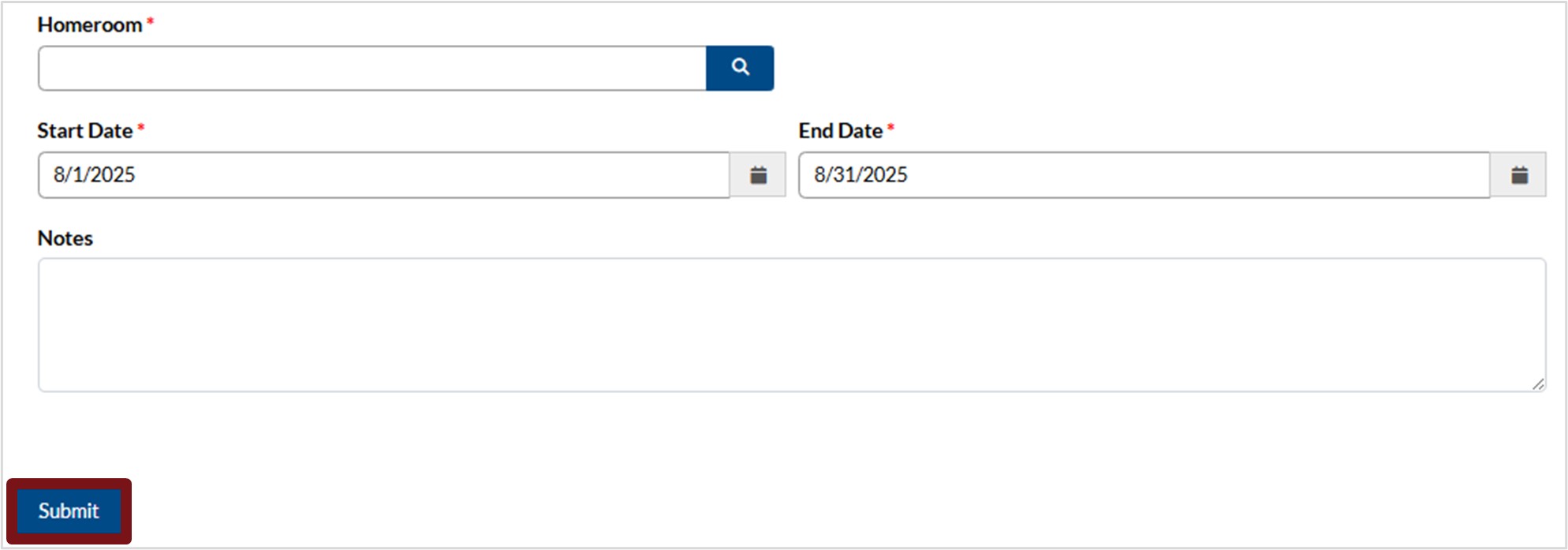
4. Click Save and Next.
Wage Grid
Your staff will automatically appear in the table. If you need to add more staff, follow the steps below.
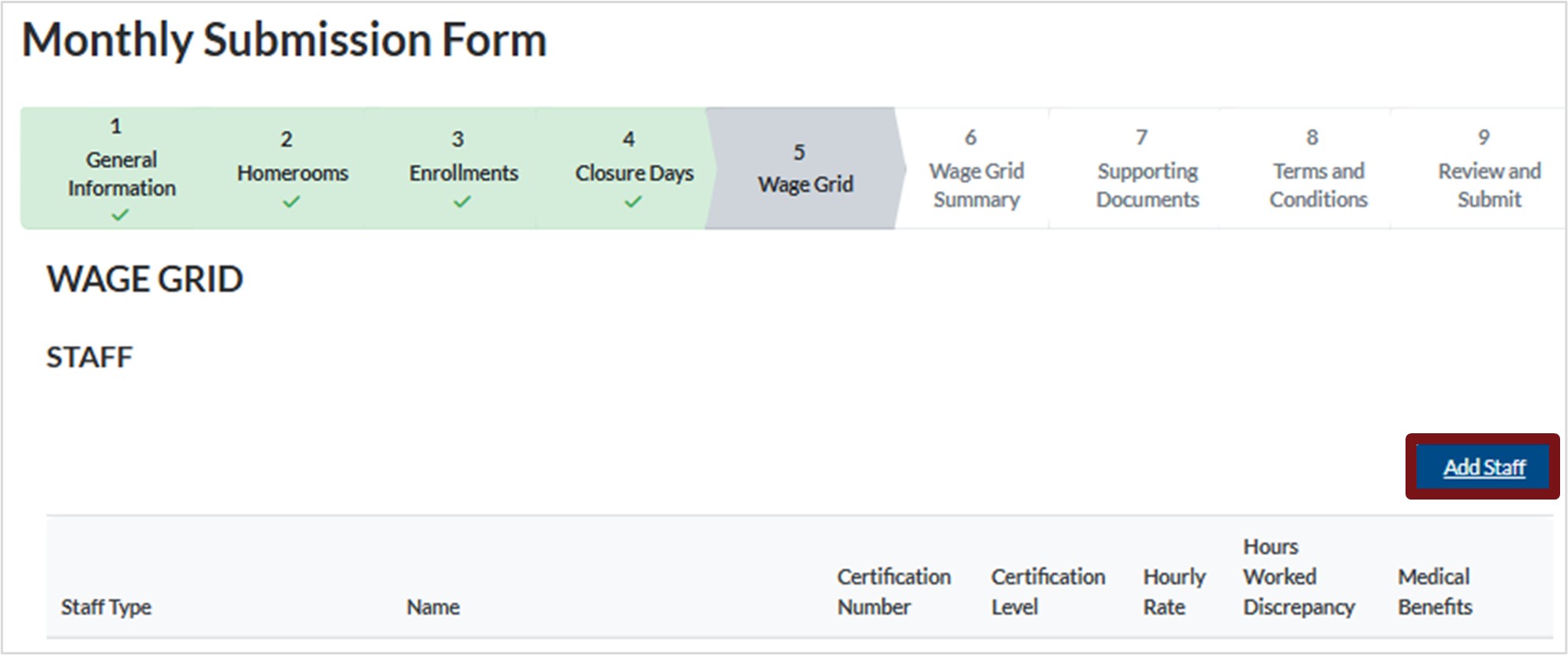
- To add staff to your wage grid, click Add Staff.
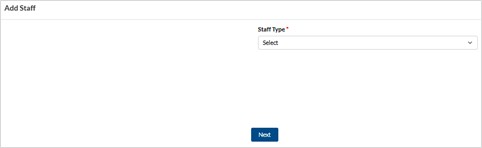
2. Click the down arrow under Staff Type and select the appropriate option from the list.
Please note, if you choose Non-Certified Personnel as staff type, select Other under Employee Role. Then type in the staff member’s role under Employee Role-Other.
3. Depending on the option chosen from the list, additional fields will populate. Complete all fields.
4. Click Next.
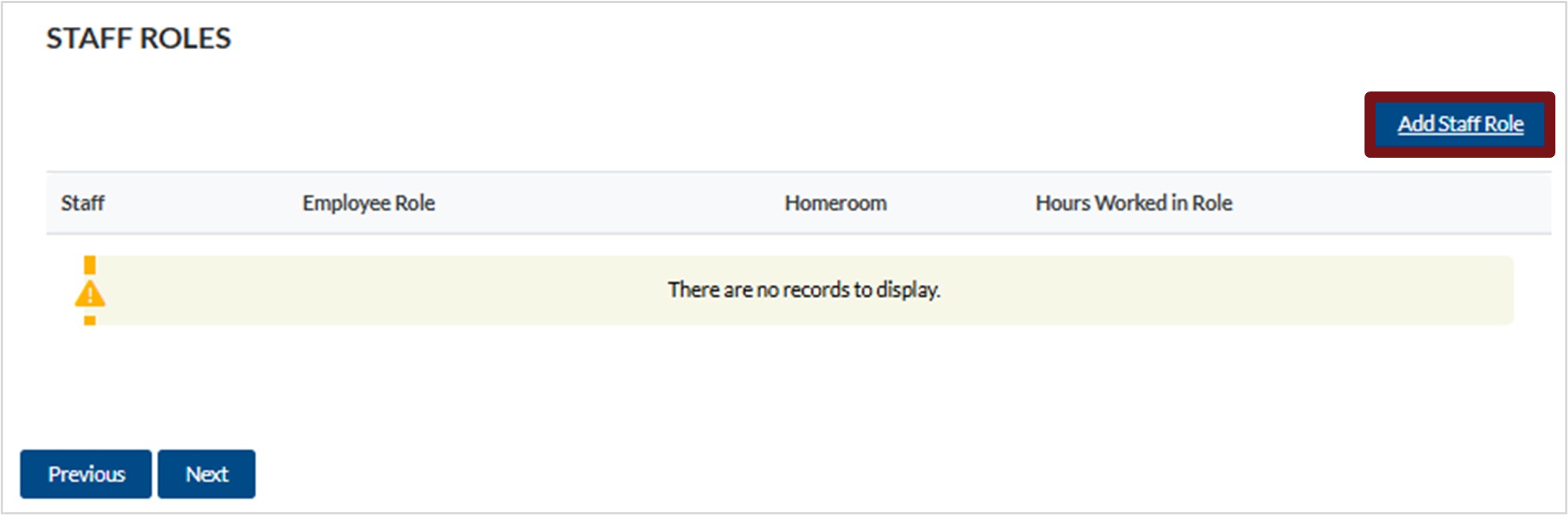
5. You will now assign a role to the staff member(s), click Add Staff Role.
6. Click the magnifying glass under Staff.
7 . Search for the applicable staff by entering their name in the Search Then, select the check box next to the staff on the list. Alternatively, you can scroll through the list and select the check box next to the staff.
8. Click Select.
a. To make another selection if an incorrect staff member was selected, click Remove value and select the appropriate staff.
b. To cancel this action, click Cancel.

9. Click the down arrow under Employee Role and select the applicable role from the list provided.
10. Click the magnifying glass to select the applicable Homeroom.
Please note, if the staff member that you are entering is staff that floats between multiple homerooms or is an Administrator, you do not have to select a homeroom. Simply complete the role and indicate the number of hours worked.
11. Search for the applicable homeroom by entering its name in the Search Then, select the check box next to the homeroom in the list. Alternatively, you can scroll through the list and select the check box next to the homeroom.
12. Click Select.
a. To make another selection if an incorrect homeroom was selected, click Remove value and select the appropriate homeroom.
b. To cancel this action, click Cancel.
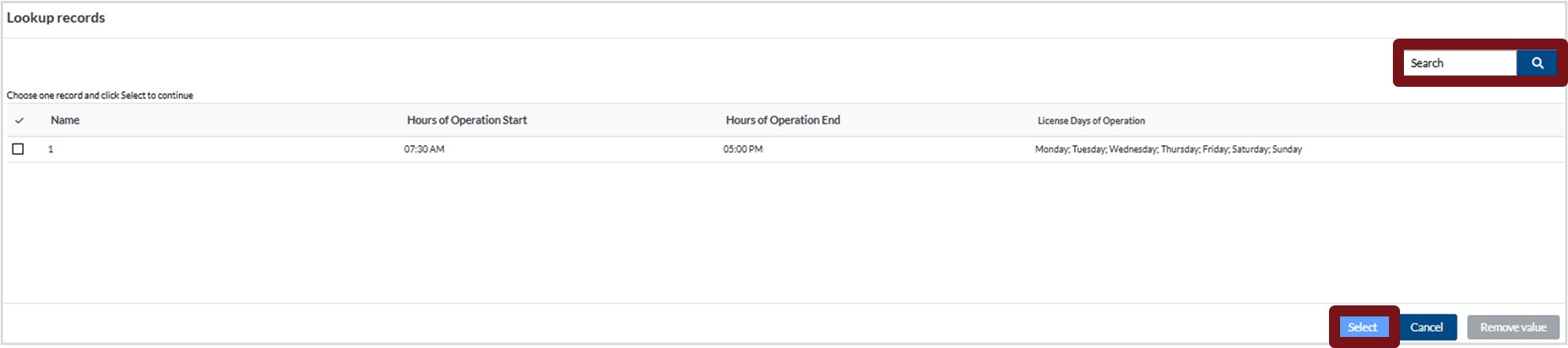
13. Enter the number of hours worked in the role.
14. Click the down arrow next to the applicable Role to edit or delete, or next to the applicable Homeroom to view hours.
15. If the staff member receives medical benefits, you can upload a Medical Benefit Invoice by clicking Choose File the upload the applicable file from your device. Once uploaded, you can click Delete to delete the file if required.
16. Click Next.
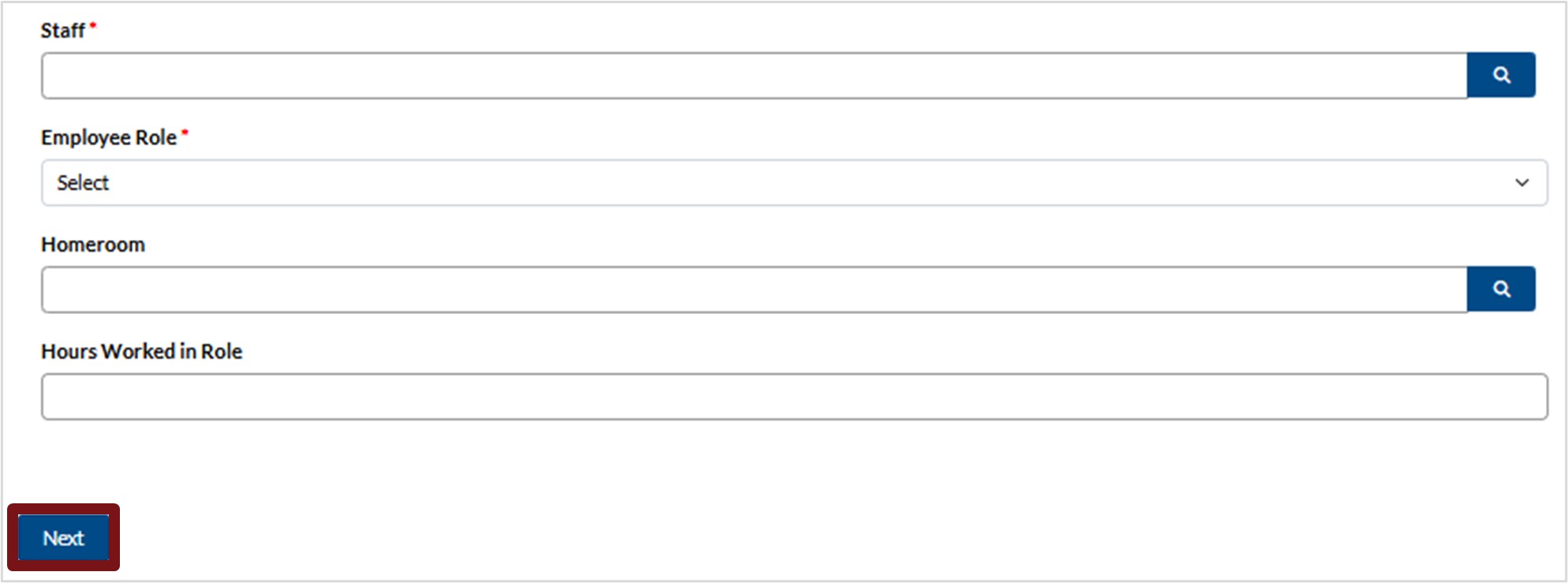
17. You must select a staff role for each staff member. If the role is not listed for the staff member, you can:
i. Click the down arrow next to the staff member in the table and select Add Staff Role, or
ii. Scroll down the Wage Grid screen to the Staff Roles table and click Add Staff Role.
18. Select the Employee Role from the list provided and enter the Homeroom and Hours Worked in Role.
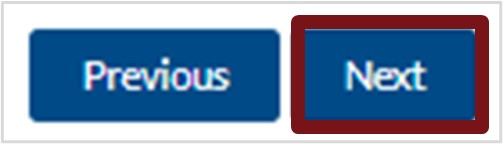
19. Click Next.
20. When all staff have been added, and all roles have been assigned, click Next.
Wage Grid Summary
This section allows you to review the wage grid that you just entered. To continue to the next section, click Next.
Supporting Documents
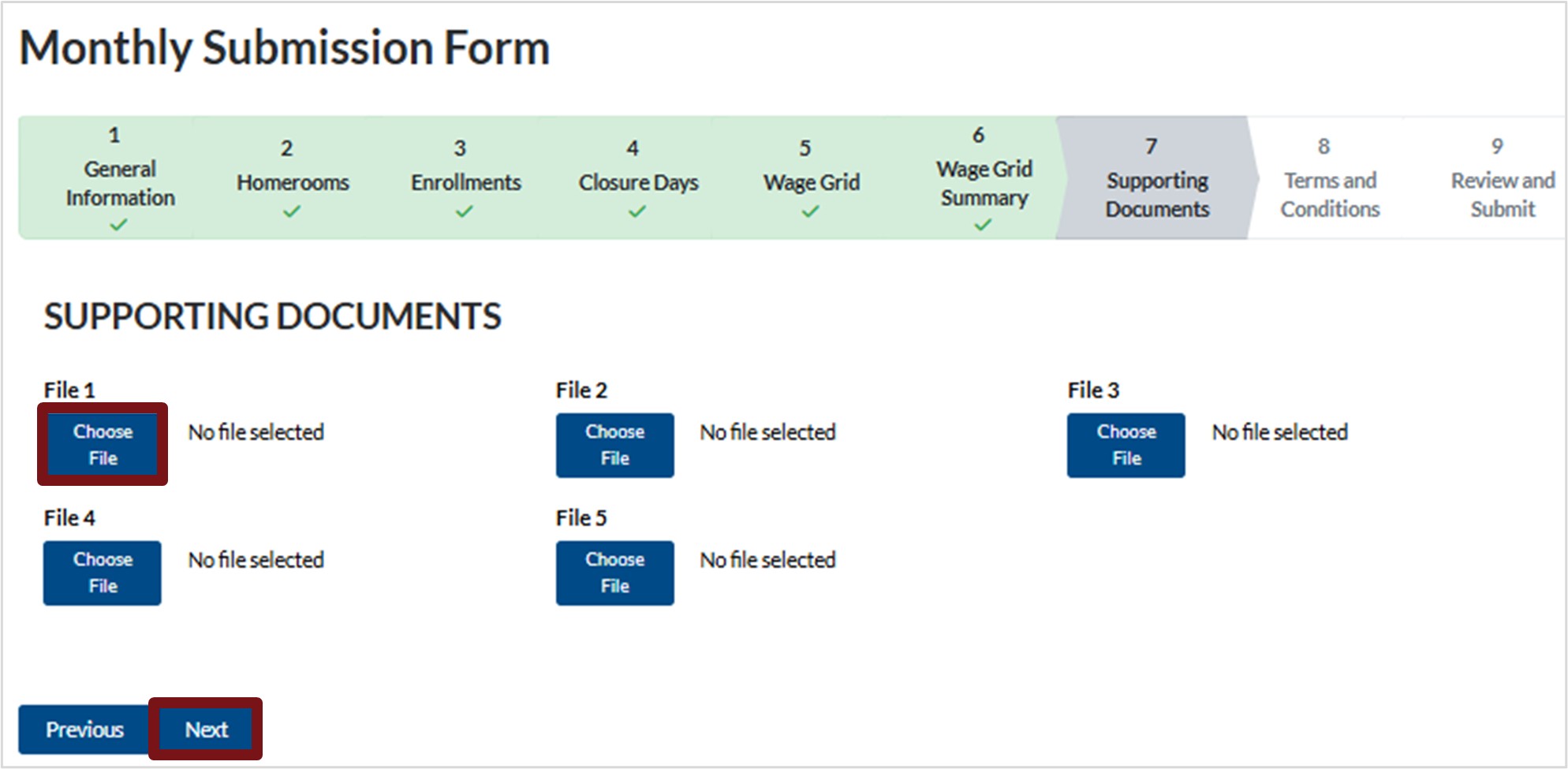
1. To attach supporting documents, click Choose File under File 1 then select the applicable file from your device. Repeat if required under File 2, etc.
2. Click Next.
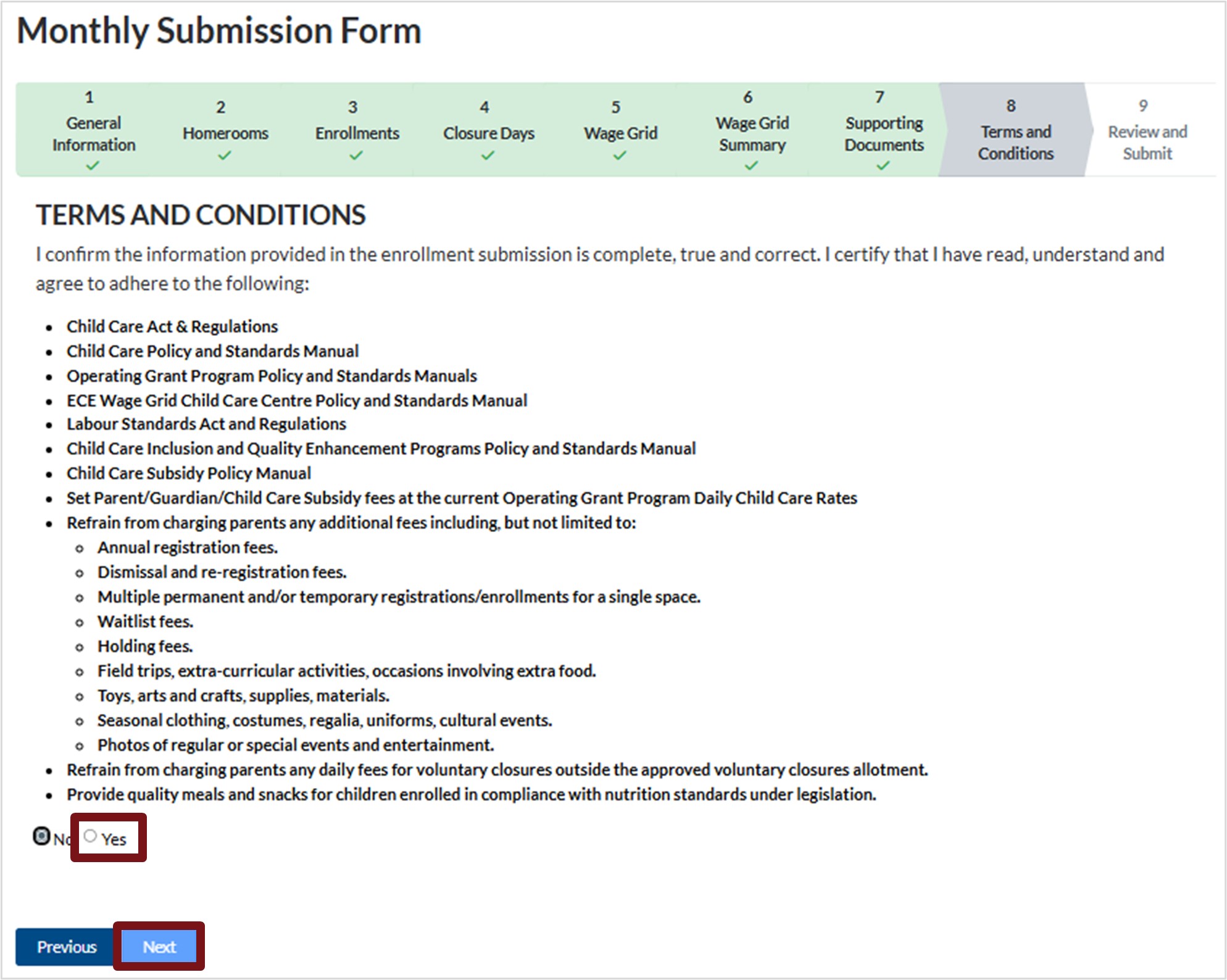
Terms and Conditions
1. Read the Terms and Conditions then click Yes to accept.
a. Please note, you will not be able to completion the submission unless you accept the Terms and Conditions.
2. Click Save and Next.
Review and Submit
Review all the details that you entered for your Enrollment Submission to ensure it is correct.
1. To a particular section, click Previous until you reach the desired section.
2. When your review is complete and you are ready to submit, proceed through the sections then click Submit for Review.
3. Click Submit when prompted.
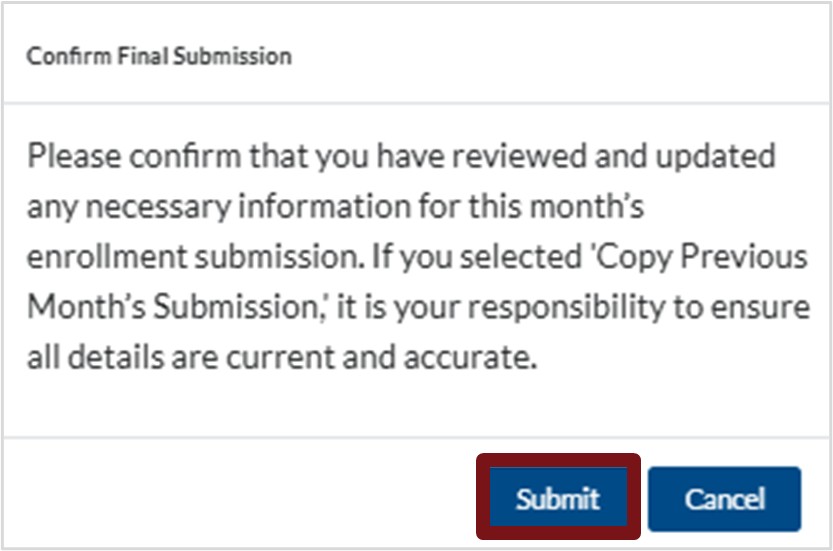
Please note, once a submission is sent for review, it can no longer be edited.
Reassigned Monthly Submissions
After the monthly enrollment has been submitted and it advances for review, it may be reassigned back to you for edits, or additional documentation.
You will receive an email notification indicating that the status of your submission has changed. If the status appears as Reassessment Required, you will need to make the required edits. Log into the ELG Service Portal to review and address any updates.
- Click Services at the top of your screen, then select Monthly Submissions.
2. To view reassigned submissions:
a. Look under the Submission Status for Reassessment Required.
b. Click the down arrow next to the applicable submission, then select View Submission to view the reason the submission was reassigned.
i. OGP – Reassessment reason will appear under OGP Staff Reason for Reassessment
c. To make the required edits, click Edit Submission.
d. Click Previous until you reach the applicable section, then make the required edits/updates.
e. Click Submit for Review.
f. Click Yes.

Please note, once a submission is sent for review, it can no longer be edited.
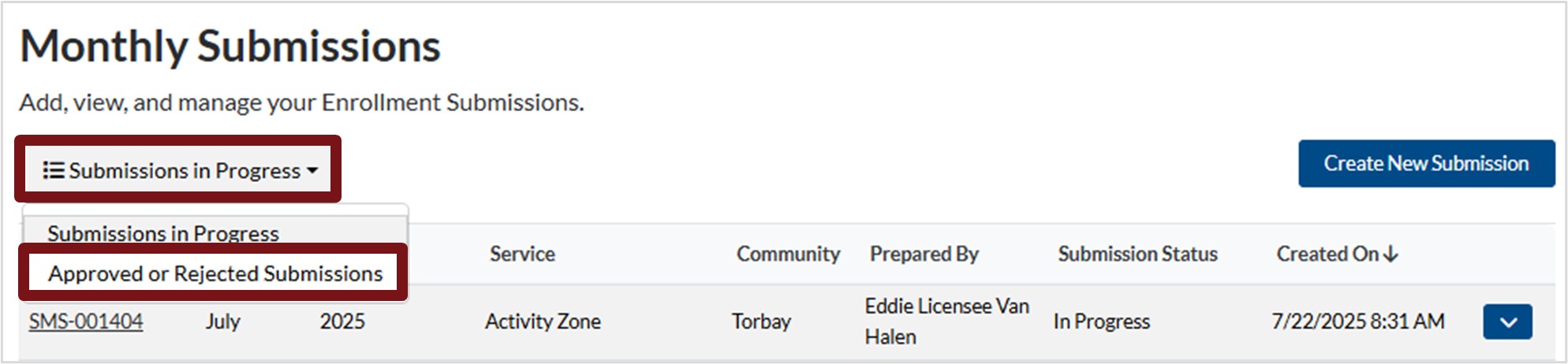
3. To see if the submission was accepted or rejected:
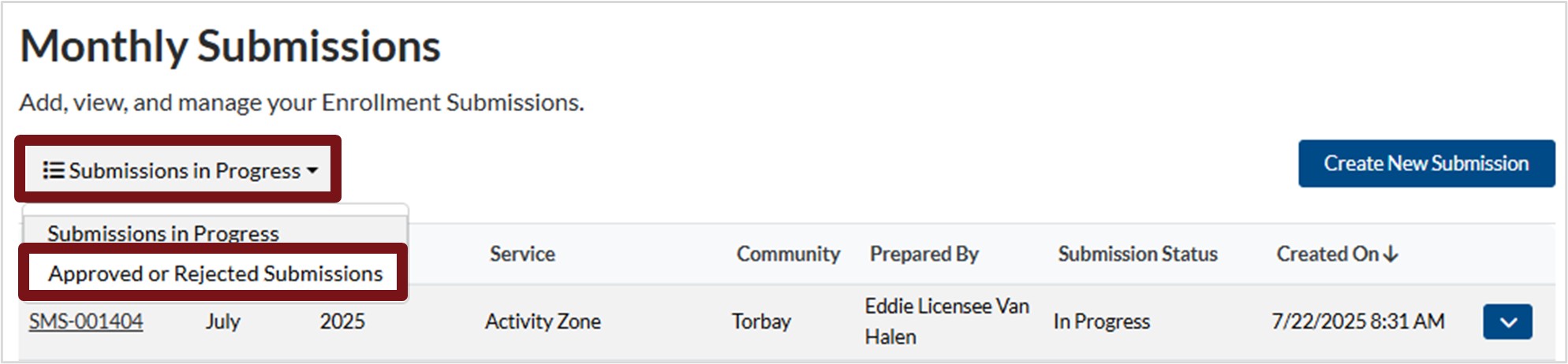
a. Click the down arrow next to Submissions in Progress, then select Approved or Rejected Submissions.
b. Look under the Submission Status for Reassessment Rejected or Accepted.
Monthly Submissions – Family Based
Timelines
- You can start entering your monthly enrollment submission for the month when you receive your Early Learning Gateway access.
- Monthly submissions can only be submitted to Agency Monitors five (5) business days prior to the end of the month.
- Agency Monitors can review and send back your monthly submission for correction during this time.
- Agency Monitors cannot send the monthly submission to the FCC OGP Team prior to the first (1st) of the month.
- The FCC OGP team will review the Monthly Submission, if required, will send back for correction.
- You will receive email notification of every status change relating to your monthly submission. You will have to sign in to ELG to view the actual status change.
- Monthly submissions must be entered in order of occurrence, months cannot be skipped.
- Email Notification
- Five (5) days prior to month end, you will receive an email notification from elgateway@gov.nl.ca to begin your submission.
- You will receive a reminder email to complete your monthly submission on the sixth (6th) of every month.
Monthly Submissions
To get started, follow the steps below:
1. Click Service on the top of the screen.
2. Select Monthly Submissions.
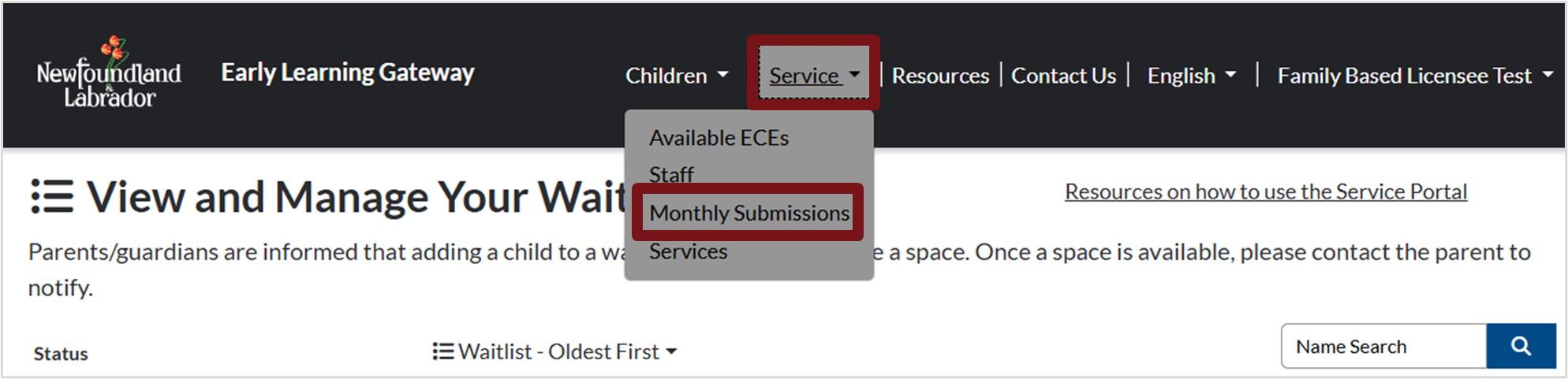
3. To enter a new monthly submission, click Create New Submission.

4. You will be directed to the Monthly Enrollment Submission Form.
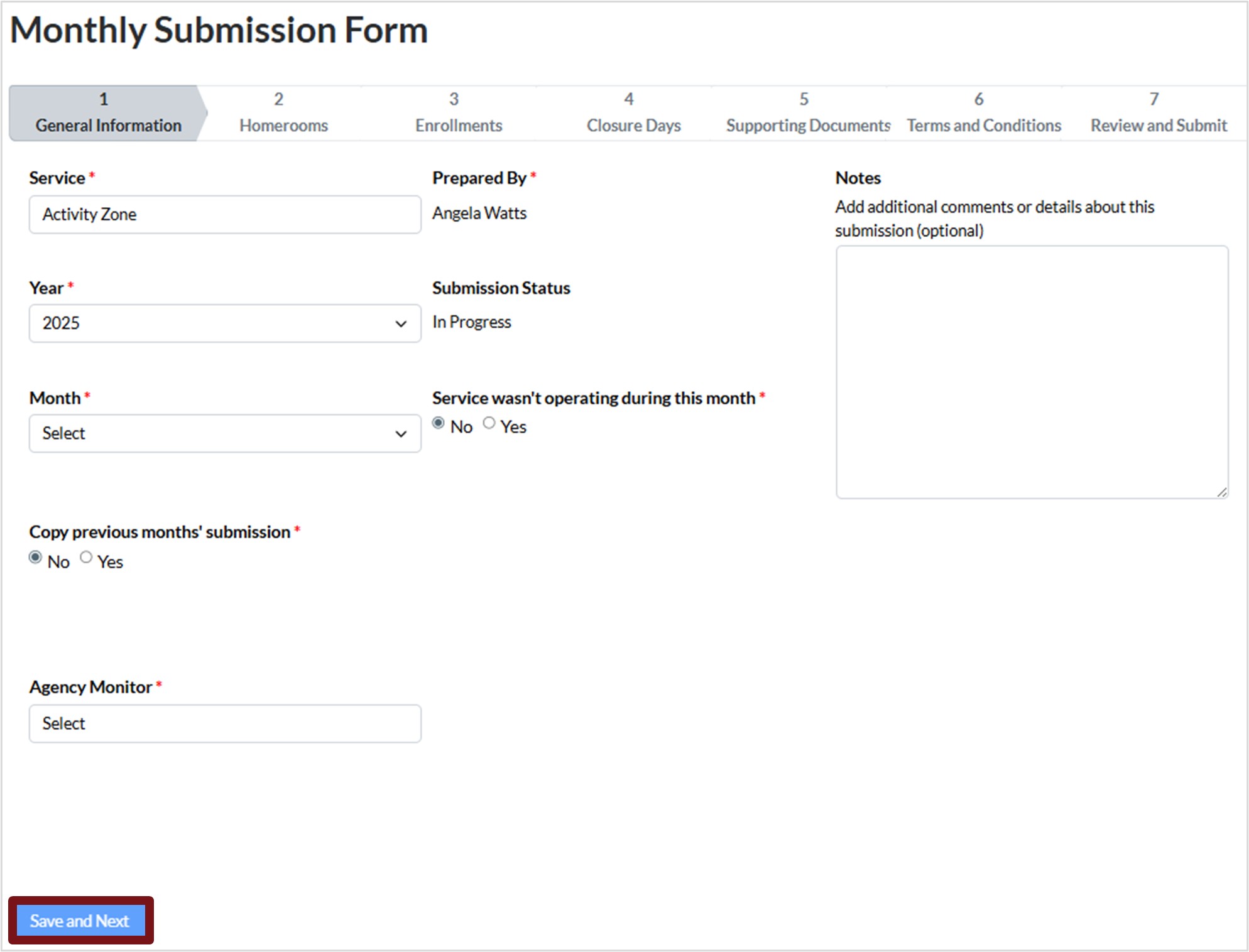
General Information
- Click in the Service field to select the regulated child care service you are submitting the monthly submission for. Please note, you will only see the services that apply to you.
- Click in the Year field to select the applicable calendar year you are submitting the monthly submission for.
- Click in the Month field to select the applicable month you are submitting the monthly submission for.
Please note, if you receive the error message A submission for this service, fiscal year, and month already exists, this indicates that a monthly submission has already been saved for that month. You will not be able to select Save and Next if this error appears. You must return to the monthly enrollment screen to find the original submission.
- Copy previous months’ submissions – After your initial monthly submission has been approved by the FCC OGP team you have the option to select Yes to carry over last month’s details if applicable. You must review the details and make edits if required when copying data.
- Service wasn’t operating during this month – If your service is not approved to operate during this month, select Yes. Otherwise, leave it as No.
- Agency Monitor – This field will appear after entering the Service, Year, and Month. Click in the field and select from the list provided.
- You can add additional Notes if applicable.
- Click Save and Next.
- Once Save and Next is selected, edits to the General Information section cannot be completed.
- If errors appear on the General Information section, go to Monthly Enrollment, select the drop-down menu for the applicable submission and select Delete.
- After the submission has been deleted, you can create a new submission with the correct information.
Homerooms
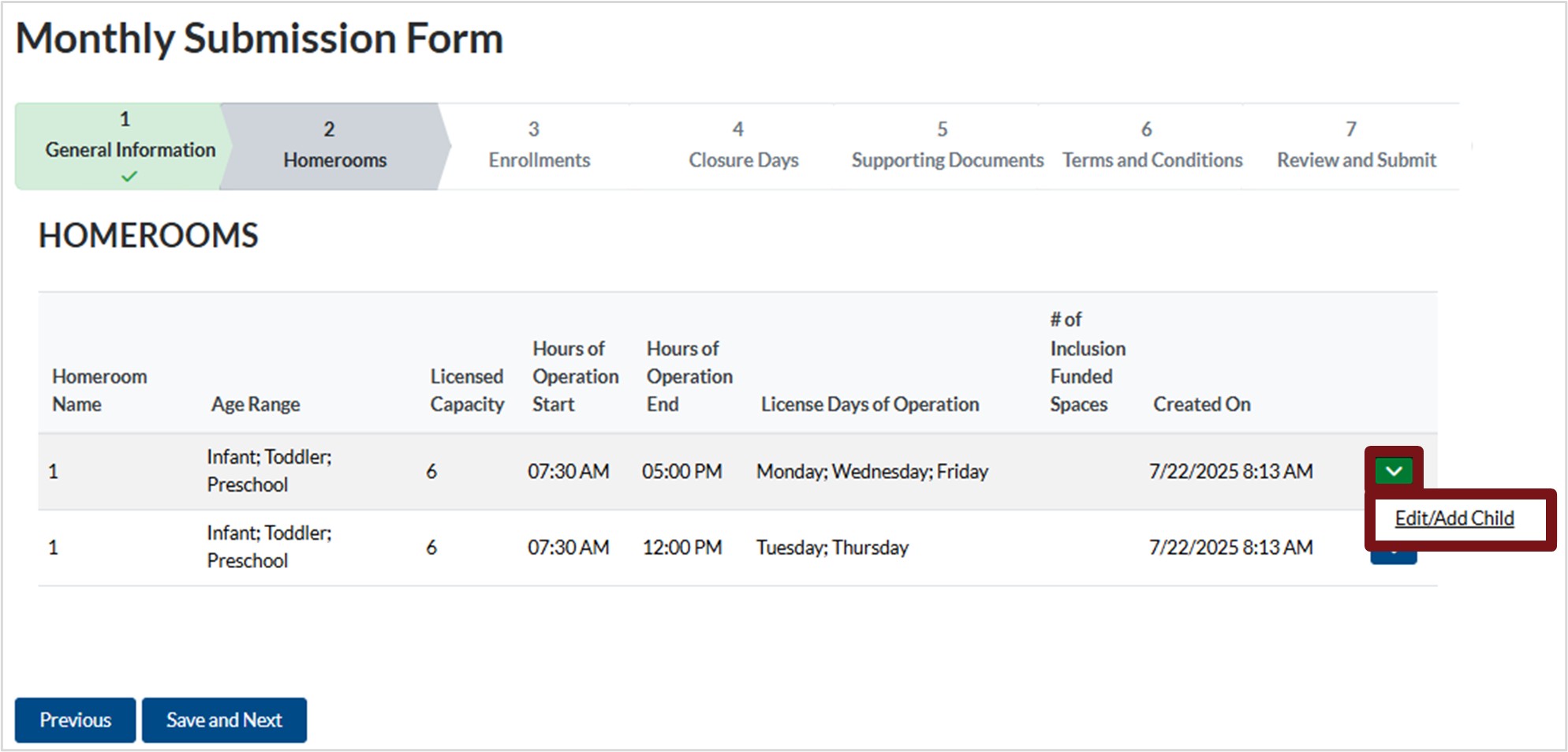
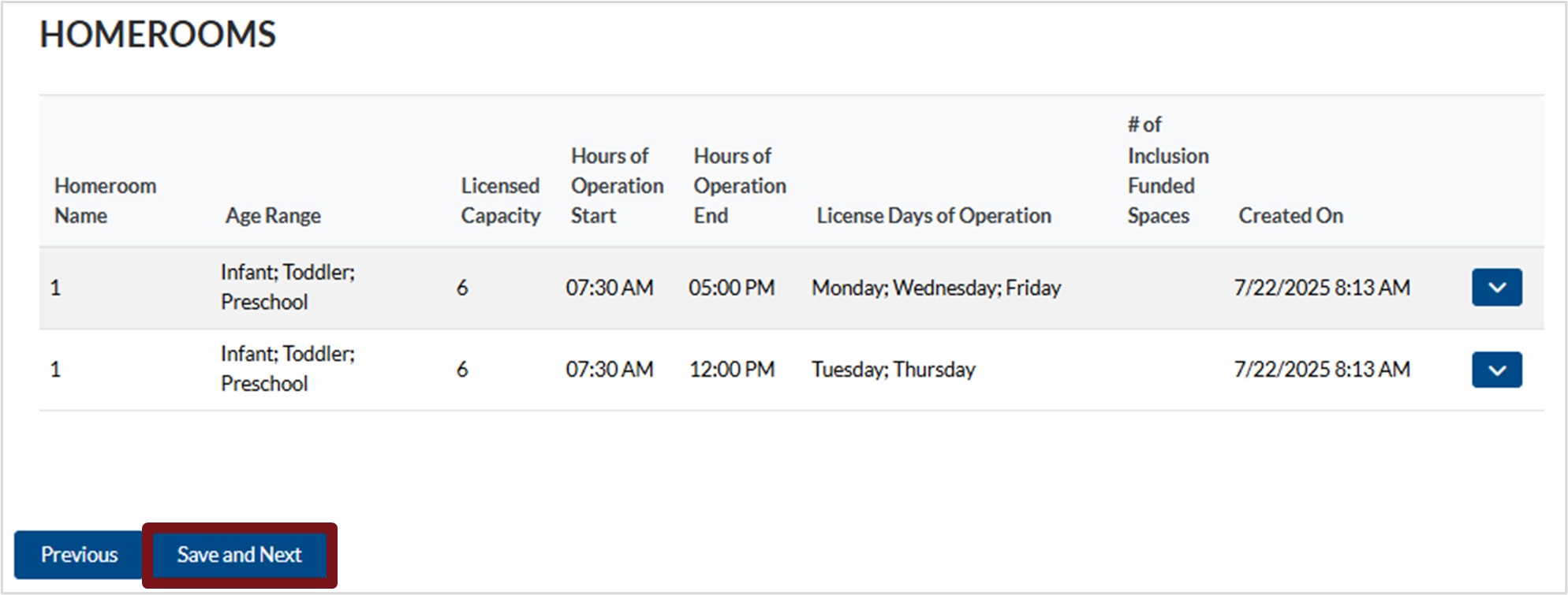
Children enrolled on the Enrolled Children tab will automatically appear in the correct homerooms. The Homerooms section will display the operating details according to your Approval Certificate.
You can also:
- Add a child
- Remove a child from the homeroom1.
1. Add a child to the homeroom:
a. If you need to add a child to a homeroom, click the down arrow next to the applicable homeroom, then select Edit/Add Child.
b. Scroll down the screen and click Add Child.
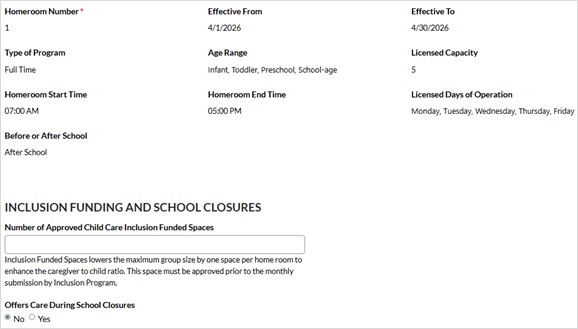
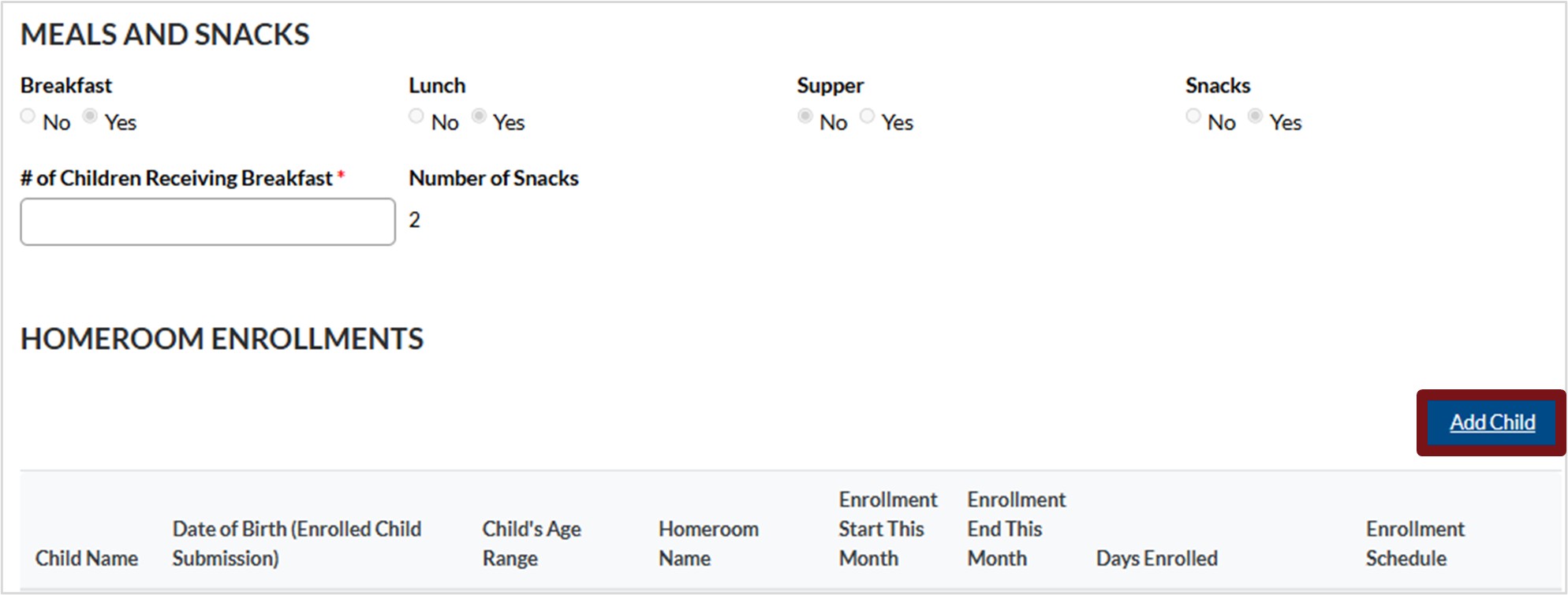
Please note, if you provided breakfast or supper, enter the number of breakfasts and the number of suppers you served.
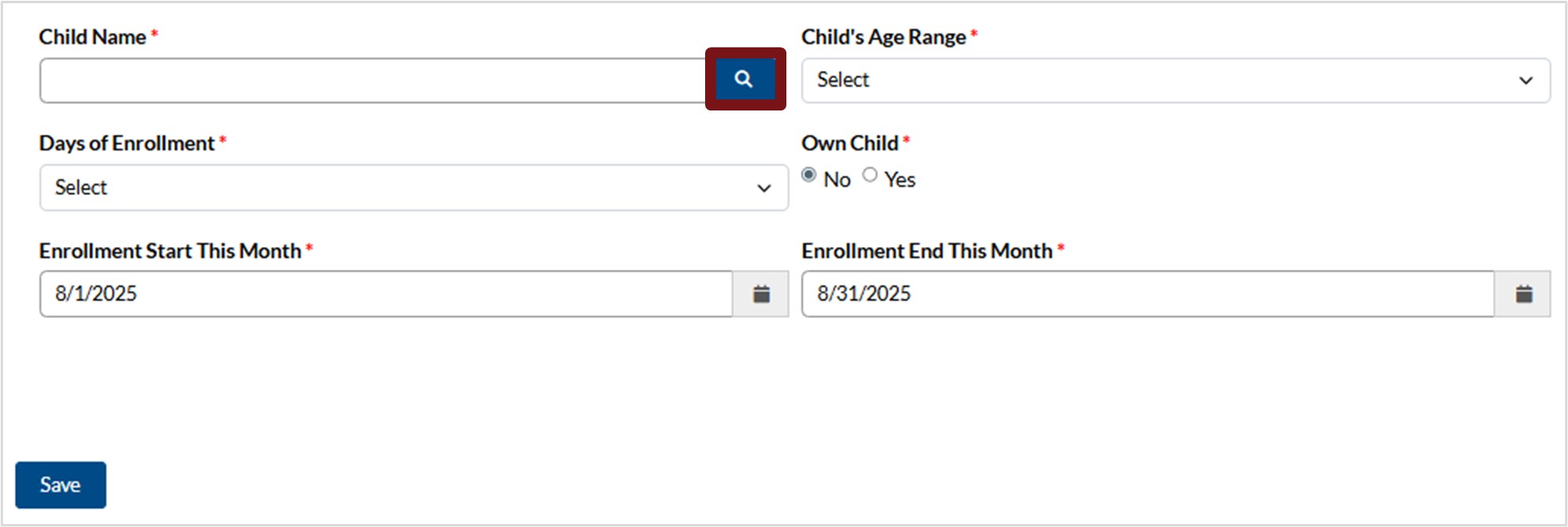
c. Click the magnifying glass to search for the child.
d. Search for the applicable child by entering the child’s name in the Search Then, select the check box next to the child in the list. Alternatively, you can scroll through the list and select the check box next to the child’s name.
e. Click Select.
i. To make another selection if an incorrect child was selected, click Remove value and select the appropriate child.
ii. To cancel this action, click Cancel.

f. Please enter the details below:
i. Child’s Age Range – Click the down arrow, then select from the list provided.
- Infant – Birth up to two years old.
- Toddler – One year and six months old up to three years old.
- Preschool – Two years and nine months old up to five years and nine months old and not attending school.
- School Age – Four years and eight months old up to 13 years old.
ii. Days of Enrollment – Click the down arrow, then select from the list provided. When a selection is made an additional Days Enrolled field will populate. If Full Time was selected, the Day Enrolled field will auto populate with Monday, Tuesday, Wednesday, Thursday, Friday.
-
- Morning – The child is scheduled to be enrolled in the mornings only.
- Afternoon – The child is scheduled to be enrolled in the afternoons only.
- Part Time Full Days – The child is scheduled to be enrolled less than 5 full days per week.
- Full Time – The child is scheduled to be enrolled for 5 full days per week.
- Before School – The child is scheduled to be enrolled before school.
- After School – The child is scheduled to be enrolled after school.
iii. Enrollment Start This Month – Will auto populate with the 1st of the month the submission is being made.
Please note that children enrolled in service this month, the start date will be generated based on their enrollment date. Children enrolled in a previous month will have an Enrollment Start This Month of the 1st of the month.
iv. Enrollment End this Month – Will auto populate with the last of the month the submission is being made.
Please note, if an enrolled child is leaving your service on a date before the last day of the month, please enter the actual departure date in this field.
v. Days Enrolled – If Full Time was selected, the Days Enrolled field will auto populate with Monday, Tuesday, Wednesday, Thursday, Friday. If Full Time was not selected, click the down arrow and choose from the list provided.
vi . Own Child – Click No if this is not your child, click Yes if it is your child.
g. Click Save.
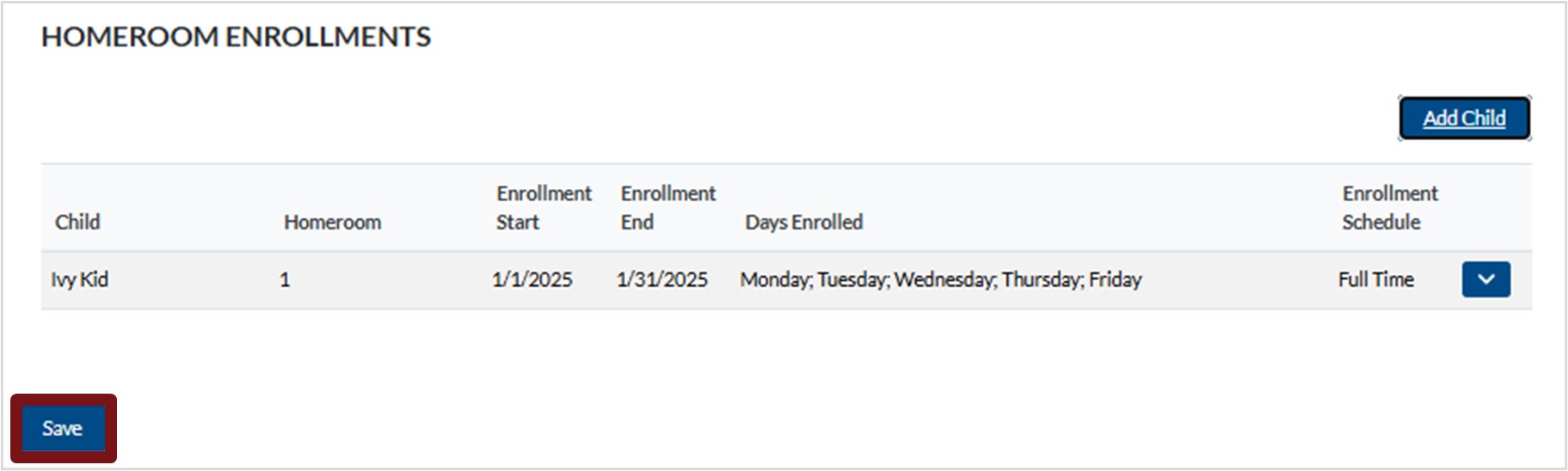
h. Repeat this process until all children are added to the homeroom(s).
2. Remove a child from the homeroom:
a. To remove a child from the homeroom, click the down arrow next to the applicable homeroom.
b. Scroll down the screen and click the down arrow next to the child you wish to remove and select Delete.
c. You will be asked if you are sure you want to delete the record, click Delete.
3. When complete, click Save.
4. To return to a previous section at any point click Previous, otherwise click Save and Next.
Enrollments
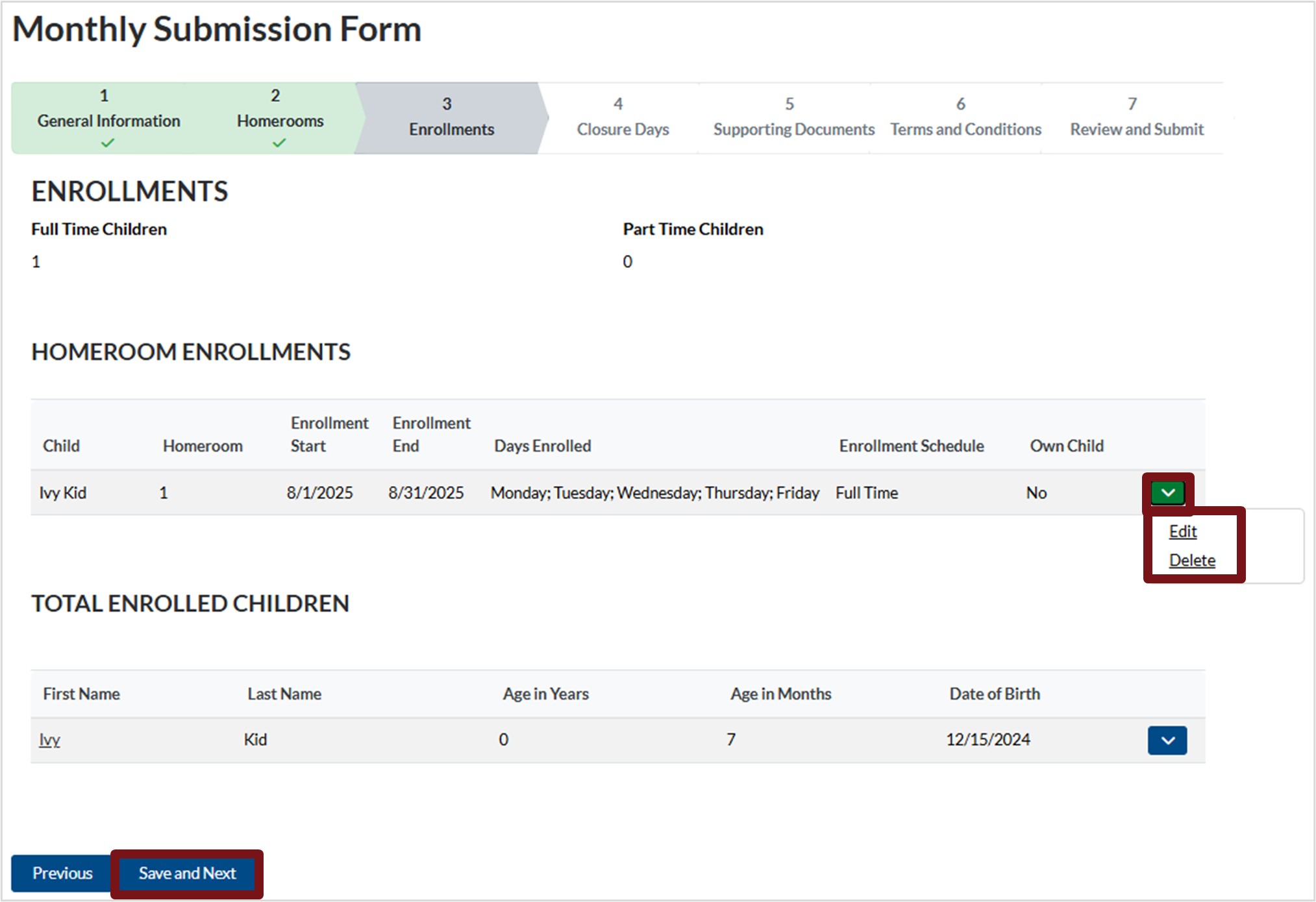
Please review the enrolled children to confirm the information is correct.
Part Time Children – This field will be automatically generated based on the information entered in the Homeroom section.
Homeroom Enrollments – This table will allow you to review the enrolled children entered in the Homeroom section.
If you need to edit or delete a child’s details:
1. Click the down arrow next to the applicable child under Homeroom Enrollments.
2. Select Edit or Delete.
a. If you are editing, click Submit after making the required changes.
Please note, if the Child’s Age Range has changed, please ensure it is updated.
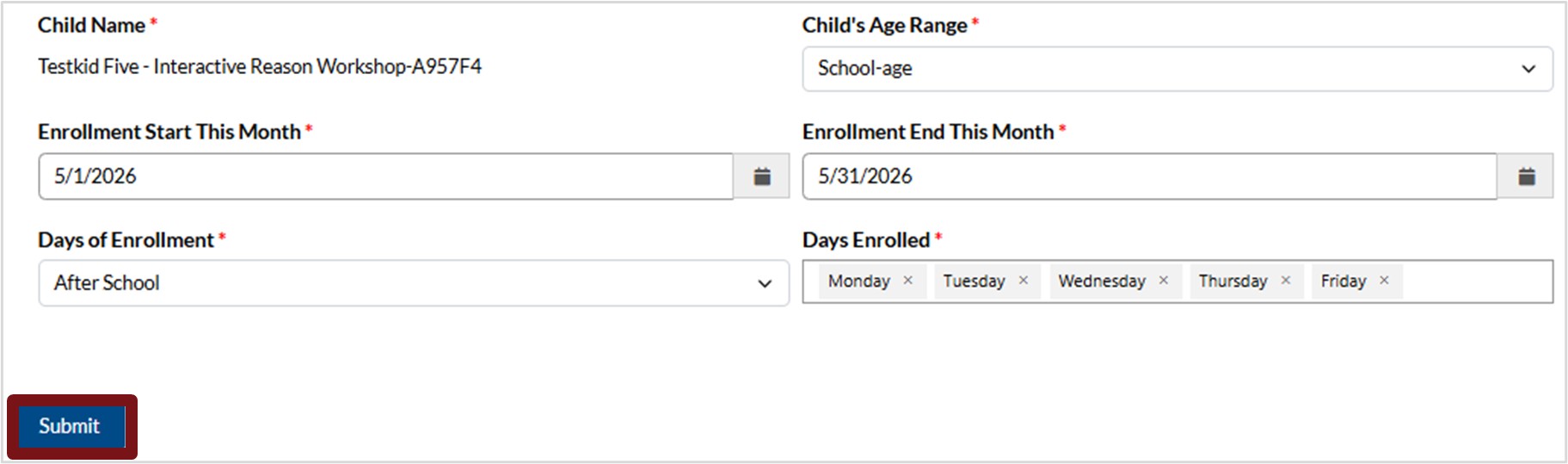
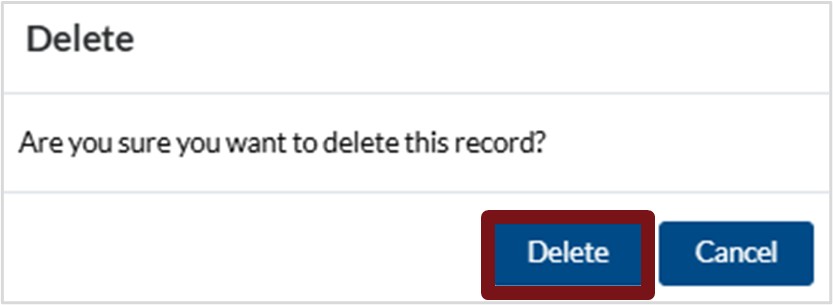
b. If deleting, click Delete when prompted.
3. Click Save and Next.
Total Enrollment Children – This table will allow you to view each child’s age to ensure that you are within ratio.
Closure Days
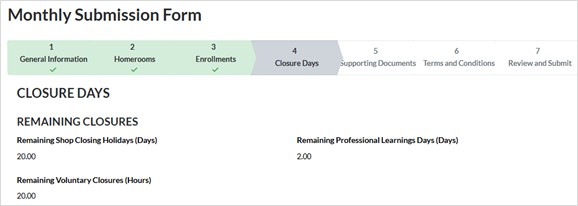
Remaining Closures – this will provide the balance remaining for:
- Remaining Shop Closing Holidays (Days)
- Remaining Voluntary Closure Days (Hours)
- Remaining Professional Learning Days (Days)
losure Days – to enter a new closure day, follow these steps:
a. Click New Closure Day.

b. Enter the Date by clicking the calendar icon and selecting from the calendar provided.
c. Click the down arrow under Type of Closure, then select the applicable type from the list provided.
i. Voluntary – Includes vacation days and other closures not included in Involuntary Closures. Parents/guardians are to be charged the daily child care rate.
ii. Involuntary – Including but not limited to sick leave (FCC providers, provider’s children and/or other family members if pertinent, medical appointments), bereavement, weather, unexpected housing issues (pipes break, power outage, water outage). Additional Involuntary Closures may be approved in exceptional circumstances.
iii. Shop Closing Holiday – Closures listed as per the Shop Closing Act.
iv. Professional Learning – Approved profession.
d. An additional field, Full/Half Day will populate when the type of closure is selected. Click the down arrow and select the applicable response from the list provided. If Voluntary is selected, a field titles Hours will also populate, type in the number of hours.
i. Voluntary – Full Day or Half Day will have to be selected that correspond to the closures. You will also have to enter the number of hours you were closed.
ii. Involuntary – Full Day or Half Day will have to be selected that correspond to the closures.
iii. Shop Closing Holiday – Full Day or Half Day will have to be selected that correspond to the closures.
iv. Professional Learning – Full Day or Half Day will have to be selected that correspond to the closures.
e. Enter a note that includes details for the closure.
f. Click Submit.
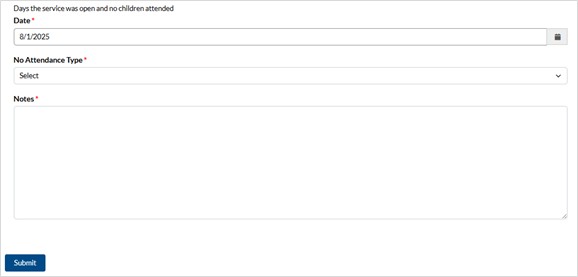
2. No Attendance Days – Days your service is open, but no children attended. To enter a new no attendance day, follow these steps:
a. Click New No Attendance Day.

b. Enter the Date by clicking the calendar icon and selecting from the calendar provided.
c. Click in the field under No Attendance Type, then select from the list provided.
d. Enter a note that includes details for the closure (i.e., why children did not attend).
e. Click Submit.
3. School Closure Days – to enter a new school closure day, follow these steps:
a. Click New School Closure Day.

b. Click the magnifying glass next to the Homeroom field.
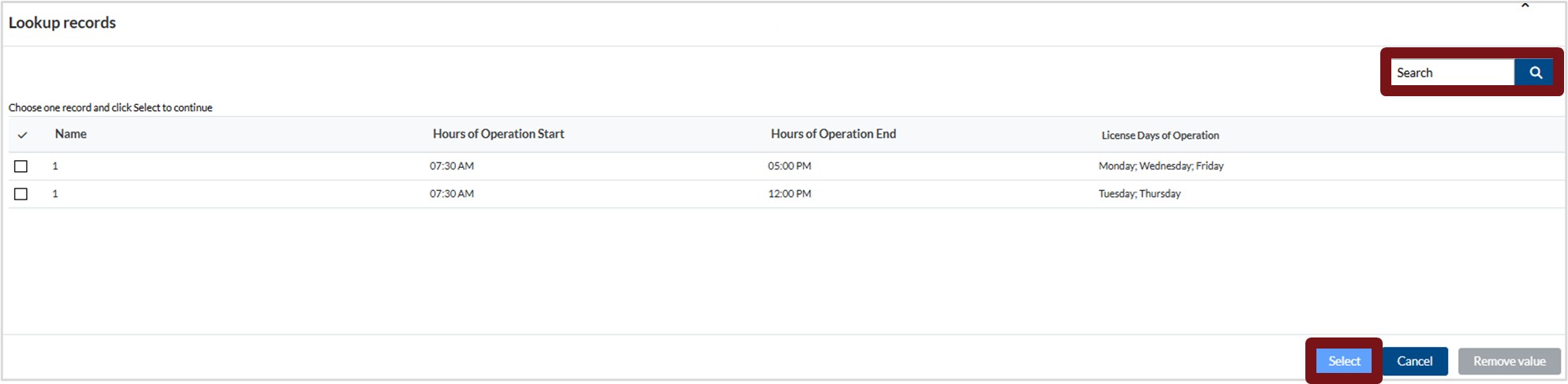
c. Search for the applicable homeroom by entering its name in the Search Then, select the check box next to the homeroom in the list. Alternatively, you can scroll through the list and select the check box next to the homeroom name.
d. Click Select.
-
- To make another selection if an incorrect homeroom was selected, click Remove value and select the appropriate homeroom.
- To cancel this action, click Cancel.
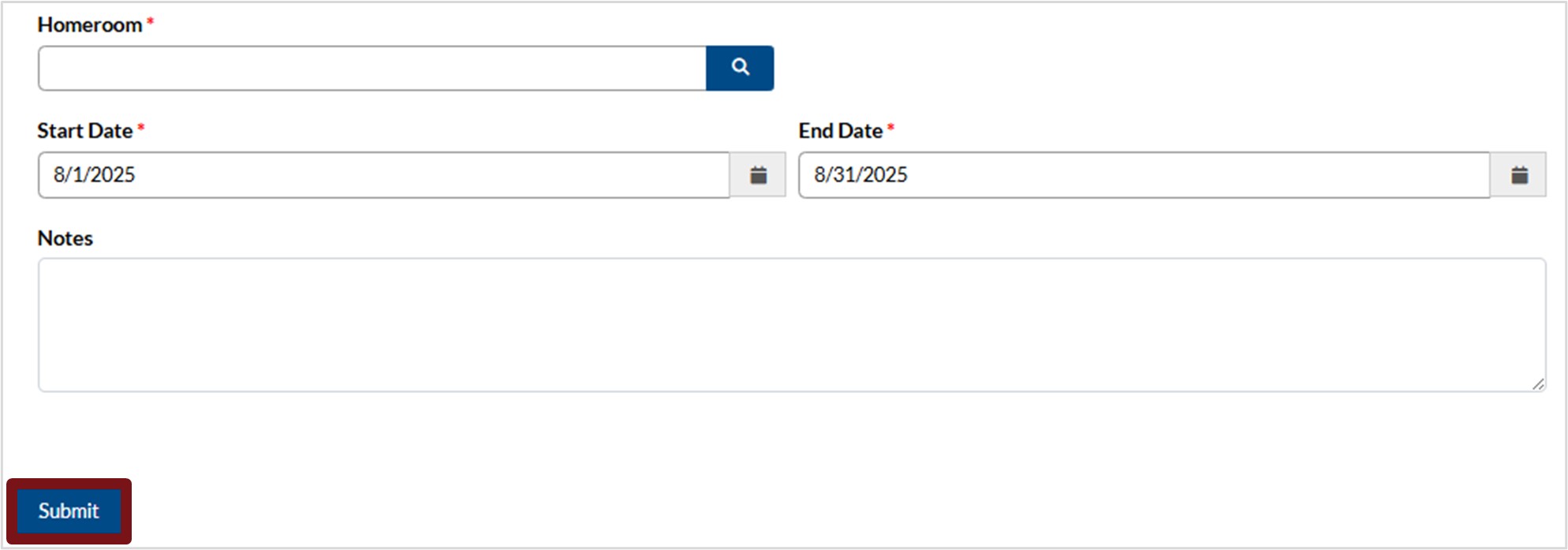
e. Enter the Start Date and End Date by clicking the calendar icon and selecting from the calendar provided.
f. Enter a note that includes details for the closure
g. Click Submit.
4. Click Save and Next.
Supporting Documents
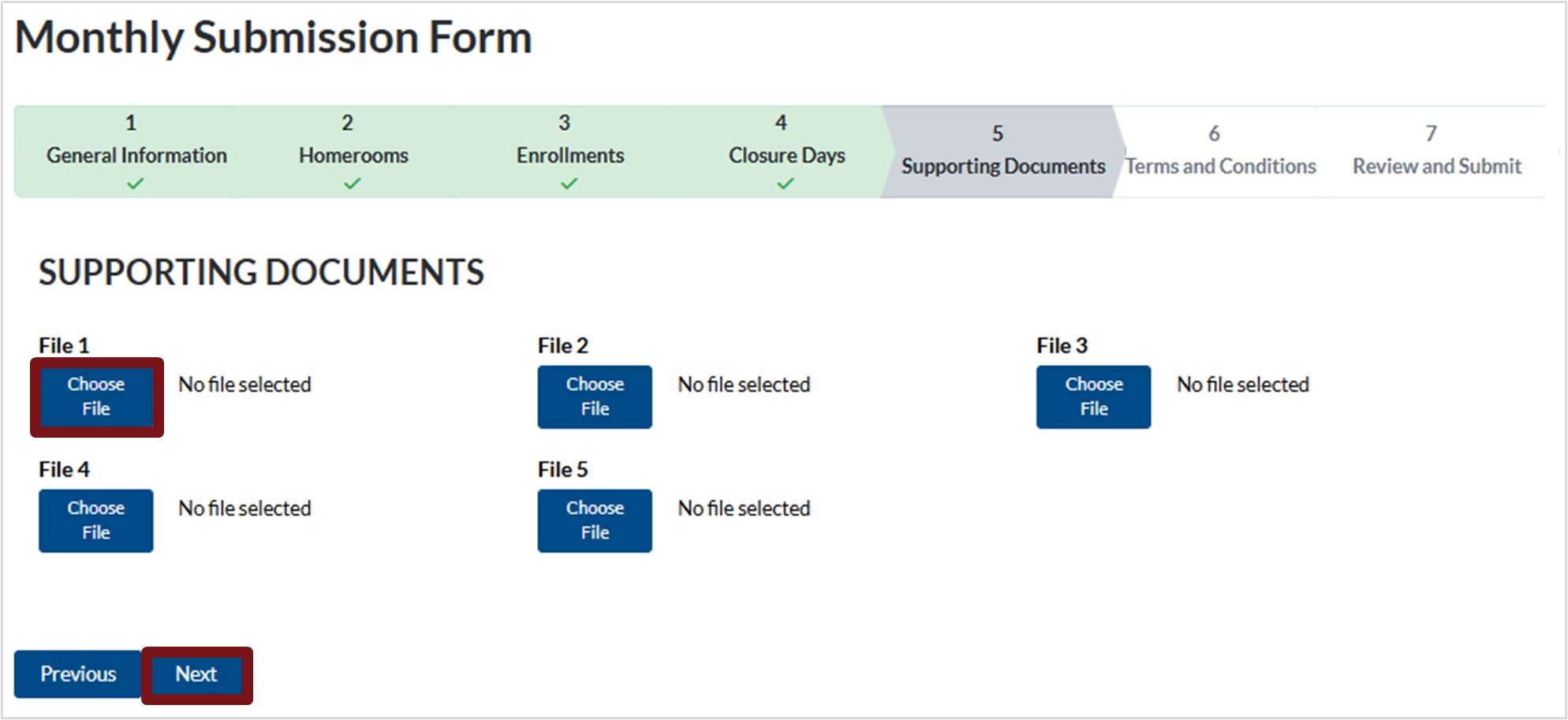
- To attach supporting documents that relate to this monthly submission, click Choose File under File 1 then select the applicable file from your device. Repeat if required under File 2, etc.
- The list of attachments includes, but are not limited to:
- Confirmation of Professional Learning
- Professional Learning Completion Certificate
- Daily Registration
- Approval of Extended Sick Leave
- Click Next.
Terms and Conditions
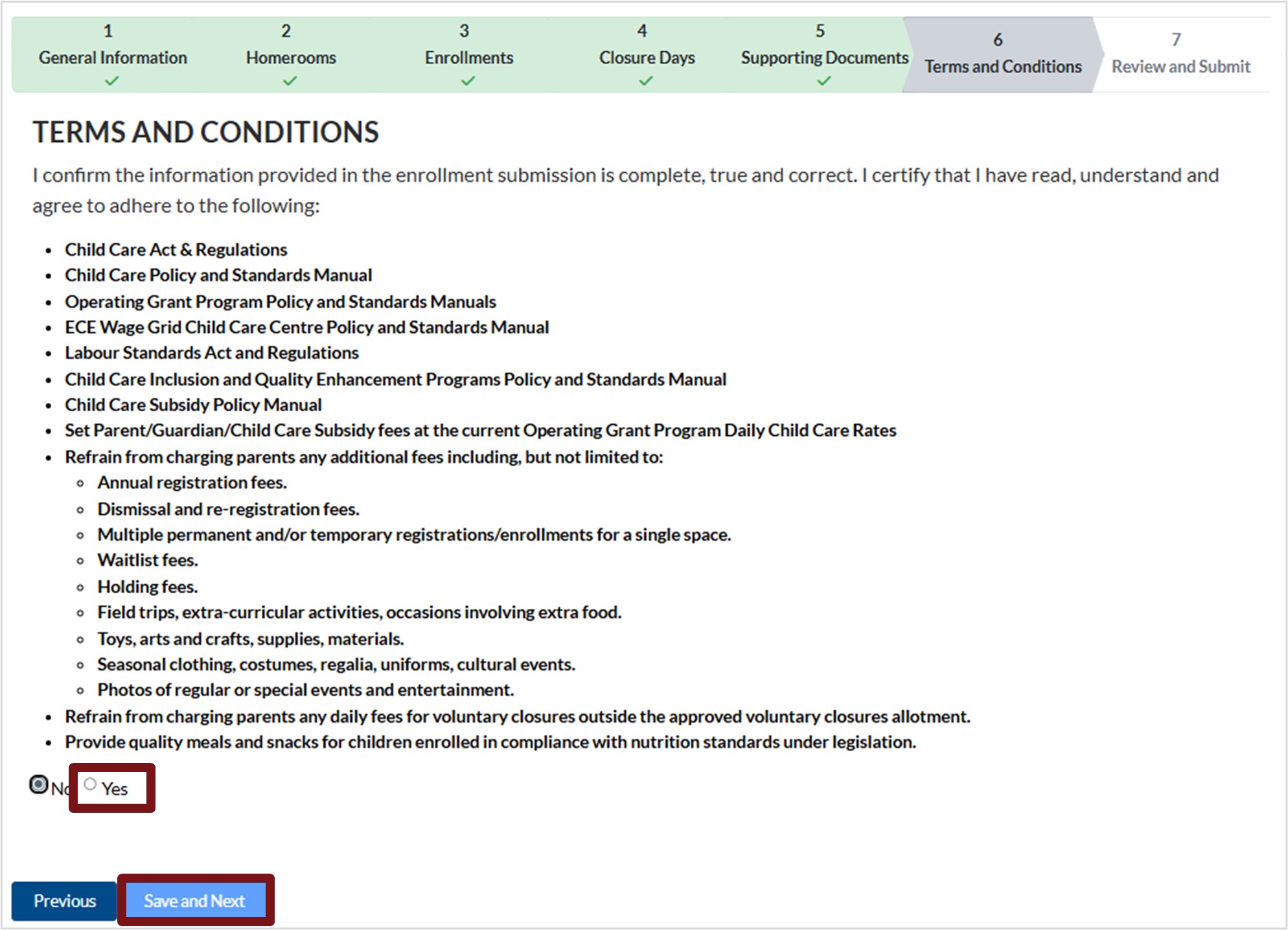
- Read the Terms and Conditions, then click Yes to accept.
- Please note, you will not be able to completion the submission unless you accept the Terms and Conditions.
- Click Save and Next.
Review and Submit
Review all the details that you entered for the Enrollment Submission to ensure it is correct.
1. To return to a particular section, click Previous until you reach the desired section.
2. When the review is complete and you are ready to submit, proceed through the sections then click Submit for Review.
3. Click Submit when prompted.
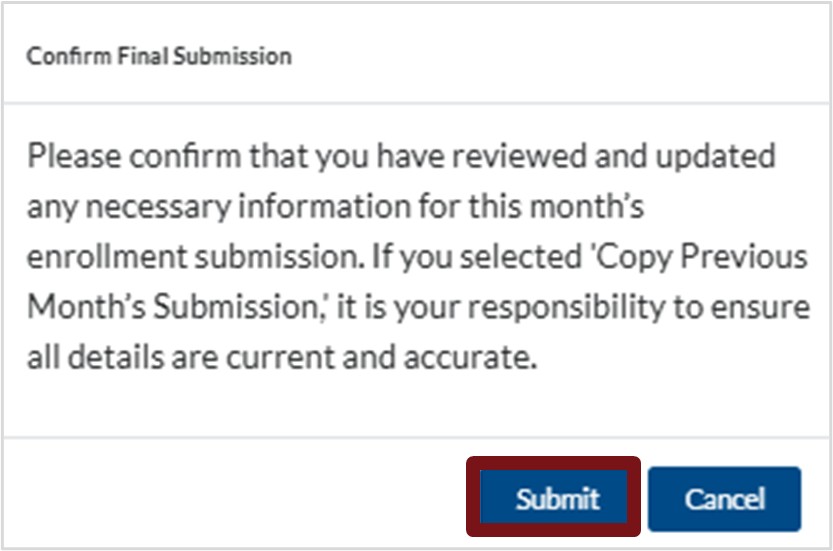
Please note, once a submission is sent for review, it can no longer be edited.
Reassigned Monthly Submissions
After the monthly enrollment has been submitted and it advances for review, it may be reassigned back to you for to make edits or attach documentation. This reassignment can be initiated by either the agency monitor or OGP staff.
You will receive an email notification indicating that the status of your submission has changed. If the status appears as Reassessment Required, you will need to make the required edits. Log into the ELG Service Portal to review and address any updates.
- Click Services at the top of your screen, then select Monthly Submissions.
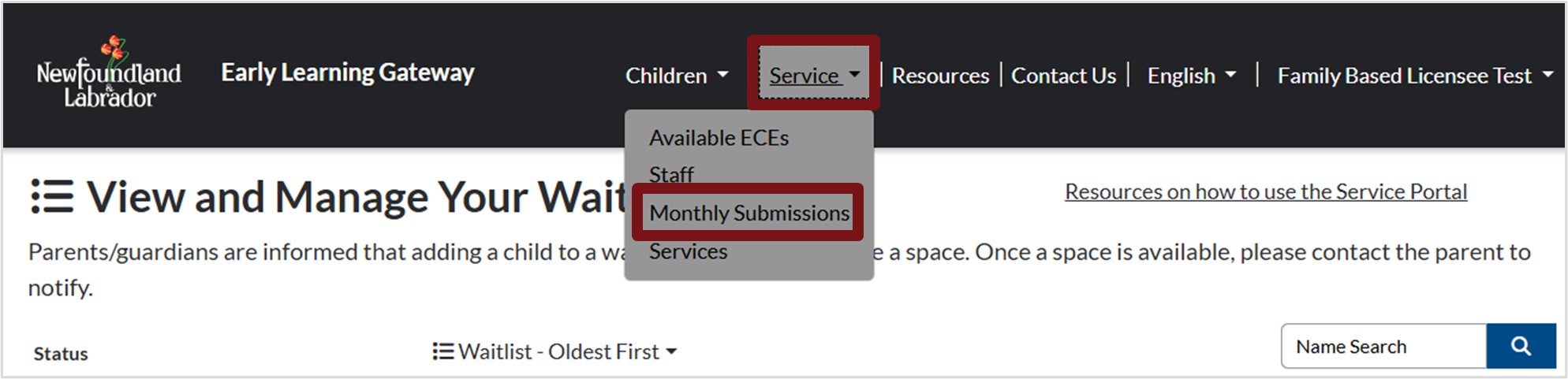
2. To view reassigned submissions:
a. Look under the Submission Status for Reassessment Required.
b. Click the down arrow next to the applicable submission, then select View Submission to view the reason the submission was reassigned.
i. Agency Monitors – Reassessment reason will appear under Agency Monitor Reason for Reassessment
ii. FCC OGP – Reassessment reason will appear under OGP Staff Reason for Reassessment
c. To make the required edits, click Edit Submission.
d. Click Previous until you reach the applicable section, then make the required edits/updates.
e. Click Submit for Review.
f. Click Yes.

Please note, once a submission is sent for review, it can no longer be edited.
3. To see if the submission was rejected:
a. Click the down arrow next to Submissions in Progress, then select Approved or Rejected Submissions.
b. Look under the Submission Status for Reassessment Rejected.
How to Change Your Password
To change your password, sign into the Early Learning Gateway Service Portal, click on your name in the top right corner, then select Profile. If using a mobile device, click the menu icon at the top right of the screen. Select your name, then click Profile. Select Change password.
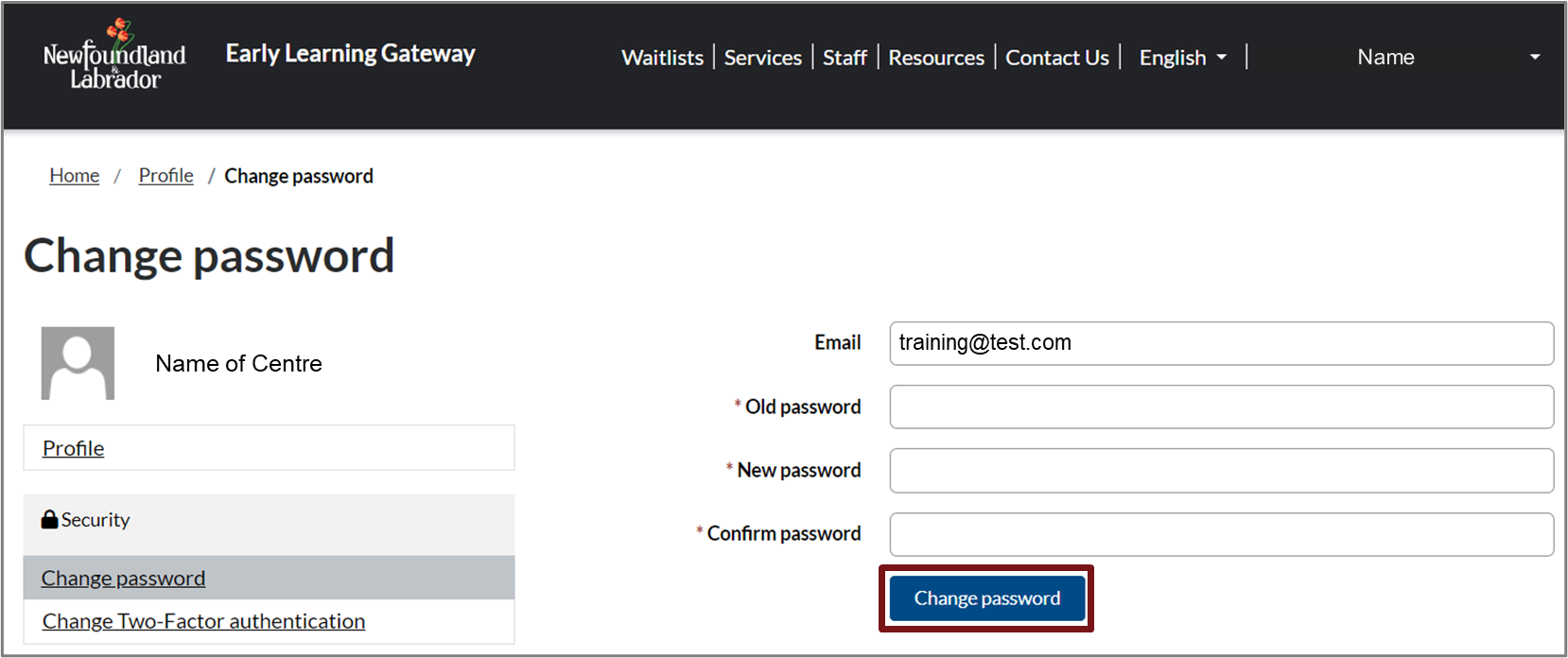
Complete the fields, then click Change password. Please note: Fields marked with an asterisk (*) are mandatory.
Resources
To view Frequently Asked Questions, Resource Guides, and our Service Portal Video, please click Resources at the top of the Service Portal. You will be re-directed to the Early Learning Gateway Resources page.

Contact Us
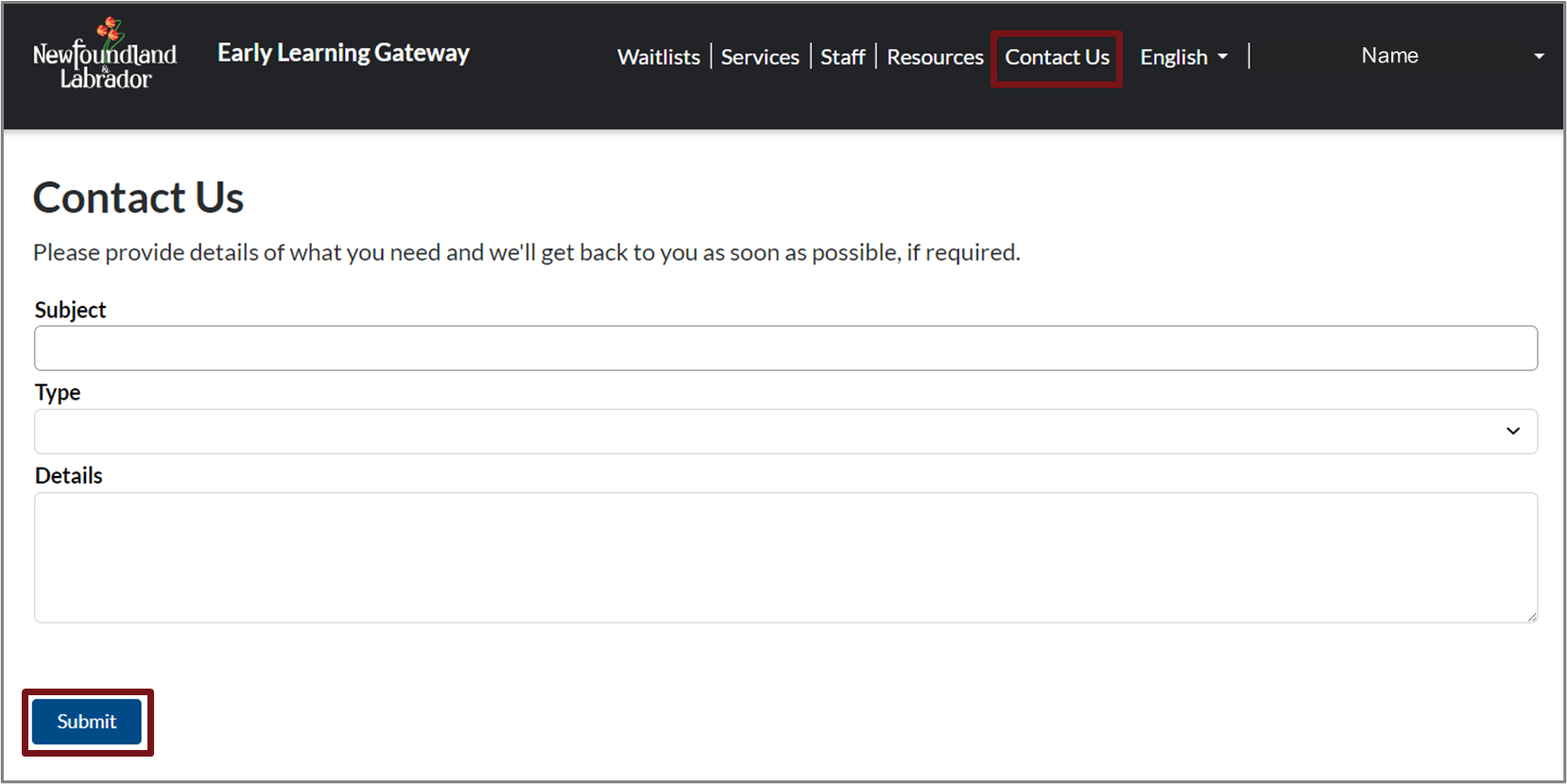
If you have a general inquiry or require technical support for the Early Learning Gateway, you can contact the Department of Education at elgateway@gov.nl.ca or use the Contact Us feature.
To can utilize the contact us feature, please select Contact Us at the top of the Service Portal. Complete the fields and click Submit.
Forgot Your Password
If you forget your password, please select Forget your password on the Early Learning Gateway Service Portal Sign in screen.
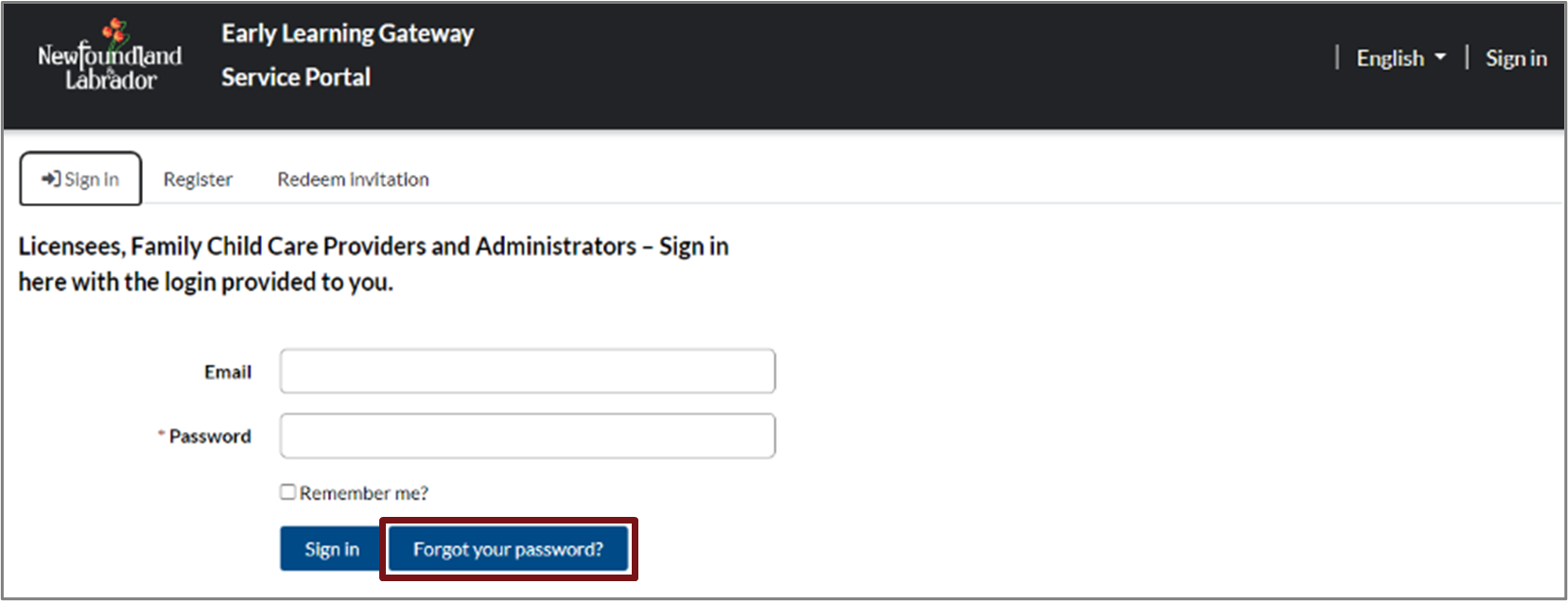
Enter your Email then click Send.

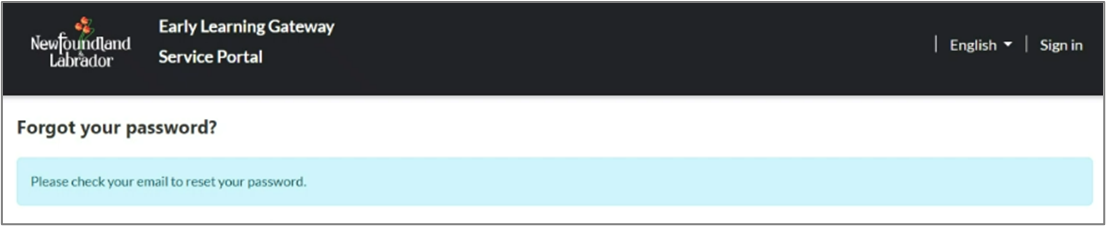
You will receive a notification prompting you to check your email to reset your password.
How to Sign Out of the Early Learning Gateway?
To sign out of the Early Learning Gateway Service Portal, click your name, then click Sign out.
