

This page is a list of frequently asked questions (FAQs) from employers involved in the Atlantic Immigration Program (AIP). In order to view the answer to the listed questions, click on the desired question and the answer will be displayed. In order to view the other categories of FAQs, please go to our General FAQ Page.
Glossary:
AIP: Atlantic Immigration Program
EOI: Expression of Interest
ITA: Invitation to Apply
OIM: Office of Immigration and Multiculturalism
IPDO: Immigration Program Development Officer
JVA: Job Vacancy Assessment
LMDO: Labour Market Development Officer
IRCC: Immigration, Refugees and Citizenship Canada
PR: Permanent Residence
1. How do I submit a request for AIP designation spaces?
To submit a request for AIP designation spaces, you must first create a profile on the Immigration Accelerator portal. Once you have created your profile, select the blue “Apply for Designation” button on the Designation tab to begin your application form online. After receiving “Designation Status” if you wish to submit a designation update request in order to receive additional designation spaces visit the “I Need To…” section.
Under this section, there is a bullet point that says, “Submit a designation update request.” Clicking on this bullet point will take you to the form that you must submit in order to update your designation spaces. 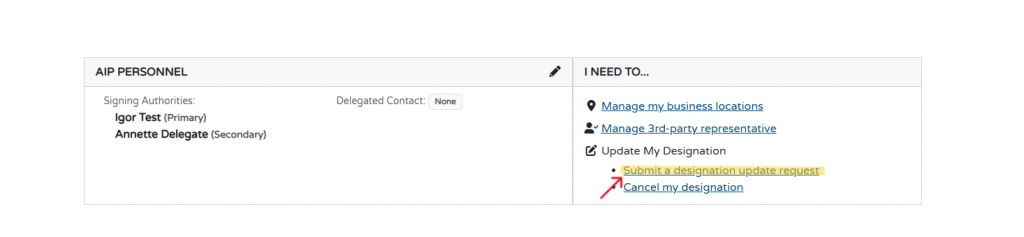
2. How long are my AIP designation spaces valid for?
Your AIP designation spaces are valid until December 31 of the year of issuance. After December 31st, an update request is needed for January of the following year. For more information of AIP Designation timeframes see: AIP Designation.
3. Who can I contact for technical support with the immigration portal/OIM website?
For technical assistance with the Immigration Accelerator Portal contact OIMDigitalSystems@gov.nl.ca
4. How do I reset my password on my Immigration Accelerator account?
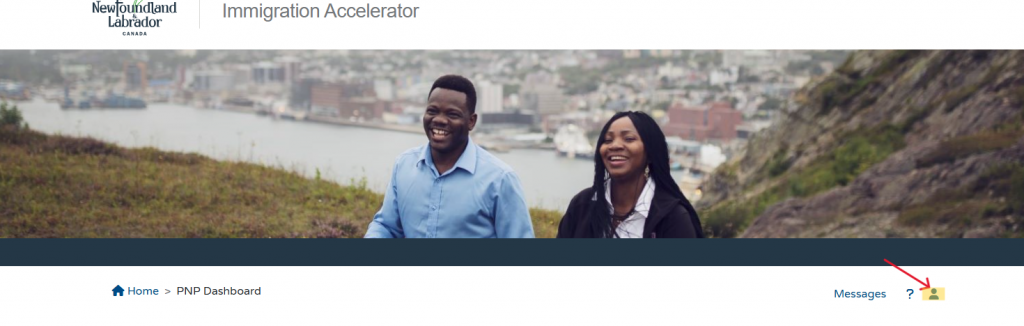
To update/reset your password, select the person icon to bring you to the “My Profile” section of the Homepage.
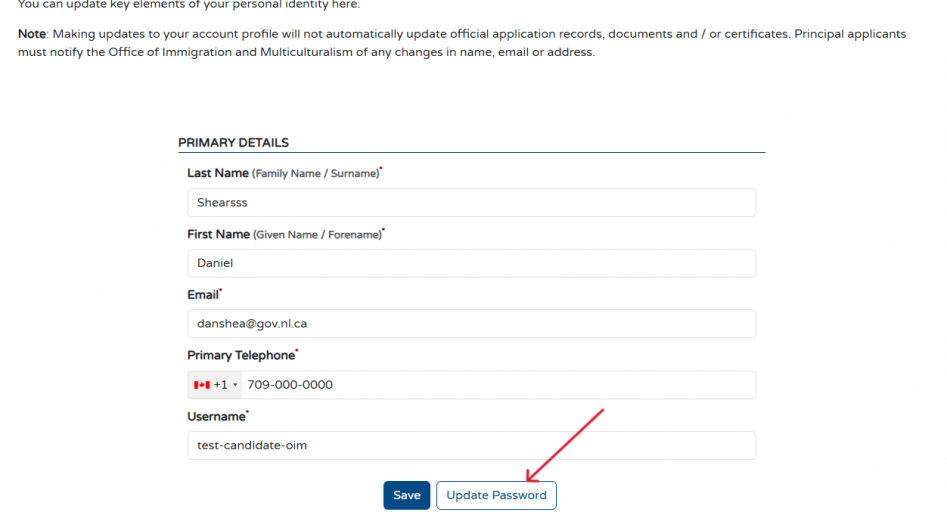
Once you open the “My Profile” section, you can click the “Update Password” button to reset your password.
5. Can I apply for a JVA and an AIP designation space for the same NOC?
No, you are not permitted to apply for a JVA and an AIP designation space for the same NOC. You must choose to apply for one or the other. Please note that after review by an LMDO, exceptions may apply but are not guaranteed.
For more information on JVAs see: Job Vacancy Assessments
For more information of employer designation see: Designation
6. How do I send an invite code to a prospective endorsee?
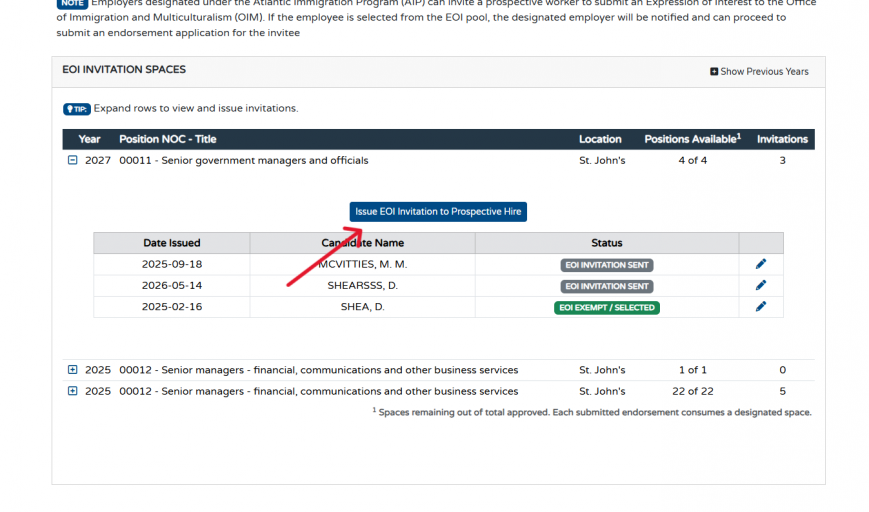
The EOI invitation spaces section allows employers to see what spaces they have available from their requested AIP designation to extend EOI invitations to employees or potential employees.
The Dashboard will indicate the number of positions available to hire workers through the AIP, as well as the number of EOI invitations that the employer has sent to employees or potential employees.
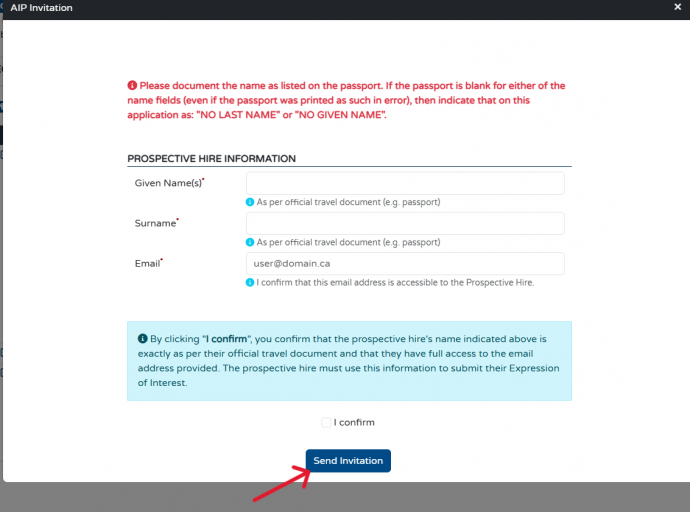
To issue an EOI invitation, employers can click on the small plus sign located next to the year of the approved position. When this icon is selected, it gives the option to “Issue EOI invitation to Prospective Hire.” This button then prompts the employer to enter the prospective hire’s given name, surname, and email to which the EOI invitation code is sent.
7. How do I withdraw an invite code sent to a prospective hire? AND am I still able to use this invite code for a new prospective hire?
The EOI invitation spaces section of the portal allows you to see what spaces your organization has available, from your AIP designation or JVA assessment, to extend EOI invitations to employees or potential employees.
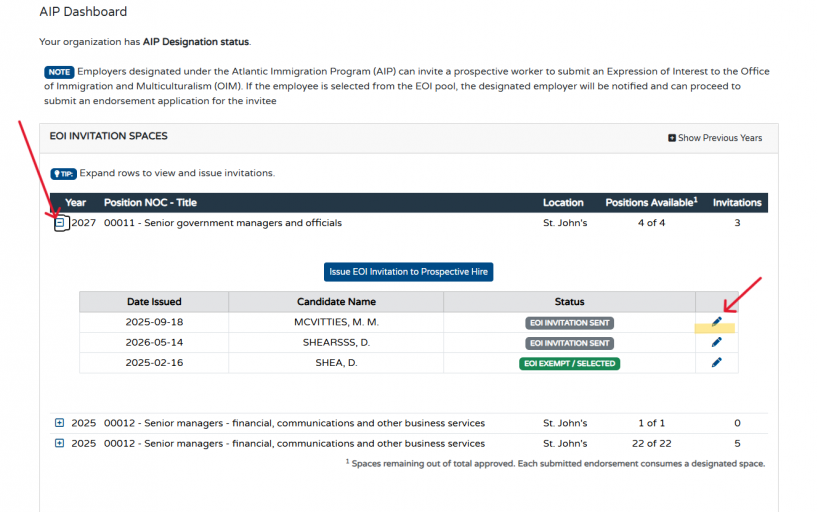
To withdraw an invitation, you can click on the small plus sign located next to the year of the approved position. This will allow you to view the EOI invitation codes that you have issued.
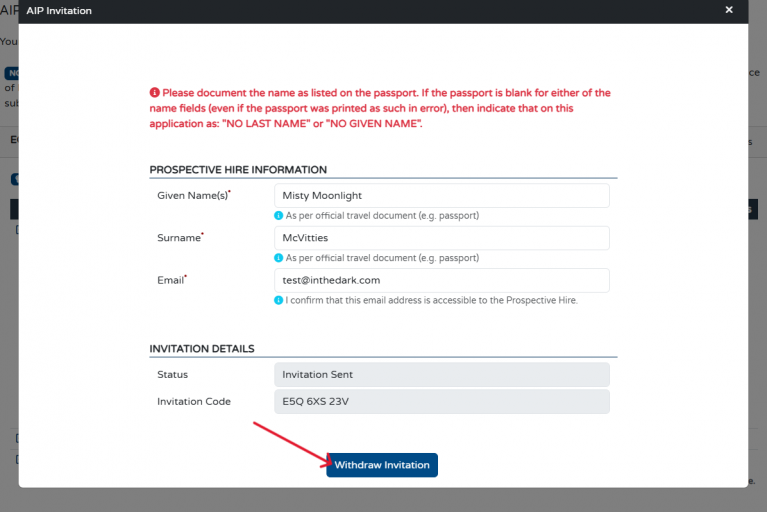
Next to the list of each EOI Invitation issued, is a pencil icon. This pencil icon allows employers to edit the name and email address of their prospective hire who has received the EOI invitation. It also gives the employer the option to “Withdraw Invitation”, thereby removing the invitation from their EOI.
If you choose to withdraw an invite code from a candidate, you are able to use the same invite code for another prospective hire, as long as you, the employer did not receive an ITA for the initial user of the code.
8. How do I check the EOI status of my employee/prospective hire?
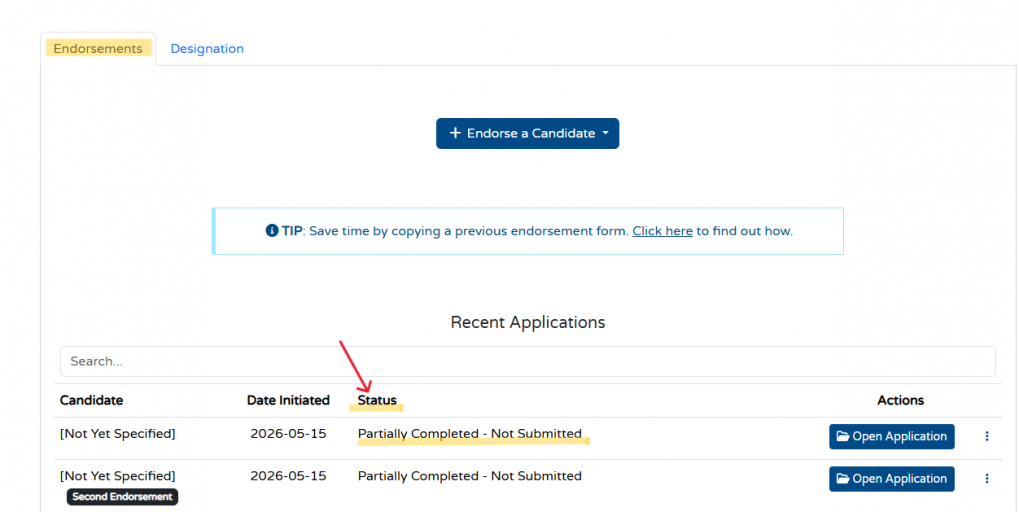
Under the “Endorsements” Section of the AIP dashboard, you can view the status of your employee’s application.
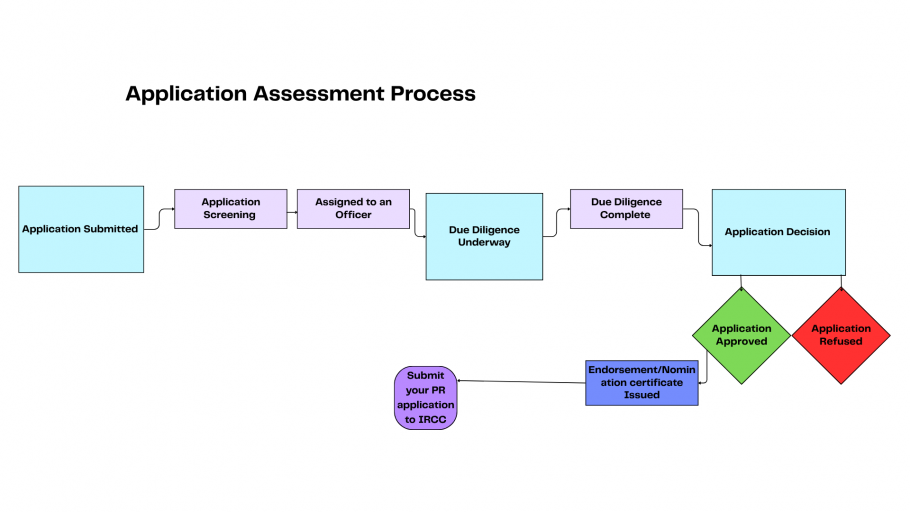
9. What does each application status on the Immigration Accelerator portal mean?
Submitted: Your application has been submitted via the Immigration Accelerator Portal.
Screening: Each application submitted to the Office of Immigration and Multiculturalism undergoes a screening stage to ensure the required documents are included in the application and the initial eligibility requirements are met.
Assigned to Officer: An Immigration Program Development Officer (IPDO) has been assigned to assess the eligibility of your application.
Updates requested, Return to Applicant: OIM has requested either the submission of a new document or changes to an existing part of the application.
Internal On Hold: Your application has been placed on hold.
Due Diligence Underway: The officer assigned to your application is reviewing all submitted documentation to ensure all the submitted forms were completed and information is correct and valid.
Due Diligence Complete: The officer assigned to your application has successfully reviewed all submitted documentation to ensure all forms were completed, and all information is valid.
Withdrawn: Applicant withdraws application before nomination.
Application Approved: Your application has been approved; this is the last status you will see before receiving your nomination certificate.
Refused: After review of an application, the applicant does not meet eligibility requirements, and/or has not complied with requests.
Rescinded/Cancelled: A provincial certificate has been issued but cancelled due to a change in circumstances.
Closed: The application has been closed; you no longer have an application in the Immigration Accelerator portal.
Expired: Application is not completed within 30 days* of the date the Invitation to apply is initiated.
A complete list of terms can be found in the Glossary.
10. How do I proceed in uploading requested documents for my employee/prospective hire if an error sign appears with my submission?
If upon submission of requested documents, an error message appears that prevents you from submitting your documents, first check to ensure that all required fields of each document have been completed. Then check to ensure you have selected the “Save” button to make sure all information has been captured. If an error message is still visible, check that all uploaded files do not surpass the maximum file size accepted on the portal and are in a standard format such as a PDF. If all forms are fully completed and an error message is still present, contact your IPDO directly, or email aip@gov.nl.ca and provide a detailed explanation of the problem within your message. This will help us to best assist you.
11. How long do I have to submit my employee’s full AIP application before their invitation to apply expires?
You have 30 days* to submit a full AIP application for your employee before their ITA becomes expired.
For more information on ITA timeframes see: ITA Overview
12. What are my next steps after my employee/prospective hire received their endorsement?
After you receive a valid endorsement certificate issued by the province for your employee, you must register in the Federal Employer Portal, submit the job offer and pay a compliance fee of $230. The endorsement certificate will also be sent along with a letter outlining the next steps required in your employee’s PR application.
13. How do I apply for a Work Permit Extension for my employee?
If your employee requires a Work Permit Extension while their permanent residency application is in progress, you as their employer are required to support them through this process. There is an employer requirement as a part of their work permit application called the “Federal Employer Portal.”
The full details of this process will be provided by an IPDO if your employee requires a Work Permit Extension. The first step of this process is for you, the employer, to contact your IPDO or aip@gov.nl.ca and request a work permit support letter. Once this is secured, you can apply for a Work Permit Extension for your employee.
A brief overview of your role in this process includes:
- Registering the company for the federal employment portal (if not already registered);
- Submitting an offer of employment for the employee;
- Pay the $230 employer compliance fee;
- After paying the fee, the portal will generate a code that you will then provide the employee to include on their work permit application.
The link to the IRCC Employer Portal can be found here: IRCC Employer Portal
* The application submission period has been temporarily reduced from 60 to 30 days to support timely application intake and processing within the current year
If you have additional questions regarding the Atlantic Immigration Program (AIP) please contact aip@gov.nl.ca.
Updated: September 25, 2026